This repository intends to make it very easy for a Niagara System Integrator to make its own theme without using IntelliJ or Eclipse, just answering a couple of questions on the console. The module is then built automatically and added to your modules. It also contains some enhancements on the classic Niagara theme with some widgets styling and a library of common images in several colors and sizes.
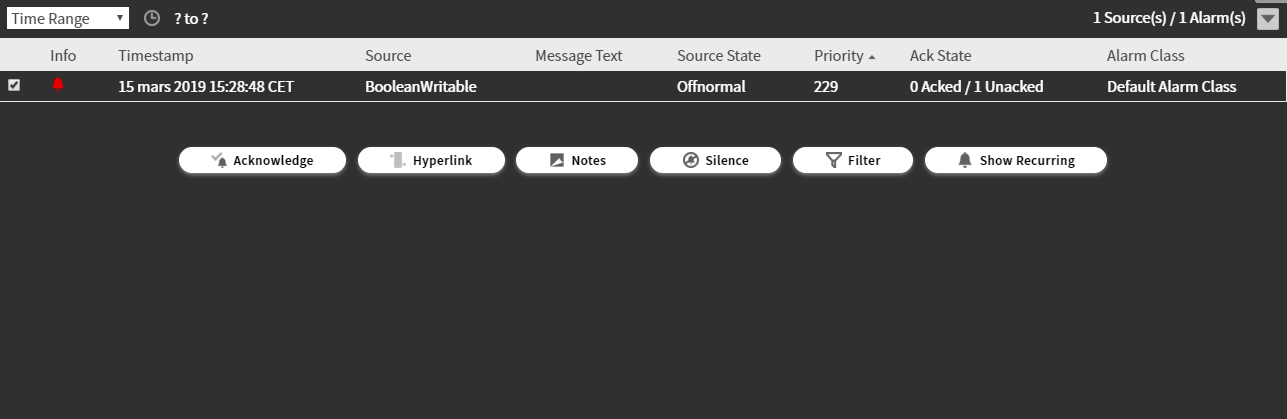
A dark Alarm Console
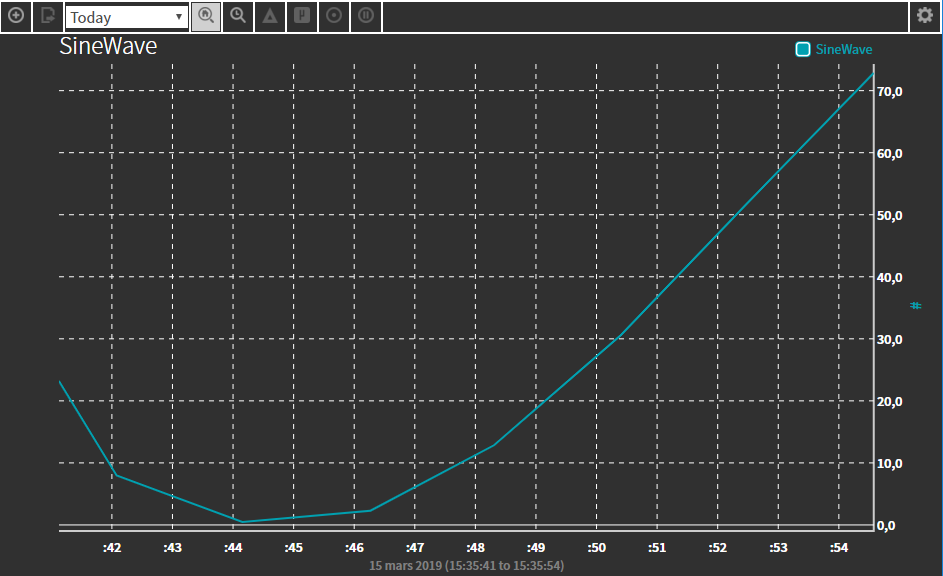
A dark Chart
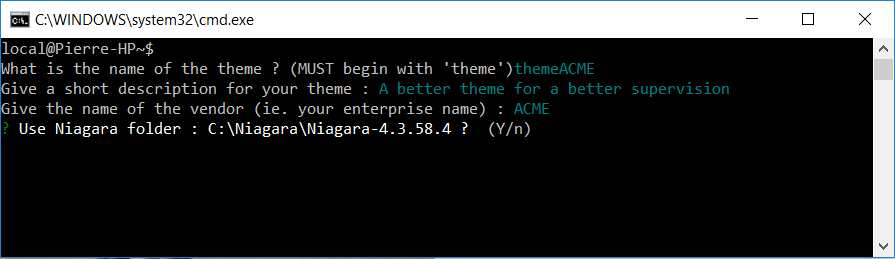
The CLI to build your theme in one minute
Before you can build your own theme, you need to install those dependencies on your computer
- Node JS ( Download )
- Niagara 4.2 or higher
If you're not famimiar with Git, you can download the module sources here
Otherwise launch this git command git clone https://github.com/BtibTeam/niagara-theme-dark-generator.git to retrieve the sources
Open the folder and launch the dependencies installation by double-cliking on setup.bat. This step might take a few minutes. You will be requested to give the admin rights to the system, please accept it.
-
Double-click on the file build.bat
-
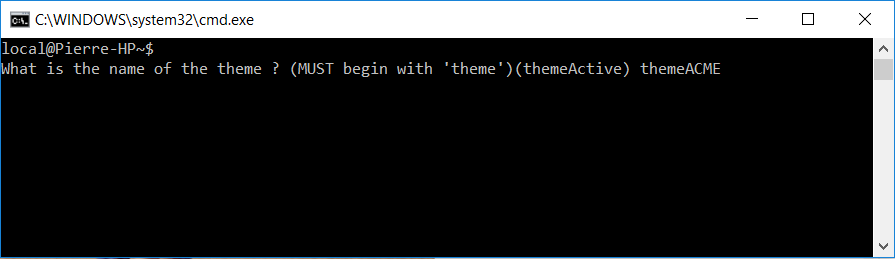
You will be requested by the name of the theme. Specify themeACME for example then press Enter.
-
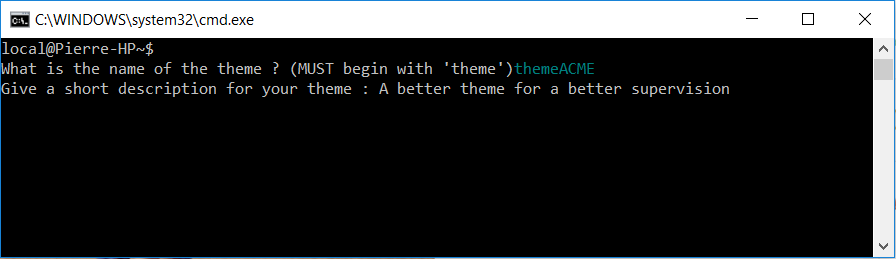
Specify a description for the theme then press Enter
-
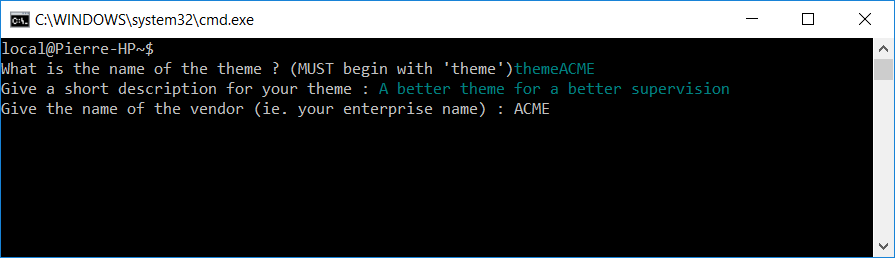
Specify the name of your company that will be used as the Vendor in Niagara, then press Enter
-
Specify your Niagara installation folder path. Example
C:\Niagara\Niagara-4.7.109.20. Then press Enter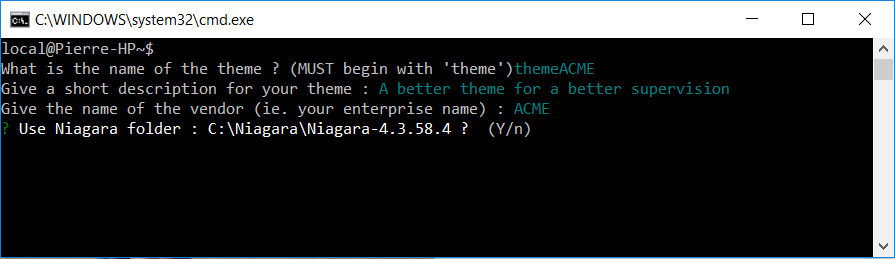
Now the system will build the module. It might take a few minutes.
If this first test succeeds, it means you properly configured your environment. You will find the module in your Niagara installation folder according to the name you gave.
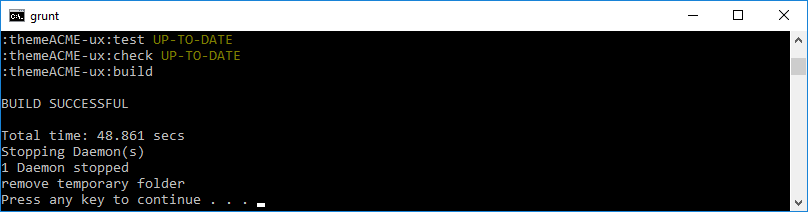
The tool stores the value you entered, so next time you just have to say yes, yes, yes :).
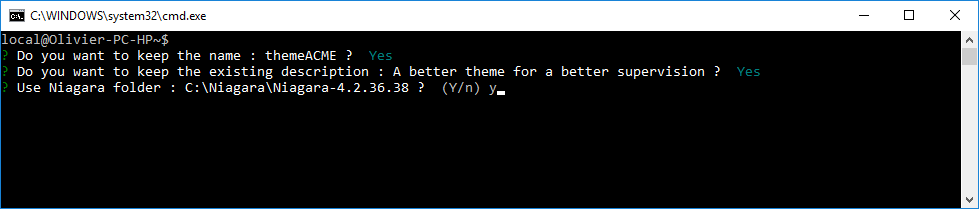
The theme can be selected at two different levels
- In the Workbench: Tools > Options > General > Active Theme
- On the Webbrowser for each user: Station > Config > Services > UerService > {myUser} > Default Web Profile > HxTheme
For the Workplace
Open the Tools options and select the Active Theme. (Don't forget to restart your Workbench after building the module and after selecting it in the list)

For the WebBrowser The theme of the WebBrowser is given by user
- Go to the User Service
- For each user Select the right theme

Now, you know how to build a theme with your name, you're gonna see how you can integrate your own ressources and personnalize Niagara style. You can personnalize Workbench icons, widgets styling both in the Worbench and in the Webbrowser.
All the modifications happen in the src folder.
To override Niagara default icons, we advise you to override images. To do that:
- Find the path of the image to override (like
module://icons/x16/add.png) - Access to the
src > imageOverridesfolder of your theme resources - Create a similar arborescence (without the prefix module://) like icon/x16
- Add your image inside
So, you should have something like:
src/ - imageOverrides/ - icons/ - x16/ - add.png
Every component and widget can be personalized on both the Workbench and the WebBrowser. You're going to need some knowledge on CSS, LESS, and NSS. NSS is a language created by Tridium to handle the styling in the Workbench. To get more information we advise you to give a look at this article (https://www.niagara-community.com/articles/Product_Guide/Workbench-Theming)[https://www.niagara-community.com/articles/Product_Guide/Workbench-Theming]
- To update the nss or the less, open a text editor (like Visual Studio Code) and change the style.
- We advise you to create independant files to avoid conflicts with CSS and LESS if you want automatic updates (see below)
The theme is regularly updated by the community. If you want to benefit from updates, you can use the power of git to do it. To avoid conflicts
- Use the imageOverrides folder to change images
- Use your own files for the CSS or LESS styling
- Change the nss
Dependencies If you're running Windows, you need to install git with Git BASH
Implementation
Open a command line (bash)
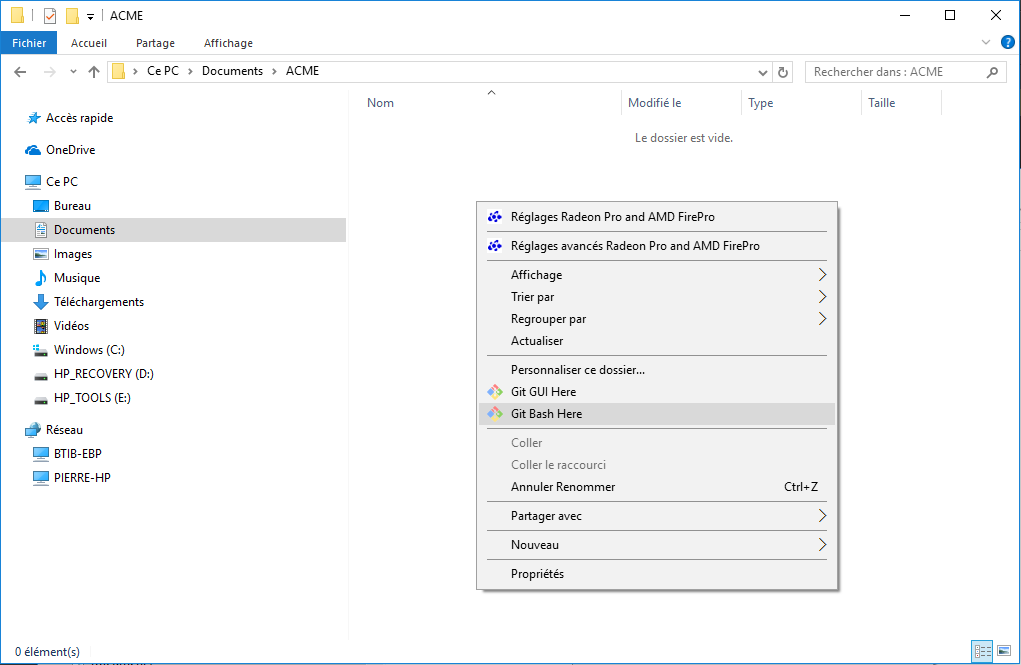
- Clone the theme with git (if you haven't done it yet)
git clone https://github.com/BtibTeam/niagara-theme-generator.git - Do your modifications
If you want to do it manually:
- Add you modifications to git with
git add . - Save your modifications with
git commit -m "Udpate ... - Pull updates from the server
git pull --rebase
If you want to do it automatically: Double click on update.bat. It will launch the previous procedure.
If you have conflicts, you will have to resolve them using standard git commands
#Contributing You're welcome to contribute to the project. We'll review you PR with attention.