The Callback is the central part which will react on every message from the display and forward the information to the right sub-routine. It should normally be triggered by some rule, have a look at the Installation information or the related rule details.
Also have a look the API for direct updates of the callback settings.

- The NSPanel Item which is used to control the panel with MQTT.
- The Brightness for the activated display (for instance after some touch event) as numerical value between 0 and 100.
- The Background Color of the panel.
- You can enable the usage of experimental sliders, if you are using some recent Lovelace UI firmware. Best leave un-checked.
The Callback will configure the screensaver after receiving the display startup message. The following settings are relevant for the screensaver:
- The Screensaver timeout in seconds - enter 0 here to disable the automatic display of the screensaver completely.
- The Brightness for the Screensaver as numerical value between 0 and 100.
- You can decide, if you like to use a more complex Screensaver, displaying more than 15 states, instead of the usual one, which gives you around 5 states on the display.
- You can enter a script name (the script ID, not the Label!), which is called whenever the screensaver is activated. This can be used to renew all the icons and status informations on the screensaver.
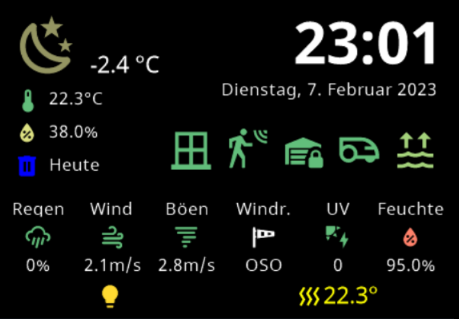
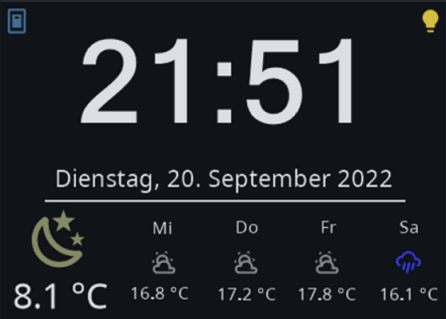
You might also like to display some initial card (page) after starting.
- Add the ID of some script configuring your Card. You might decide if this Card is shown every time you are leaving your screensaver (like a landing page for naviation) or if you like to reach the last Card shown instead.
- Run any statement you like. This statement will only be run once during initial startup.
All scripts (Pages, Cards) started via the CallBack will get not only the information about some last display action, but also always the NSPanel Item to work with as context information. This is done to enable the reuse of your scripts for multiple panels. Standard Cards require this information to run and will usually not work if the context is missing.
Openhab Blockly Nspanel - Library Documentation