
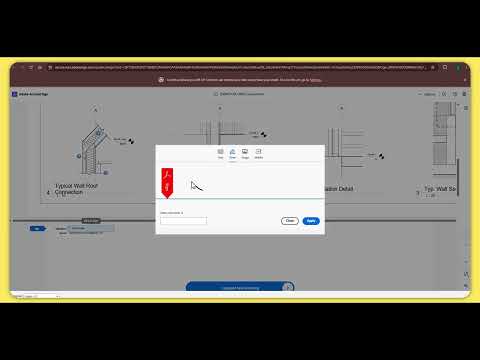
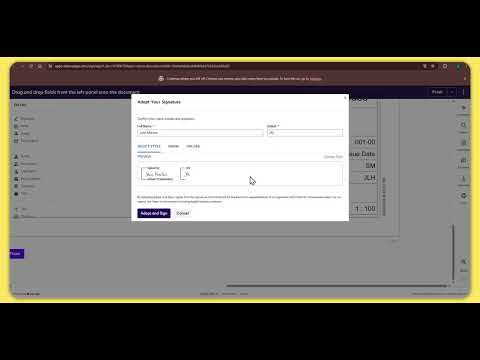
Sample to connect PDFs from Forma (Autodesk Construction Cloud) with e-sign solutions through APS APIs. It supports Adobe Acrobat Sign and Docusign, one per deployment (see Configuration).


| Adobe Acrobat Sign | Docusign |
|---|---|
 |
 |
- Signs you in with your Autodesk account and lets you browse hubs, projects and folders. This part is based on aps-hubs-browser-dotnet.
- Lists only DWG, RVT and PDF files.
- Shows only the 2D views of the selected version (sheets, 2D views and PDF pages). You pick the view from a dropdown.
- You choose the signer from a dropdown of the project's users (name and email).
- Send for signature sends a PDF to the e-sign service: an agreement in Acrobat Sign, or an envelope in Docusign.
- DWG and RVT: the PDF of the current 2D view, taken from its Model Derivative PDF derivative.
- PDF files: the whole file.
- Emails: the e-sign service emails the signer. The logged-in Autodesk user is added as a CC, so they get an email when it's sent and again with the signed PDF when it's complete.
- My submissions, below the tree, lists your submissions for the selected document with their current status. It survives leaving the app, because the list comes from the e-sign service (see How submissions are tracked).
- When it's signed (
SIGNEDin Adobe,completedin Docusign), you get the signed PDF, with its audit report or certificate, in one of two ways:- Download saves it to your computer.
- Save to Forma uploads it as a new file in the same folder as the source document.
Adobe:    ACC item/version → 2D view PDF (Model Derivative) → POST /transientDocuments → POST /agreements
          → signer signs (email) → GET /agreements?externalId=… (SIGNED) → GET /agreements/{id}/combinedDocument → new item in ACC folder
Docusign: ACC item/version → 2D view PDF (Model Derivative) → POST /envelopes
          → signer signs (email) → GET /envelopes?custom_field=… (completed) → GET /envelopes/{id}/documents/combined → new item in ACC folder
The app uses two separate OAuth logins: Autodesk (APS) and the e-sign service. Documents are sent as the connected e-sign user.
- Signers don't need an e-sign account. They sign from the email link.
- Adobe: senders need their own Acrobat Sign account with API access: Developer Edition for testing, or an enterprise plan for production. See the Acrobat Sign API FAQ. With a CUSTOMER app (as set up below), only users of the Adobe account that owns the app can connect. For users from other Adobe accounts, use a certified PARTNER app. See Create an Application Quickstart.
- Docusign: senders need their own Docusign eSignature account: a free developer account for testing, a paid plan for production. Before production, the integration key must pass Docusign's go-live review. See Authorization Code Grant.
The app keeps no database. Each submission is tagged with {autodeskUserId}:{itemId}: in the agreement's externalId field (Adobe) or in a hidden envelope custom field apsTag (Docusign). When you select a document, the app asks the e-sign service for the submissions with your tag.
This has some consequences:
- Per document: you see only your own submissions for that document, including those sent from other versions or views of it.
- Same e-sign account: only submissions sent from the connected e-sign account are listed. If you connect a different account, earlier submissions won't appear.
- Docusign, last year only: the Docusign list covers envelopes from the last 12 months.
- Ownership check: Download and Save to Forma check the tag first, so you can only get your own signed PDFs.
- Saving twice: the app doesn't remember that a signed PDF was already saved. Saving again creates another file, since each saved name gets a timestamp.
- Status meaning: the provider's own status is shown. Adobe reports it from the connected user's point of view, e.g.
WAITING_FOR_MY_SIGNATUREmeans you are the signer.
The PDF of each 2D view is the pdf-page child of the view's node in the Model Derivative manifest. The app downloads it with Fetch Derivative Download URL, as described in Download your Revit 2D views as PDFs.
These derivatives only exist in some cases:
- Revit: files from Revit 2022 or newer.
- DWG: files translated with the
"2dviews": "pdf"advanced option. See Advanced option for RVT/DWG 2D views.
If the current view has no PDF derivative, the app shows an error.
Alternative, not implemented: the ACC Export PDF API can burn ACC markups into the PDFs. It is not used here because:
- It is asynchronous and needs polling.
- It exports every view of the file as a ZIP, so the current view has to be matched by name.
It would be a natural extension if markups need to be part of the signed document.
- .NET 10 SDK
- APS app: create one on APS with the callback URL
https://localhost:8080/api/auth/callback, and provision it in your ACC account. - Project users: the signer dropdown uses the ACC Admin project users API, and it may require project admin rights. If the list can't be loaded, the app shows an email text box instead.
- Trusted HTTPS certificate: the e-sign services require an HTTPS redirect URI, so the app runs on
https://localhost:8080. Trust the .NET development certificate once withdotnet dev-certs https --trust. - An account and API application for the e-sign service you use (below).
- Account: an Acrobat Sign Developer Edition account. The output is watermarked and not legally binding.
- API application: in Acrobat Sign, go to Account → Acrobat Sign API → API Applications and create an app (domain: CUSTOMER). Then open Configure OAuth for Application:
- Redirect URI:
https://localhost:8080/api/esign/callback - Enable
agreement_read,agreement_writeandagreement_send, each with theselfmodifier. The modifier dropdown defaults toaccount, which would give access to every user's agreements, so change it toself. Leave all other scopes unchecked. - Note your account's region (shard) from the Acrobat Sign address bar, e.g.
secure.na3.adobesign.commeansna3. You need it forADOBE_SIGN_SHARDbelow.
- Redirect URI:
- Account: a free Docusign developer account. Envelopes sent from it are not legally binding.
- Integration key: in the developer account, go to Settings → Apps and Keys → Add App and Integration Key. Then:
- Under Authentication, choose Authorization Code Grant and add a secret key. Copy it right away; it's shown only once.
- Redirect URI:
https://localhost:8080/api/esign/callback
- The app requests the
signaturescope. Each user consents to it on their first login.
Create appsettings.Development.json in the project root. It is ignored by git.
{
  "APS_CLIENT_ID": "<client-id>",
  "APS_CLIENT_SECRET": "<client-secret>",
  "APS_CALLBACK_URL": "https://localhost:8080/api/auth/callback",
  "ESIGN_PROVIDER": "adobe",
  "ESIGN_CALLBACK_URL": "https://localhost:8080/api/esign/callback",
  "ADOBE_SIGN_CLIENT_ID": "<application-id>",
  "ADOBE_SIGN_CLIENT_SECRET": "<client-secret>",
  "ADOBE_SIGN_SHARD": "na1",
  "DOCUSIGN_CLIENT_ID": "<integration-key>",
  "DOCUSIGN_CLIENT_SECRET": "<secret-key>",
  "DOCUSIGN_AUTH_SERVER": "account-d.docusign.com"
}ESIGN_PROVIDERisadobe(default) ordocusign. Only the settings of the chosen provider are required.- The Adobe application ID and client secret are on the application's page under API Applications.
ADOBE_SIGN_SHARDis your Acrobat Sign account's region, used for the OAuth login page. It appears in the address bar when you are logged in to Acrobat Sign, e.g.https://secure.na3.adobesign.com/...meansna3. It defaults tona1. With the wrong region, Adobe shows "client configuration is invalid: invalid_request".DOCUSIGN_AUTH_SERVERisaccount-d.docusign.com(default) for developer accounts, andaccount.docusign.comfor production.- After login, the app uses the API URL returned by the e-sign service for every call.
You can also set these values as environment variables.
dotnet runOpen https://localhost:8080, log in, then:
- Click Connect Adobe Sign or Connect Docusign and sign in to your e-sign account. You only need to do this once; the app refreshes the token.
- Pick a version of a DWG, RVT or PDF file, and choose a 2D view.
- Choose the signer from the dropdown and click Send for signature.
- Follow the progress in My submissions. It refreshes while a submission is still in progress (every minute with Adobe, every 15 minutes with Docusign), and you can leave and come back later.
- When the status is
SIGNED(Adobe) orcompleted(Docusign), click Download or Save to Forma.
| Symptom | Cause and fix |
|---|---|
The page doesn't load at http://localhost:8080 |
The app only serves HTTPS. Open https://localhost:8080. The browser may autocomplete the old http:// address. |
| Browser certificate warning, or the startup log says "developer certificate is not trusted" | Run dotnet dev-certs https --trust, accept the Windows prompt, and restart the browser. |
| Adobe shows "Unable to authorize access because the client configuration is invalid: invalid_request" | ADOBE_SIGN_SHARD doesn't match your account's region. The generic secure.adobesign.com login page doesn't redirect to regional accounts. Set the shard shown in your Acrobat Sign address bar, e.g. na3. If the region is right, check that the redirect URI in Configure OAuth for Application is exactly https://localhost:8080/api/esign/callback. |
| Adobe login fails with a scope error | agreement_read, agreement_write or agreement_send isn't enabled in Configure OAuth for Application, or its modifier isn't self. |
401 INVALID_ACCESS_TOKEN from Acrobat Sign |
The access token isn't valid. The app sends a token from the OAuth login, never the client secret directly. Click Connect Adobe Sign again. |
| Autodesk login fails with a redirect URI error | The callback registered on your APS app must be https://localhost:8080/api/auth/callback, the same as APS_CALLBACK_URL. |
The signer never receives the email (status stays OUT_FOR_SIGNATURE or OUT_FOR_FORM_FILLING) |
If the signer email is your own Acrobat Sign login, Adobe doesn't email you. Sign it in Acrobat Sign under "Action required" or Manage → In progress. Otherwise, check the signer's spam folder. |
Console shows 429 THROTTLING_TOO_FREQUENT_POLLING |
Acrobat Sign limits repeated status requests (3 identical calls per 3 minutes on developer accounts). The app polls every 60 seconds and waits for retryAfter, so an occasional 429 is harmless. |
| The signer dropdown is replaced by an email text box | The project users couldn't be loaded. The browser console shows why. A 403 usually means you aren't allowed to list project members (try a project admin). A 401 or 403 right after upgrading means your token lacks account:read: log out and in again. |
| My submissions is empty after sending | The service may take a few seconds to index a new submission. The list refreshes within a minute (Adobe) or 15 minutes (Docusign); reload the page to check sooner. Submissions sent from another e-sign account aren't listed. |
| Docusign login shows "The redirect URI is not registered properly" | The redirect URI on the integration key must be exactly https://localhost:8080/api/esign/callback, the same as ESIGN_CALLBACK_URL. |
Docusign token request fails with invalid_grant or invalid_client |
Check that the integration key uses Authorization Code Grant, that DOCUSIGN_CLIENT_SECRET is its secret key, and that DOCUSIGN_AUTH_SERVER matches the account (developer or production). |
| "This view has no PDF derivative" | See Where the 2D view PDFs come from: RVT must be 2022 or newer, and DWG must be translated with the "2dviews": "pdf" option. |
| Build fails with "file is locked by aps-forma-pdf-esign" | An earlier copy of the app is still running. Stop it and build again. |
- Tokens: the app requests
data:read data:write data:create viewables:read account:read.- The write scopes are only used to upload the signed PDF.
account:readis used to list the project users.- After upgrading from an earlier version of the sample, log out and in again to get the new scope. Like the hubs browser sample, APS and Acrobat Sign tokens are kept in cookies. That is fine for a sample, but not for production.
- Status: status updates use polling. Docusign allows polling the same URL at most once every 15 minutes, so its status can lag. For production, use webhooks (Acrobat Sign
AGREEMENT_WORKFLOW_COMPLETED, or Docusign Connect) and do the write-back on the server. - Signature fields: if the PDF has none, Adobe appends a signature page, and Docusign lets the signer place the fields (free-form signing).
This sample is licensed under the terms of the MIT License.