Send feedbacks on X: @adidshaft
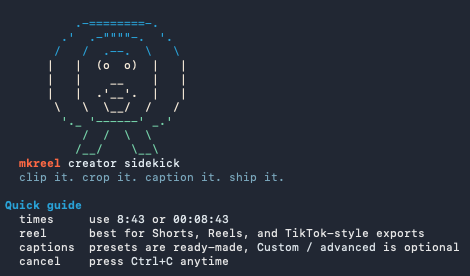
Creator-grade CLI for clipping YouTube moments into polished vertical reels with optional burned captions.




clip it
crop it
caption it
ship it
mkreel takes a YouTube URL, lets you choose a segment, optionally turns it into a 1080x1920 reel, retimes English subtitles in native TypeScript, burns them into the video, and exports a ready-to-post MP4.
If you have codex or claude installed, mkreel can also act like a smart creator sidecar:
mkreel <url> --smartsuggests a clip, mode, and caption preset before the normal guided flowmkreel suggest <url>scans the transcript for three strong clip ideasmkreel package <file.mp4>generates a creator-friendly publish pack
Core rendering, validation, file handling, subtitle retiming, and final ffmpeg work all stay inside mkreel. AI only suggests safe values that mkreel validates before use.
- Guided interactive flow with smart defaults
- Fully scriptable flags when you want automation
- Optional AI sidecar for clip ideas and publish packs
- First-run dependency bootstrapping for
ffmpeg,ffprobe, andyt-dlp - Ready-made caption presets for Shorts, Reels, and TikTok-style exports
- Clean subtitle retiming, clamping, overlap cleanup, and renumbering
- Blur-fill vertical reel layout with centered foreground video
- Predictable output naming and debug-friendly temp workspace handling
Requires Node.js >=20.10.
npm install -g mkreelOr run it without a global install:
npx mkreel --helpmkreel https://www.youtube.com/watch?v=YOUR_VIDEO_IDOptional AI-assisted entry point:
mkreel https://www.youtube.com/watch?v=YOUR_VIDEO_ID --smartIf you prefer npx:
npx mkreel https://www.youtube.com/watch?v=YOUR_VIDEO_IDStandalone AI helper commands:
mkreel suggest https://www.youtube.com/watch?v=YOUR_VIDEO_ID
mkreel package clip.mp4The interactive flow is intentionally compact:
- Validate the URL
- Ask for clip start
- Ask for clip end
- Ask for output mode
- Ask whether to burn subtitles
- Ask for a caption preset if subtitles are enabled
- Show a concise execution summary
- Run the pipeline
- Print the final file path
| You want | Use |
|---|---|
| A vertical export for social apps | --mode reel |
| The original aspect ratio | --mode original |
| Burned captions | --subs burn |
| No captions | --subs skip |
| Human-friendly times | 8:43, 08:43, or 00:08:43 |
| A dry preview first | --dry-run |
| Temp files kept for inspection | --keep-temp |
| Deep failure details | --debug |
| AI-assisted defaults before the guided flow | --smart |
mkreel "https://youtu.be/dQw4w9WgXcQ" \
  --start 8:43 \
  --end 11:38 \
  --mode reel \
  --subs burn \
  --subtitle-position bottom \
  --subtitle-size large \
  --subtitle-style creator \
  --output final.mp4
AI-assisted guided run:
mkreel "https://youtu.be/dQw4w9WgXcQ" --smartTranscript-driven clip ideas:
mkreel suggest "https://youtu.be/dQw4w9WgXcQ" --ai autoCreator publish pack for a finished clip:
mkreel package "./my-finished-clip.mp4" \
  --ai codex \
  --context "Founder interview clip about consistency and audience growth"
JSON output for automation:
mkreel suggest "<url>" --json
mkreel package "./my-finished-clip.mp4" --jsonUse --non-interactive when mkreel runs from a script, CI job, or other environment where prompts should fail fast instead of waiting for input. Provide every required clipping flag up front: --start, --end, --mode, and --subs.
mkreel "https://youtu.be/dQw4w9WgXcQ" \
  --non-interactive \
  --start 8:43 \
  --end 11:38 \
  --mode reel \
  --subs skip \
  --output ./dist/reel.mp4
Validate the resolved plan before rendering by adding --dry-run:
mkreel "https://youtu.be/dQw4w9WgXcQ" \
  --non-interactive \
  --start 8:43 \
  --end 11:38 \
  --mode reel \
  --subs skip \
  --dry-run
The AI helper commands also support machine-readable output for automation:
mkreel suggest "https://youtu.be/dQw4w9WgXcQ" --json
mkreel package "./dist/reel.mp4" --json
When sharing CI logs or bug reports, redact private video URLs, local file paths, and any workspace-specific output paths first.
mkreel <url> --smart keeps the normal guided experience, but first tries to:
- fetch video metadata
- read English subtitle text with timestamps
- ask the selected AI provider for:
- a suggested clip range
reelvsoriginal- a supported caption preset
- a short reason
If the suggestion looks good, you can accept it. If not, mkreel continues with the regular manual prompts and uses the suggestion as a starting point.
If AI is unavailable, invalid, or times out, mkreel quietly falls back with a message like:
Smart suggestions weren't available, so mkreel will continue with the regular flow.
mkreel suggest <url> returns three transcript-grounded clip ideas with:
startendlabelreasonconfidencecaptionPresetmode
Human mode prints a creator-friendly list. --json prints structured JSON only.
mkreel package <file.mp4> generates a publish pack for a finished clip:
- 5 short title ideas
- 3 thumbnail text ideas
- 1 social caption
- 5 to 10 hashtags
- 2 to 3 short hook lines
If there is matching sidecar text near the file, mkreel uses it. You can also add extra context with --context.
If you just want to preview the resolved plan without downloading or exporting:
mkreel "https://youtu.be/dQw4w9WgXcQ" \
  --start 8:43 \
  --end 11:38 \
  --mode reel \
  --subs burn \
--dry-runInteractive caption presets are designed so you usually do not need manual tuning.
| Preset | Best for | Feel |
|---|---|---|
| Bottom creator | General reels and talking-head clips | Strong default, creator-style |
| Bottom compact | Longer spoken clips | Smaller, denser captions |
| Lower third clean | Busy lower UI areas | Safer above overlays |
| Center punch | Dramatic or emphatic clips | Large, loud, punchy |
| Top safe clean | Lower frame covered by UI | Moves captions away from the bottom |
| Custom / advanced | Fine-grained control | Manual ASS tuning |
Long captions are wrapped automatically, and mkreel can reduce caption size slightly when needed to keep text inside the frame.
| Flag | Meaning |
|---|---|
--start <time> |
Clip start time |
--end <time> |
Clip end time |
--mode <mode> |
reel or original |
--subs <mode> |
burn or skip |
--smart |
Ask AI for a suggested clip, mode, and caption preset |
--ai <provider> |
auto, codex, or claude for AI-assisted workflows |
--subtitle-position <position> |
bottom, lower-third, center, top, or custom |
--subtitle-size <size> |
compact, balanced, large, xl, or custom |
--subtitle-style <style> |
creator, clean, soft, or custom |
--output <file> |
Output file path |
--open |
Open the exported file after completion |
--keep-temp |
Keep the job workspace after success |
--dry-run |
Print the resolved plan without running the pipeline |
--debug |
Print deeper failure detail and preserve temp files on errors |
--non-interactive |
Disable prompts and require all key flags |
Advanced caption tuning flags
| Flag | Meaning |
|---|---|
--subtitle-alignment <n> |
Custom ASS alignment 1-9 |
--subtitle-margin-v <px> |
Custom vertical margin |
--subtitle-margin-l <px> |
Custom left margin |
--subtitle-margin-r <px> |
Custom right margin |
--subtitle-font-size <n> |
Custom subtitle font size |
--subtitle-outline <n> |
Custom outline thickness |
--subtitle-shadow <n> |
Custom shadow strength |
--subtitle-bold |
Force bold captions |
mkreel checks for working system binaries first. If they are missing, it provisions managed versions of:
ffmpegffprobeyt-dlp
Managed tools are cached for reuse. On macOS, that typically lands under:
~/Library/Caches/mkreel/bin/
This setup is quiet by default and only shows raw details when --debug is enabled.
AI is optional. The direct clipping/rendering path does not require codex or claude.
When you use --smart, suggest, or package, mkreel checks available providers in this order:
codexclaude
For a provider to be considered ready, mkreel verifies that:
- the CLI is installed
- its non-interactive structured-output mode is available
- the user is signed in
If --ai auto is used, mkreel picks the first ready provider. If a provider fails during the request, mkreel can fall through to the next available provider in auto mode.
All AI responses are parsed as JSON, validated with zod, normalized, and checked again against mkreel's supported values. AI cannot inject raw ffmpeg flags, shell fragments, or arbitrary rendering directives.
When --mode reel is selected, mkreel exports a 1080x1920 MP4 with:
- blurred background fill
- centered foreground video
- preserved audio
The default vertical layout is based on:
[0:v]split=2[bgsrc][fgsrc];
[bgsrc]scale=1080:1920:force_original_aspect_ratio=increase,crop=1080:1920,boxblur=20:10[bg];
[fgsrc]scale=1080:-2:force_original_aspect_ratio=decrease[fg];
[bg][fg]overlay=(W-w)/2:(H-h)/2
If subtitles are enabled, mkreel:
- Detects English manual captions first
- Falls back to automatic English captions when available
- Downloads subtitles as SRT
- Shifts timestamps backward so the selected clip starts at
00:00:00 - Clamps negative times safely
- Removes cue overlap so captions stay readable
- Drops invalid cues
- Renumbers cues from
1 - Burns subtitles into the final export with a styled ASS track
Default styling includes white text, black outline, bold creator captions by default, and preset-specific outline tuning.
Generated filenames are deterministic and based on:
- video title
- clip start
- clip end
- output mode
- subtitle status
Example:
video-title-08m43s-11m38s-reel-subbed.mp4
If the path already exists, mkreel automatically adds a numeric suffix.
Run with:
mkreel <url> --debugInteractive runs offer to continue without subtitles.
For non-interactive runs:
--subs skipmkreel validates the range before running the pipeline and exits with a clear message.
On failures, mkreel preserves the temp workspace path so you can inspect:
- downloaded media
- subtitle files
- intermediate outputs
npm install
npm run verify
Individual checks are also available:
npm run typecheck
npm test
npm run build
npm run dev -- --helpnpm run dev -- "https://www.youtube.com/watch?v=YOUR_VIDEO_ID"Or build and run the compiled CLI:
npm run build
node dist/cli.js --helpContributions are welcome. Start with CONTRIBUTING.md for setup, review expectations, and issue guidance.
Before opening a pull request, run:
npm run verifyPlease use the GitHub issue templates for bugs, feature requests, questions, and good first issues. Security reports should follow SECURITY.md.