Per-image optimization controls for the Strapi 5 Media Library upload flow.


Strapi's Media Library uploads images as-is unless you add custom server logic. There is no built-in way to choose different optimization settings per file at upload time.
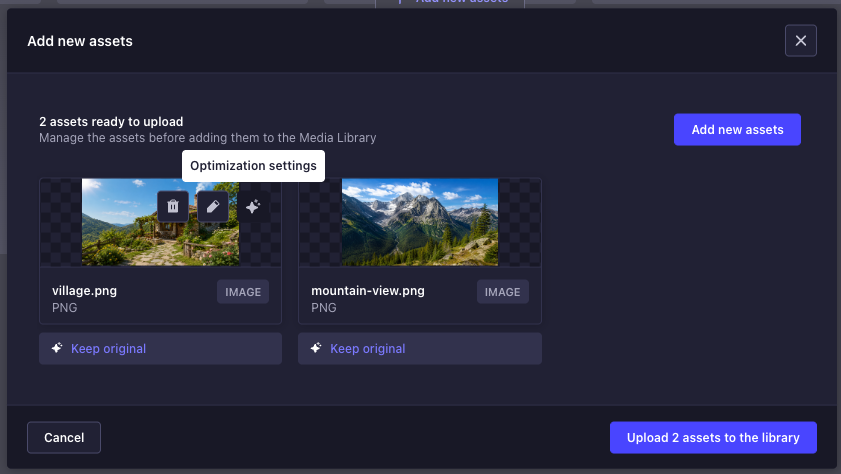
Image Optimizer adds a sparkle button to each pending upload card in the Media Library. Before you upload, you can choose to keep the file unchanged, apply your global profile, or configure format, quality, and dimensions for that specific image.
Each pending asset shows the current optimization choice and a sparkle button to open per-file settings.
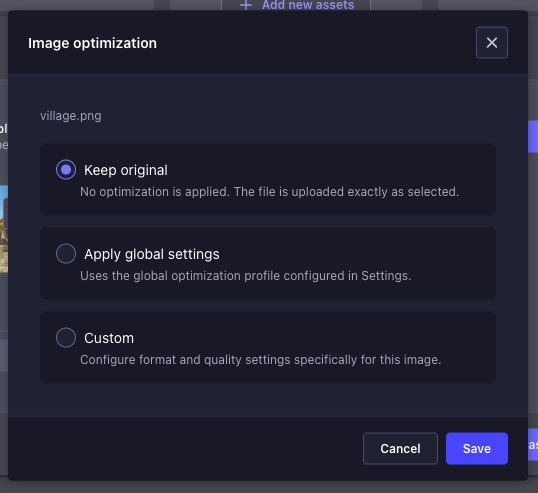
Pick Keep original, Apply global settings, or Custom for the selected image.
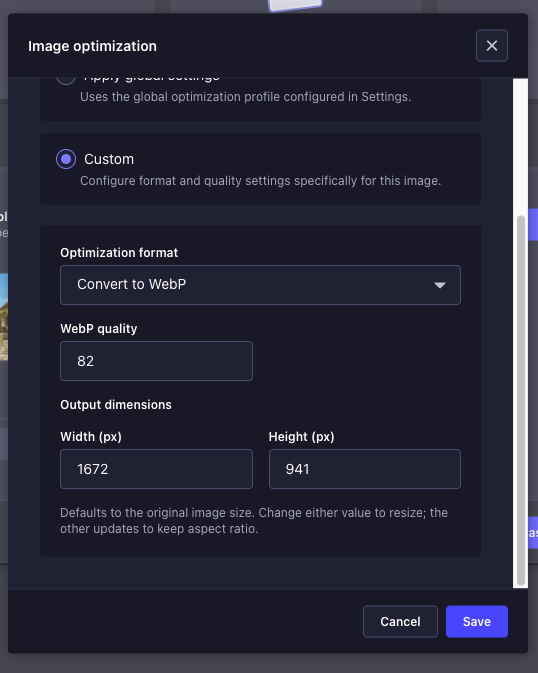
In Custom mode, configure format, quality, and output dimensions with aspect-ratio preservation.
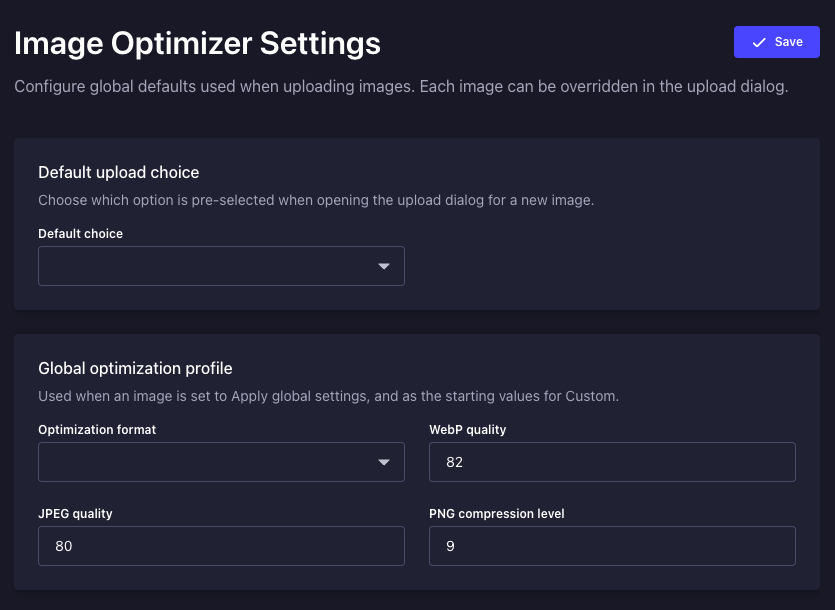
Configure default upload choice and the global optimization profile under Settings → Global → Image Optimizer.
- Three upload modes — Keep original, Apply global settings, or Custom per file
- Two optimization formats — Convert to WebP, or Compress while keeping the original format
- Per-format quality controls — WebP quality, JPEG quality, and PNG compression level
- Custom resize — Set output width and height with automatic aspect-ratio preservation
- Global settings page — Configure defaults under Settings → Global → Image Optimizer
- Admin i18n — English and Turkish translations included
- Role-based access — Separate permissions for reading and updating global settings
flowchart LR
  uploadModal[UploadModal] --> sparkleBtn[SparkleButton]
  sparkleBtn --> choicePanel[ChoicePanel]
  choicePanel --> fetchPatch[FetchPatch]
  fetchPatch --> imageOptimizerPrefs[imageOptimizerPreferences]
  imageOptimizerPrefs --> serverMiddleware[ServerMiddleware]
  serverMiddleware --> sharpOptimize[SharpOptimize]
  sharpOptimize --> mediaLibrary[MediaLibrary]
- You pick optimization settings in the upload dialog.
- Preferences are sent alongside the file in a dedicated
imageOptimizerPreferencesfield (Strapi'sfileInfovalidation only allows a fixed set of keys). - Server middleware merges preferences into the upload pipeline before Sharp processes the image.
- Strapi 5.x
- Node.js 20–24
@strapi/plugin-upload(included with Strapi)
npm install @frkntmbs/strapi-plugin-image-optimizerEnable and configure the plugin in config/plugins.ts:
export default {
  'image-optimizer': {
    enabled: true,
    config: {
      defaultChoice: 'original',
      defaultMode: 'compress',
      webpQuality: 82,
      jpegQuality: 80,
      pngCompressionLevel: 9,
    },
  },
};
Rebuild the admin panel and restart Strapi:
npm run build
npm run develop
When installed from npm, no resolve path is required — Strapi loads the plugin from node_modules automatically.
All options can be set in config/plugins.ts (defaults) and overridden from the admin settings page (stored in the plugin store).
| Option | Type | Default | Description |
|---|---|---|---|
defaultChoice |
'original' | 'global' | 'custom' |
'original' |
Pre-selected option when opening the upload dialog for a new image |
defaultMode |
'webp' | 'compress' |
'compress' |
Optimization format used for global and custom profiles |
webpQuality |
1–100 |
82 |
WebP output quality |
jpegQuality |
1–100 |
80 |
JPEG output quality |
pngCompressionLevel |
0–9 |
9 |
PNG compression level (higher = smaller file, slower) |
| Mode | Behavior |
|---|---|
WebP (webp) |
Converts the image to WebP. Typically yields the smallest file size. |
Compress (compress) |
Keeps the original format (JPEG, PNG, etc.) and reduces quality/compression. |
- Open Media Library → Add new assets
- Select one or more images
- Hover a pending card and click the sparkle button (Optimization settings)
- Choose a mode, adjust settings if needed, and click Save
- Click Upload — each file uses the profile shown on its card
Global defaults can be changed anytime under Settings → Global → Image Optimizer.
No optimization is applied. The file is uploaded exactly as selected — same format, quality, and dimensions.
Uses the global optimization profile from the settings page (format + quality). Resize is not applied in this mode.
Configure settings for a single image:
- Optimization format — WebP or Compress
- Quality — Fields shown based on the selected format and file extension (e.g. JPEG quality for
.jpg, PNG compression for.png) - Output dimensions — Defaults to the original size; change width or height to resize (the other dimension updates to preserve aspect ratio)
Global settings are protected by admin permissions:
| Action | Description |
|---|---|
plugin::image-optimizer.settings.read |
View global Image Optimizer settings |
plugin::image-optimizer.settings.update |
Update global Image Optimizer settings |
Assign these in Settings → Administration panel → Roles for each admin role that should manage global defaults.
- SVG and GIF files are not processed — they upload unchanged regardless of the selected mode
- Resize is only available in Custom mode, not in Apply global settings
- Strapi uploads each pending card in a separate request; preferences are matched to the correct file by name and card order
- Optimization runs at upload time only — replacing an existing asset in the Media Library follows the same upload pipeline
This plugin is designed for Strapi 5.
- Strapi 5.x
- Node.js 20–24
@strapi/plugin-upload(included with Strapi)
This plugin does not send uploaded images to any external third-party service. Image optimization is processed locally on your Strapi server using Sharp. Uploaded files remain within the normal Strapi Media Library upload flow.
Large images can consume CPU and memory during optimization. For small VPS environments, use reasonable resize and quality settings. Avoid allowing extremely large image uploads unless your server resources are sufficient.
Clone the repository and install dependencies:
git clone https://github.com/frkntmbs/strapi-plugin-image-optimizer.git
cd strapi-plugin-image-optimizer
npm install
Build and verify the package:
npm run build
npm run verifynpm run watch:linkIn your Strapi app:
npx yalc add --link @frkntmbs/strapi-plugin-image-optimizer && npm install
npm run developThis plugin is licensed under the MIT License.
This plugin uses Sharp for image processing. Sharp is a separate open-source dependency and is licensed under its own license terms.
This is a community plugin and is not an official Strapi plugin. Strapi is a trademark of Strapi Solutions SAS.