Give your courses a modern, open home on the web – with content in portable Markdown files you control.


Try the multi-course demo · single course demo
The successor to Open Course Hub – a free, open-source plugin that transforms the Grav Premium Helios theme into a multi-course companion site, built on Grav CMS with Markdown file-based content, a built-in Admin panel, and no database required. Purchasing the Helios theme also directly supports Grav's open-source development.
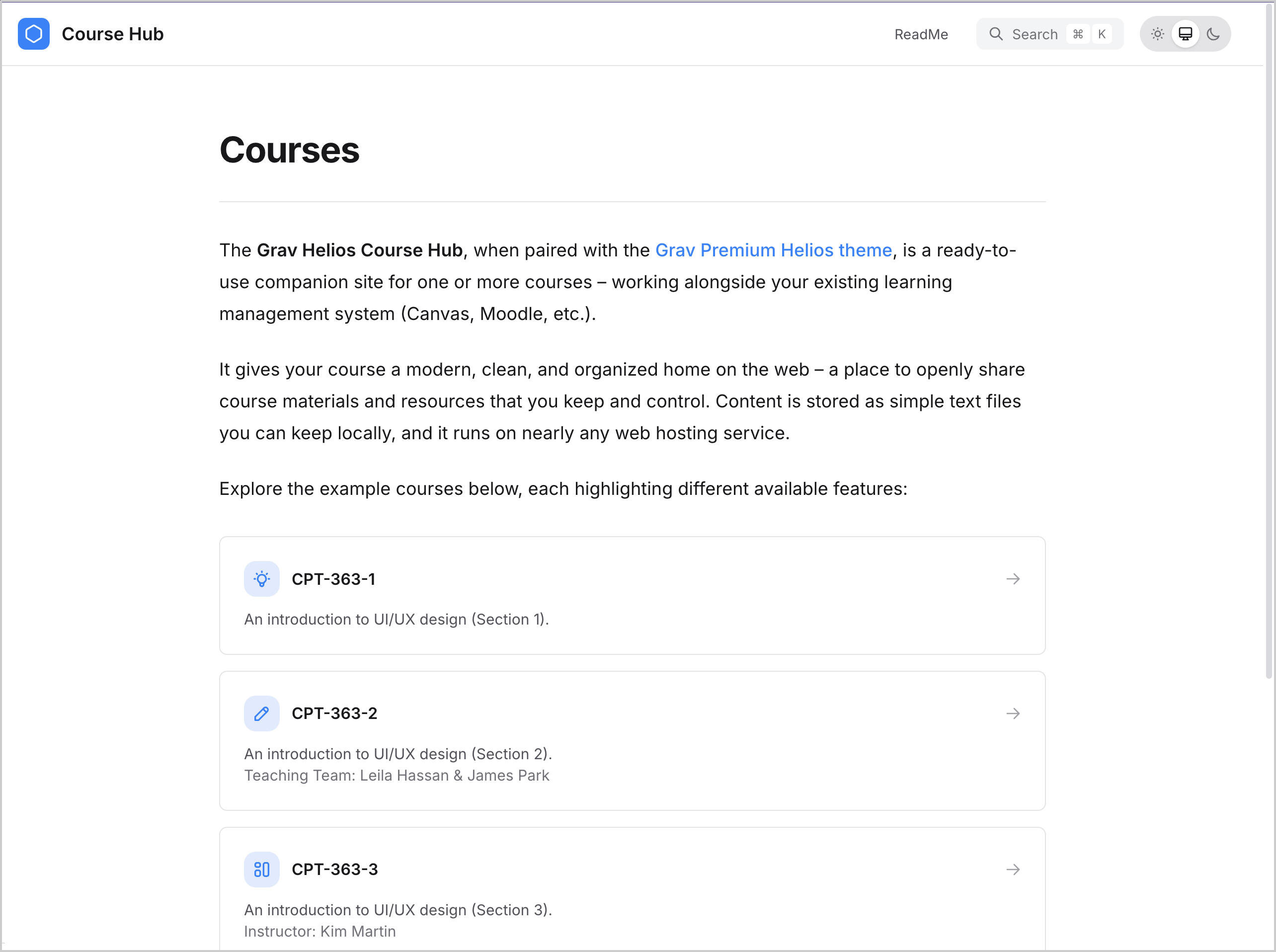
|
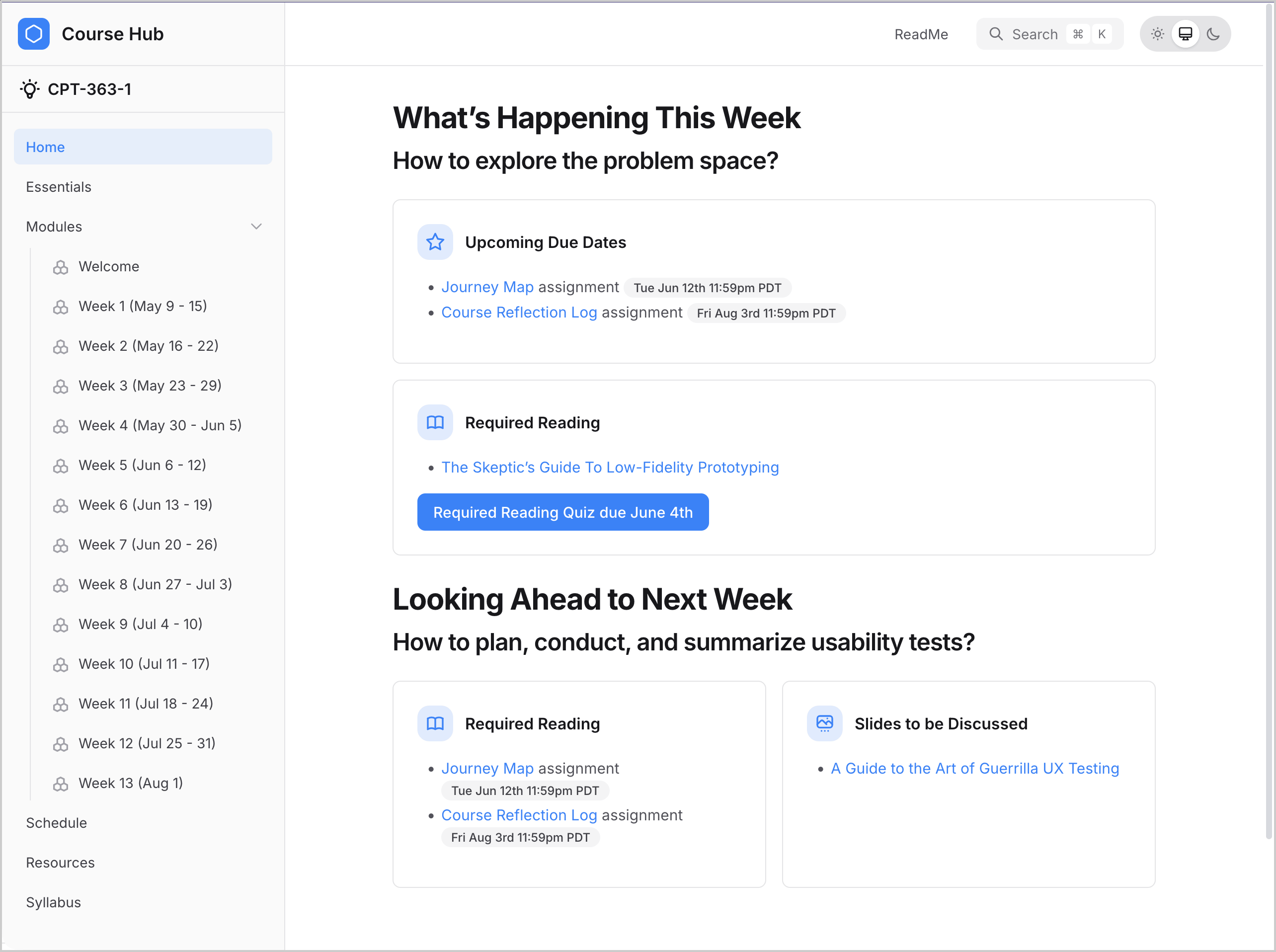
|
| Course Hub – Courses | Course Hub – Weekly overview |
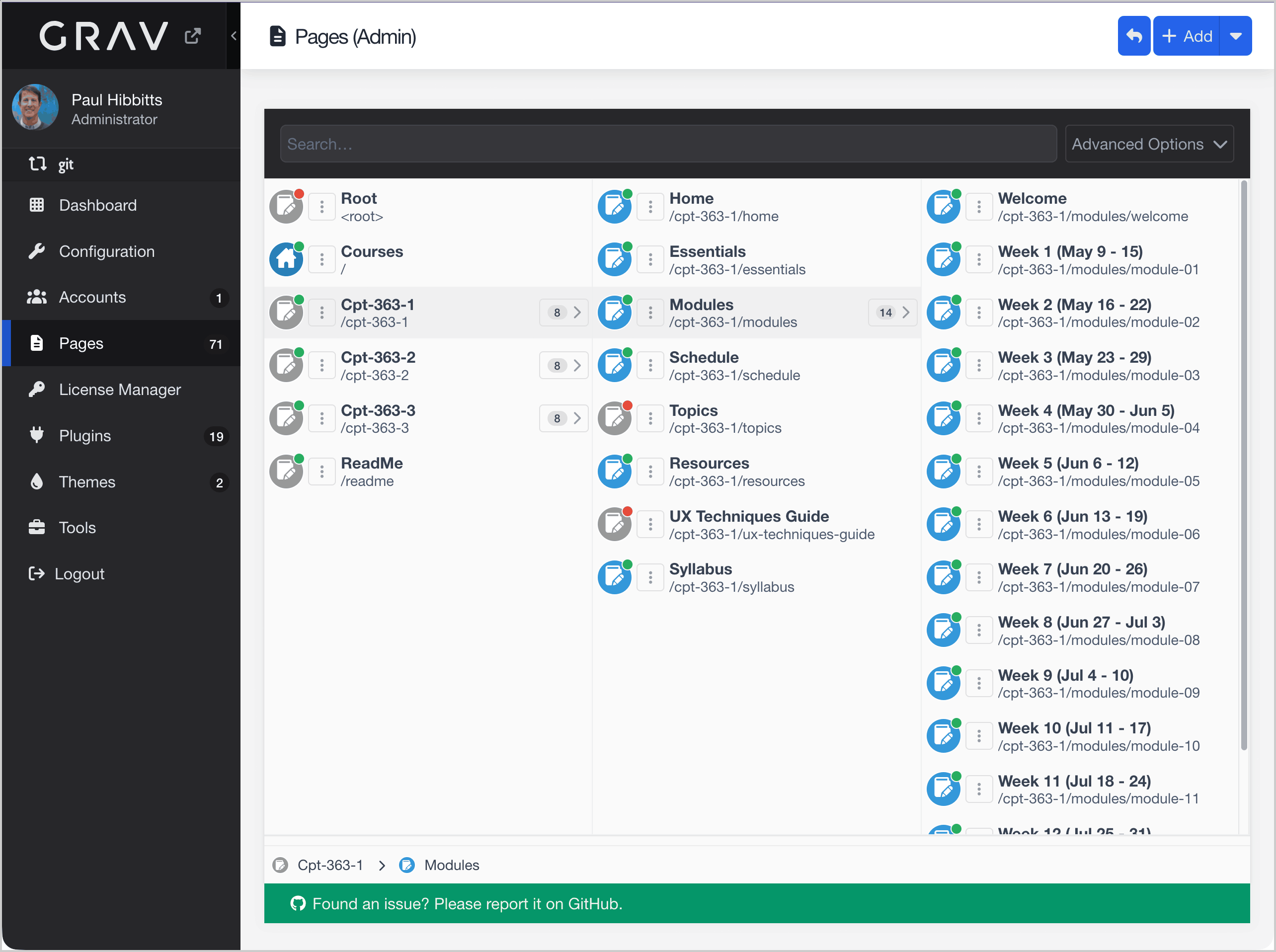
|
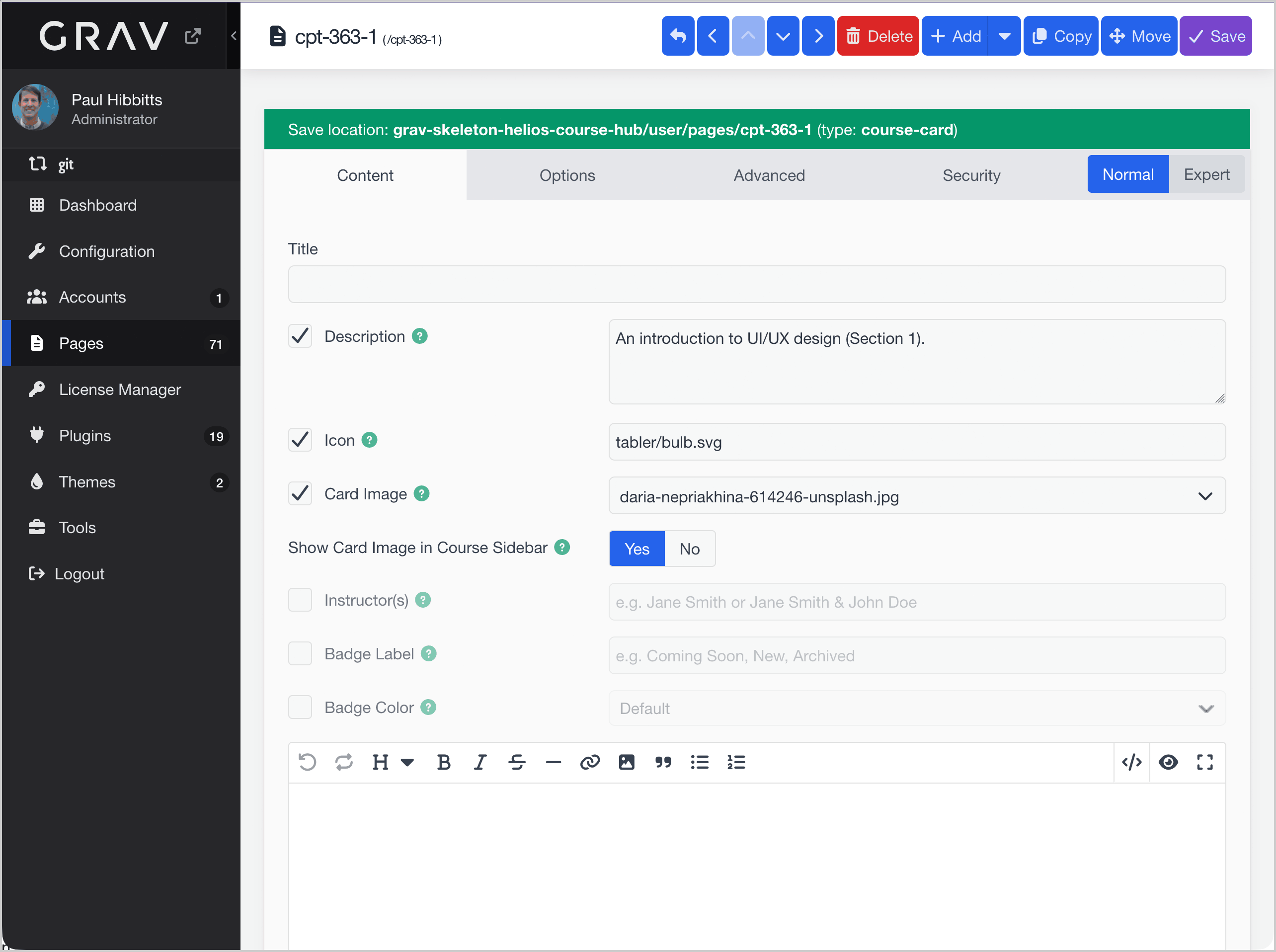
|
| Admin Panel – Pages overview | Admin Panel – Course card edit |
A complete, pre-configured package that gives one or more courses a modern, clean, and organized home on the web – a place to openly share materials and resources that you keep and control. Content is stored as simple Markdown files you can keep locally, with a built-in Admin panel for browser-based editing and no database required. Runs on nearly any web hosting service.
- LMS embedding without LTI – embed any page directly into Canvas, Moodle, or Brightspace with a URL parameter; no LTI setup, no plugin, no IT negotiation required
- Single or multi-course – share a direct link so students land straight on their course homepage; add more courses and a full, browsable course list is automatically available as the homepage.
- Portable by design – your content is plain Markdown files on your server; no database, portable to any tool or host if your needs change
- Course-aware search – search automatically scopes to the current course when browsing within it, and spans all courses from the Courses homepage; results are always relevant
- Open authoring built in – Content is plain Markdown, so "Edit this Page" links go directly to human-readable source anyone can copy and adapt – no special tools required. Git Sync and open repository access are included from the start.
- No build pipeline, no local toolchain – edit in the browser-based Admin panel or via Git; changes go live immediately, no deploy step required
- A complete starting point – pre-built course structure (weekly modules, topics index, resources, syllabus), demo content, and all configuration included; replace the content and you're done
- Bring your Canvas (or other LMS) content with you – the companion Common Cartridge Converter (Beta) turns a Common Cartridge (.imscc) export into a Course Hub starting point in minutes: modules, pages, learning objectives, embedded video, course image, license, and syllabus all carried across.
Grav Helios Course Hub is a strong fit when you:
- Want a visually refined, permanent companion site for one or more courses alongside your existing LMS and have access to a Web server
- Want a fully designed course site without custom design or coding work
- Need multi-user editing with role-based access rights for team-managed course content
- Need rich content embedding (H5P, iFrames, Google Slides, PDFs, Embedly) without coding
- Can optionally extend with custom branding – logos, colours, and styling – when a more distinctive look is needed
Other publishing tools might be better candidates when you:
- Need zero-server, instant publishing directly from GitHub without any hosting setup
- Require real LMS features such as enrollment, grade tracking, or student progress monitoring
- Need complex user management, approval workflows, or interactive features (contact forms, booking systems, user accounts)
- Need a large ecosystem of themes and plugins beyond what Grav currently offers
- Prefer fully visual drag-and-drop page builders over Markdown-based editing
Still unsure? Install the skeleton package on almost any Web server, add your Grav Premium Helios theme license, replace the demo content with your own, and your course site is configured. Your content stays in portable Markdown files you own completely, and those same files work with other tools if your needs change. For zero-setup publishing directly from GitHub or Codeberg without a Web server, Docsify-This is a natural companion.
Helios Course Hub provides a ready-built course site using portable Markdown files you fully control. Highlights include visual course cards, course-aware search, and optional Git Sync for open collaborative authoring.
- Show or hide the site logo icon square next to the Logo Text in the header, with optional custom Tabler icon
- Configurable single course site logo link targeting the Courses Home Page or First Page of Only Listed Course
- Course label (drawn from the Helios Theme
versioning.labelsconfig) with optional icon automatically displayed in the sidebar below the site name when multiple courses are published, linking to the first page of the current course - Per-course favicon support: upload a
favicon.*file to a course root page's media to override the site favicon for that course
- Optional course card images: upload an image to a course root page's media and set
imagein frontmatter to display it on the course card, with a choice of side thumbnail or full-width top layout (side automatically switches to top at 3 cards per row) - Add optional instructor names and status badges (e.g.
Coming Soon,Archived) to course cards via frontmatter - Course card grouping: organize cards on the Courses homepage into labeled sections by adding
group: "Label"to a course's root page frontmatter; courses without a group appear first with no heading
- Build an alphabetical topics index with auto-generated A–Z navigation
- Announcement shortcode: display a styled notice on any course page, with optional custom title and color type
- MarkdownFile shortcode: fetch and render a remote Markdown file inline, with YAML front matter automatically stripped
- Configurable chapter page description line limit: set the maximum number of lines shown per card description on Chapter template pages (the Modules section uses this template) site-wide via the Helios Course Hub plugin settings (2 default, 3, or no limit)
- Chapter page child grouping: organize cards on a chapter page into labeled sections by adding
group: "Label"to adocchild page's frontmatter; pages without a group appear first with no heading
- Embed rich content with built-in shortcodes: iFrames, Google Slides, PDFs, H5P, and Embedly cards, with responsive 16:9 layout and automatic dark/light theme detection
- LMS embedding mode: append
?embedded=trueto any page URL to display only the page content — no sidebar, header, or pagination — for use in an LMS iframe; internal links automatically carry the parameter forward - TOC position override: append
?toc_position=hidden|left|right(or?toc=) to any page URL to override the Table of Contents position per request, without changing page frontmatter - Git link visibility: append
?edit_link=false(or?hidegitlink=true) to any page URL to hide the "Edit this Page" link per request
Append ?embedded=true to any page URL to display only the page content — no sidebar, header, or pagination. Designed for embedding Helios Course Hub pages in an LMS iframe (Canvas, Moodle, Brightspace, etc.).
- All internal links automatically carry the
?embedded=trueparameter forward, so navigating between pages stays in embedded mode ?chromeless=trueis also supported as an alternative parameter name- Works with HTMX navigation — links in dynamically loaded content are also rewritten
- Combine with
?toc_position=hidden(or?toc=hidden) to also hide the Table of Contents, useful for narrow iframe embeds - Combine with
?toc_position=leftor?toc_position=rightto reposition the Table of Contents, useful for working with surrounding LMS navigation elements - Combine with
?edit_link=false(or?hidegitlink=true) to hide the "Edit this Page" link on a per-page basis
Example iframe:
<iframe src="https://yoursite.com/cpt-363-1/home?embedded=true" width="100%" height="600" style="border:none;"></iframe>- Git Sync plugin included for syncing site content with GitHub, Codeberg, or similar Git hosting service
- Automatic "Edit this Page" link option provided by the Helios Theme, with support for both GitHub and Codeberg repositories – defaults to View Page Markdown (linking to the Markdown source file for open access to course materials) and optionally configurable to link directly to file editing for course authors and contributors
- Customize CSS and JavaScript via the bundled Helios Course Hub plugin
- Print stylesheet with page break control for images, lists, tables, and headings; absolute link URLs displayed inline; and consistent page margins across browsers
- Page Table of Contents template (
default-toc): adds a right-column Table of Contents to standalone content-heavy pages; settemplate: default-tocin any page's frontmatter to enable
Helios Course Hub is best suited for authors and educators comfortable with web hosting and folder-based content structure. An online Admin panel is included for browser-based editing – no code editor required.
The skeleton is a complete package – Grav CMS, the Helios Course Hub plugin, and demo content are all included; the Grav Premium Helios theme requires a separate license. The home page is a Courses listing that shows all active courses – by default, just cpt-363-1/.
- Confirm your web server meets Grav's requirements (PHP 8.0 or higher)
- Have your web server login credentials ready (username and password)
- Download the Grav Helios Course Hub Skeleton package
- Unzip the package onto your desktop
- Copy the entire Grav Helios Course Hub folder to your web server (e.g. into
public_html/or a subfolder within it) - Open your browser and go to your site's URL (e.g.
https://yoursite.com/grav-course-hub) - Create your site administrator account when prompted
- Enter your Helios and SVG Icons license keys (or import an existing license file), then install and activate the theme
- You're done! – press the preview icon in the Admin Panel to view your site
See Course Setup to rename folders and edit your pages.
Tip
When copying the Grav Helios Course Hub folder to your web server, copy the entire folder – it contains hidden files (such as .htaccess) that are not selected by default. Omitting these hidden files can cause problems when running Grav.
All course content lives in course folders within user/pages/. The skeleton ships with three pre-configured course folders and a 00.courses/ homepage that lists all visible courses as cards.
user/pages/
├── 00.courses/                  # Courses homepage
│   └── course-list.md           # Course list settings and default card values
├── cpt-363-1/                   # Course 1 (published by default)
│   ├── course.md           # Course settings (icon, image, instructor, badge)
│   ├── 10.home/
│   ├── 20.essentials/
│   ├── 30.modules/
│   ├── 40.schedule/
│   ├── 50.topics/
│   ├── 60.resources/
│   ├── 70.guide/
│   └── 80.syllabus/
├── cpt-363-2/                   # Course 2 (same structure, unpublished by default)
├── cpt-363-3/                   # Course 3 (same structure, unpublished by default)
└── readme/
Rename the course folders (e.g. cpt-363-1/ → comp-101/) to match your own course codes, either in the Admin Panel or via FTP. The number prefix on each sub-folder (e.g. 10.home/, 20.essentials/) controls the page order in the navigation – lower numbers appear first.
Tip
After renaming a course folder, update versioning.labels in user/config/themes/helios.yaml (or via Admin → Themes → Helios → Versioning → Version Labels) to add the new folder name as a key — this sets the course name shown in the sidebar and browser tab title.
By default, only cpt-363-1/ is published, so the Courses homepage shows a single course card – a clean starting point for a one-course site. To activate additional courses, set Published to Yes in each course folder's root page. The Course Dropdown appears automatically once more than one course is published, and hides automatically when only one course is active.
In the Admin panel, open the course folder itself (e.g. cpt-363-2) and set Published to Yes to show or No to hide the course. Unpublished courses are also excluded from search results.
Once you have set up your own courses, you can safely delete any unused demo course folders (e.g. cpt-363-2/, cpt-363-3/) from user/pages/ via the Admin panel or FTP.
Tip
If changes don't appear immediately after updating settings or publishing pages, clear the Grav cache via the Clear Cache button in the Admin panel.
Course folders must start with one or more letters, followed by a number. An optional hyphen can separate the letters from the number. Additional version segments (separated by dots or hyphens) are supported.
Valid names: cpt-363-1, course-1, course-section-1, course-section-2
Invalid names: 01.course (starts with a digit), course (no number), 1course (starts with a digit)
The simplest convention is course-1, course-2, course-3, etc.
To add a course beyond the three included demo folders, copy an existing course folder (e.g. cpt-363-1/) via FTP or the Admin panel (when using the Admin panel, open course page, click the copy icon, update the Page Title field to a valid new course ID (e.g. course-101)), then ensure it follows the naming rules above, and add the resulting new folder name as a key in versioning.labels in user/config/themes/helios.yaml (or via Admin → Themes → Helios → Versioning → Version Labels). Then set Published to Yes in the Admin panel to make it visible on the Courses homepage.
Tip
After duplicating and renaming a course folder, clear the Grav cache via the Clear Cache button in the Admin panel if the new course does not appear immediately.
The Courses homepage uses the course-list template to automatically generate course cards from detected course folders.
The course-list.md frontmatter controls the list layout and sets default values for all course cards. These fields can be set in the Admin Panel by opening the Courses homepage.
| Field | Default | Description |
|---|---|---|
cards_per_row |
1 |
Number of course cards per row (1–3) |
card_icon |
(empty) | Default icon for all course cards (Tabler icon path); also used as the sidebar course label icon when a course has no icon of its own |
card_image_layout |
side |
Image layout: side (left thumbnail) or top (full-width above content); side automatically switches to top at 3 cards per row |
card_description_lines |
3 |
Maximum description lines per card (2, 3, or 0 for no limit) |
Page content written in course-list.md appears above the course cards by default. To also display content below the cards, add === on its own line as a delimiter:
This text appears above the course cards.

===

This text appears below the course cards.
If no === delimiter is present, all content renders above the cards as normal.
Each course folder contains a course.md file with frontmatter that controls the course card display. These fields can be set in the Admin Panel by opening the course root page.
| Field | Description |
|---|---|
icon |
Tabler icon path (e.g. tabler/bulb.svg); overrides the card_icon default from course-list.md |
description |
Course description shown on the card |
instructor |
Optional instructor name(s) shown below the description |
badge_label |
Optional status badge label (e.g. Coming Soon, New, Archived) |
badge_color |
Optional badge colour (yellow, green, red, etc.) |
image |
Optional card image filename (upload to the course's media folder) |
show_sidebar_image |
Show the card image in the course sidebar when browsing within this course (default: Yes) |
group |
Optional group label for organizing course cards on the Courses homepage into labeled sections; courses without a group appear first with no heading |
---
icon: tabler/bulb.svg
description: A basic introduction to UI/UX design.
instructor: Jane Smith & John Doe
badge_label: Coming Soon
badge_color: yellow
image: banner.jpg
show_sidebar_image: true
group: Current Courses
---
To display a card image, upload an image file to the course root page's media folder and set image in the frontmatter to the filename. Omit the field (or leave it empty) for no image.
Tip
Landscape images (roughly 16:9 or 4:3 ratio) work best for course cards. PNG, JPG, and WebP formats are all supported.
The site name displayed in the header comes from the Logo Text setting in the Helios Theme config. Edit it via Admin → Themes → Helios → Logo → Logo Text, or directly in user/config/themes/helios.yaml:
logo:
text: 'My Course Hub'The course name shown below the site name in the sidebar, in the sidebar course dropdown, and as the middle segment of the browser tab title (Page | Course Label | Site Title) comes from the versioning.labels setting in the Helios Theme config. These can be edited via Admin → Themes → Helios → Versioning tab → Version Labels, or directly in user/config/themes/helios.yaml:
versioning:
  labels:
    cpt-363-1: CPT-363-1
    cpt-363-2: CPT-363-2
cpt-363-3: CPT-363-3The Course dropdown label and its default fallback can be customized in languages.yaml. English and French are included:
en:
  PLUGIN_HELIOS_COURSE_HUB:
    COURSE_LABEL: Course
    COURSE_LATEST_LABEL: default

fr:
  PLUGIN_HELIOS_COURSE_HUB:
    COURSE_LABEL: Cours
    COURSE_LATEST_LABEL: défaut
To customize the label or add a language, update the relevant block in languages.yaml.
The browser tab title is automatically formatted based on how many courses are visible:
- Single course:
Page Title | Site Title - Multi-course:
Page Title | Course Label | Site Title(Course Label comes fromversioning.labelsin the Helios Theme config)
For single-course sites, set the Site Title to the course name – it serves as the top-level identifier in the browser tab. The Courses homepage remains accessible directly at /courses.
The skeleton includes the Git Sync plugin, which keeps your site content automatically in sync with a GitHub or Codeberg repository. This enables a full open-authoring workflow:
- Content editors can work directly in the Grav Admin or commit changes via Git
- The Helios Theme's "Edit this Page" option defaults to a 'View Page Markdown' link on each page, taking readers directly to the Markdown source file in your repository (configurable to link directly to file editing via the Helios Course Hub plugin settings)
If you prefer not to write Markdown directly, the optional Grav Premium Editor Pro provides a visual block editor for editing pages.
Custom CSS, JavaScript, shortcodes, and Helios-inspired Admin Panel styling with improved readability for the Helios Course Hub skeleton. If the Helios theme is not installed, the plugin automatically falls back to the Quark or Quark2 theme so the frontend site remains viewable, redirecting to the License Manager page in the Admin panel.
The following settings are available in the Admin panel under Plugins → Helios Course Hub:
| Setting | Default | Description |
|---|---|---|
| Helios-inspired Admin Styling | Enabled | Apply Helios-inspired styling enhancements to the Admin Panel (rounded corners, transitions, improved typography) |
| Admin Font Size (Admin 1.7 only) | Large | Sets the Admin Panel font size: Default, Large, or Larger |
| Show Site Logo Icon | Enabled | Show or hide the icon square next to the Logo Text in the header when no logo image is set |
| Site Logo Icon | (empty) | Tabler icon path for the site logo icon square (e.g. tabler/book.svg). Leave empty to use the default icon. Only applies when Show Site Logo Icon is enabled |
| Single Course Site Logo Link | First Page of Only Listed Course | Choose where the site Logo Text and icon link navigates: Courses Home Page or First Page of Only Listed Course (navigates to the first page of the course when only one course is active) |
| Show Plugin Credits | Enabled | Show or hide the "Built with Grav · Helios · Helios Course Hub" attribution line in the footer |
| Description Line Limit | 2 lines | Maximum number of lines shown per card description on Chapter template pages; the Modules section uses this template (2, 3, or no limit) |
| Show Repository Host Icon Link in Header | Enabled | Show or hide the GitHub or Codeberg icon link to the course repository in the site header |
| Git Link Icon | tabler/file-text.svg |
Tabler icon path for the Git link icon shown in the page footer |
| Git Link Mode | View file | Whether the Git link opens the file for viewing (default, for open access to course materials) or editing (for course authors and contributors with repository access) |
| Repository Host | github.com |
Repository hosting service for the Helios GitHub Integration (github.com or codeberg.org) |
| H5P Content Embed Source URL | https://h5p.org/h5p/embed/ |
Base URL for H5P embeds via Content ID (used with [h5p id="..."]) |
Note: The Helios-inspired Admin Panel 1.7 colour scheme (zinc nav, accessible blue links, muted purple accents) is pre-configured in this skeleton.
- course-list – Courses homepage template that renders all visible courses as cards. Assigned automatically to the Courses homepage (
/courses). - default-toc – Content page template with a right-column Table of Contents. Set
template: default-tocin any page's frontmatter to enable. Requires the page-toc plugin (included).
Tip
The default-toc template is ideal for standalone content-heavy pages that don't use a sidebar.
- helios.css – Theme styling (announcement blockquotes, heading typography, Font Awesome spacing, responsive containers)
- helios.js – Embedly dark/light theme support with automatic CDN loading
- print.css – Print stylesheet (hides navigation chrome, resets colors for light and dark themes, controls page breaks, displays absolute link URLs, sets consistent page margins)
- admin.css – Helios-inspired Admin Panel styling: toolbar icon scaling, rounded corners on inputs/buttons/badges/tabs/dropdowns, and button hover transitions (conditionally loaded based on the Helios-inspired Admin Styling setting)
- admin.js – Admin panel JavaScript customizations
[iframe url="..."]– Responsive iframe embed, 16:9 by default[iframe url="..." ratio="4:3"]– Responsive iframe embed at 4:3 ratio[iframe url="..." title="..."]– Responsive iframe embed with accessible title (recommended for accessibility)[googleslides url="..."]– Responsive Google Slides embed, 16:9 by default[googleslides url="..." ratio="4:3"]– Responsive Google Slides embed at 4:3 ratio[googleslides url="..." title="..."]– Responsive Google Slides embed with accessible title (recommended for accessibility)[pdf url="..."]– PDF viewer via Google Docs, 16:9 by default[pdf url="..." ratio="4:3"]– PDF viewer at 4:3 ratio[pdf url="..." ratio="portrait"]– PDF viewer at portrait ratio (letter/A4)[pdf url="..." title="..."]– PDF viewer with accessible title (recommended for accessibility)[h5p url="..."]– H5P interactive content via full embed URL[h5p id="..."]– H5P interactive content via Content ID (requires H5P Content Embed Source URL to be set in plugin settings)[h5p url="..." title="..."]– H5P embed with accessible title (recommended for accessibility)[embedly url="..."]– Embedly card with dark mode support[linkpreviewcard url="..."]– Self-hosted link preview card (image, title, description) scraped directly from the page; an alternative to[embedly]that doesn't rely on the embed.ly service[topics]...[/topics]– Alphabetical topics index with auto-generated A–Z navigation, linked letters, and styled letter section labels[announcement]...[/announcement]– Styled announcement notice (default: Important/purple), supports Markdown content[announcement title="..." type="..."]...[/announcement]– With optional custom title and type (note,tip,important,warning,caution)[markdownfile url="..."]– Fetches and renders a remote Markdown file inline, stripping YAML front matter
Tip
For simple notices, the standard Markdown callout > [!IMPORTANT] is a zero-friction alternative to the [announcement] shortcode.
- PHP >= 8.0
- Grav CMS >= 1.7.0
- Grav Premium Helios Theme – one license per site (Standard or Team)
Before migrating, it is recommended to download and install the Helios Course Hub skeleton and explore the included demo content to get a clear picture of the expected site structure, page templates, and frontmatter conventions.
| Open Course Hub | Helios Course Hub |
|---|---|
01.home/ (blog template) |
cpt-100/10.home/ (doc template) |
01.home/module-XX/ (item template) |
cpt-100/20.modules/ |
02.schedule/ |
cpt-100/30.schedule/ |
03.resources/ |
cpt-100/40.resources/ |
10.syllabus/ |
cpt-100/50.syllabus/ |
sidebar/ |
not used |
footer/ |
not used |
headerimage/ |
not used |
lms-home/ |
not used |
favicon/ |
set via Helios theme settings |
Template changes:
- Change
template: blogandtemplate: pagetotemplate: docon all course content pages - Move and rename
itemtemplate pages — weekly content moves into sub-folders under the modules chapter page (seecpt-363-1/30.modules/in the skeleton for an example) - Add
taxonomy: category: docsto all sub-folder pages (e.g. individual module pages) - Remove modular home page blocks (
01._reminders/,02._preparations/) — replaced by the home page doc template
Course structure: Wrap all course pages in a course folder (cpt-100/) at the site root, alongside the new 00.courses/ catalog folder (see 00.courses/ in the skeleton for an example).
New files:
cpt-100/course.md— course card metadata (icon, description, image; seecpt-363-1/course.mdin the skeleton for an example)cpt-100/15.essentials/essentials.md— key course info, between home and modules (seecpt-363-1/20.essentials/in the skeleton for an example)
Note
The new 15.essentials/essentials.md page is the recommended home for content previously kept in sidebar/default.md — such as office hours, contact details, and key course links.
What stays the same: Most page body content requires no changes — only frontmatter updates are needed.
| Open MultiCourse Hub | Helios Course Hub |
|---|---|
01.home/subsitelist.md (course list) |
00.courses/ (course catalog) |
02.cpt-200/ |
cpt-200/ |
02.cpt-200/subsite.md |
cpt-200/course.md |
02.cpt-200/01.home/ (blog template) |
cpt-200/10.home/ (doc template) |
02.cpt-200/01.home/module-XX/ (item template) |
cpt-200/20.modules/ |
02.cpt-200/02.schedule/ |
cpt-200/30.schedule/ |
02.cpt-200/03.topics/ |
cpt-200/40.topics/ |
02.cpt-200/04.resources/ |
cpt-200/50.resources/ |
02.cpt-200/05.multi-section-page/ |
not used |
02.cpt-200/06.ux-techniques-guide/ |
cpt-200/60.guide/ |
02.cpt-200/10.syllabus/ |
cpt-200/70.syllabus/ |
02.cpt-200/sidebar/ |
not used |
02.cpt-200/footer/ |
not used |
02.cpt-200/headerimage/ |
not used |
02.cpt-200/lms-home/ |
not used |
02.cpt-200/favicon/favicon.* |
cpt-200/favicon.* (upload to course root media) |
Course folder naming: Remove numeric prefix and standardize to hyphenated course code (02.cpt-200 → cpt-200).
Template changes:
- Change
template: blogandtemplate: pagetotemplate: docon all course content pages - Move and rename
itemtemplate pages — weekly content moves into sub-folders under the modules chapter page (seecpt-363-1/30.modules/in the skeleton for an example) - Add
taxonomy: category: docsto all sub-folder pages (e.g. individual module pages) - Remove modular home page blocks (
01._reminders/,02._preparations/) — replaced by the home page doc template
Markup changes:
- Topics page — wrap content in
[topics]...[/topics]shortcode and add to frontmatter:navigation: prev_next: false toc_position: hidden
- UX Techniques Guide page — replace existing markup with
[doc-accordion]and[doc-accordion-item title="..."]shortcodes, and add to frontmatter:See the includednavigation: prev_next: false toc_position: hidden
cpt-363-1/70.guide/doc.mdfor a full example.
Course metadata: Replace subsite.md with course.md (see cpt-363-1/course.md in the skeleton for an example). Key fields:
# Old: subsite.md
title: CPT 200
subsite_list_description: 'Introduction to Computing Science'
subsite_home: home
published: true

# New: course.md
icon: tabler/code.svg
description: 'Introduction to Computing Science'
image: cpt200-card.jpg
routable: false
New file:
cpt-200/15.essentials/essentials.md— key course info, between home and modules; no equivalent in MultiCourse Hub (seecpt-363-1/20.essentials/in the skeleton for an example).
Note
As with the single course migration, 15.essentials/essentials.md is the recommended home for content previously kept in sidebar/default.md.
What stays the same: Most page body content requires no changes — only frontmatter updates are needed.
The companion Common Cartridge Converter (Beta) turns a Common Cartridge (.imscc) export – from Canvas, Moodle, Brightspace, or Blackboard – into a Course Hub starting point in minutes: modules, pages, learning objectives, embedded video, course image, license, and syllabus all carried across. Upload your export and browse the resulting Markdown files directly – no Grav or Helios installation needed to see what carries over.
- Follow @hibbittsdesign@mastodon.social on Mastodon for updates
- 👩🏻💻🧑🏻💻 Join the Grav Discord and often find me there
- Add a ⭐️ star on GitHub to the Helios Course Hub project repository
- For bugs or feature requests, open an issue on GitHub
By leveraging his extensive UX design expertise and systems-oriented approach, Paul helps teams and individuals utilize open content in education and publication settings. Professional services include user experience and workflow consulting, premium support subscriptions, workshops, and custom development. Interested? Send a note to paul@hibbittsdesign.org.
MIT – Hibbitts Design