This package is a Backstage frontend plugin for viewing Kubernetes logs in real-time (live-streaming) via Kwirth.
This Backstage plugin allows you to live-stream Kubernetes logs associated to your Backstage entities directly inside your Backstage instance. It's very important to understand that for this plugin to work...:
- You need to install the Kwirth Backstage backend plugin.
- You need to install Kwirth on your Kubernetes cluster, that is, this plugin is just another frontend for Kwirth.
Kwirth is a really-easy-to-use data-exporting system for Kubernetes that runs in only one pod (no database is needed). Refer to Kwirth GitHub project for info on installation. Kwirth installation is one command away from you.
You can access Kwirth project here.
Following table shows version compatibility between this Kwirth Backstage plugin and Kwirth Core server.
| Plugin Kwirth version | Kwirth version |
|---|---|
| 0.13.0 | 0.4.131 |
| 0.12.8 | 0.4.45 |
| 0.12.5 | 0.4.20 |
| 0.11.3 | 0.3.160 |
This Backstage plugin adds Backstage a feature for viewing real-time Kubernetes logs of your Backstage entities directly inside Backstage frontend application. The plugin will be enabled for any entity that is correctly tagged (according to Backstage Kubernetes core feature) and its correpsonding Kubernetes resources are found on any of the clusters that have been added to Backstage.
When KwirthLog is correctly installed and configured, it is possible to view Kubernetes logs on your Backstage like in this sample:
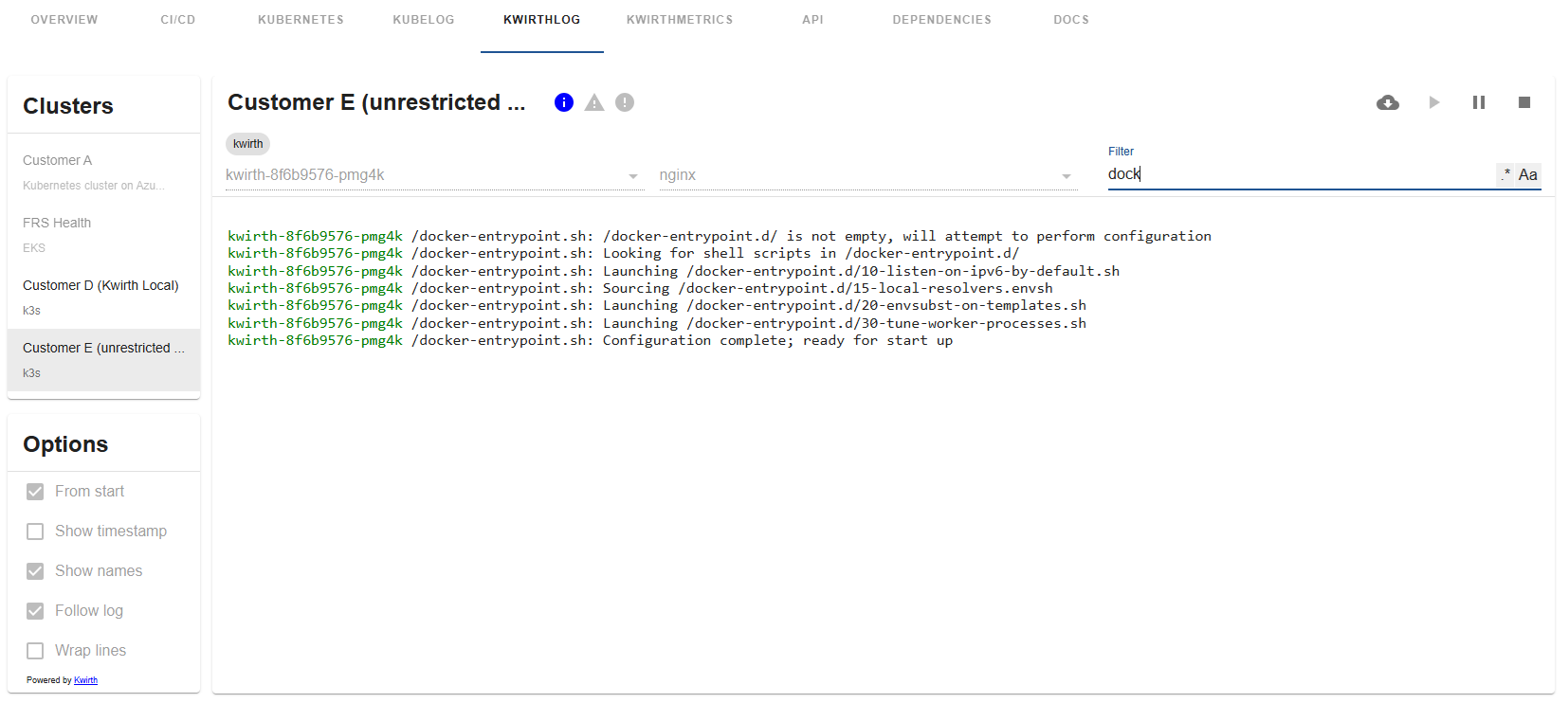
This frontend plugin includes just the visualization of log information. All needed configuration, and specially permission settings, are done in the backend plugin and the app-config.yaml. You can restrict access to pods, namespaces, clusters, etc... by configuring permissions to be applied on the backend plugin.
Let's explain this by following a user working sequence:
- A Backstage user searchs for an entity in the Backstage.
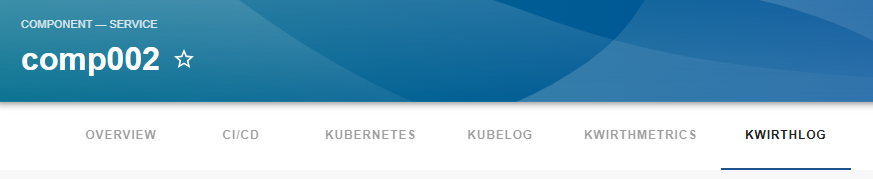
- In the entity page there will be a new tab named 'KWIRTHLOG'.
- When the user clicks on KWIRTHLOG the frontend plugin sends a request to the backend Kiwrth plugin asking for logging information on all Kubernetes clusters available.
- Next step is to identify the Kubernetes objects that match requested entity. As well as it occurs with other Backstage Kwirth plugins, Kwirth implements two strategies for getting the listo of kubernetes objects that match:
- Option 1. Your catalog-info contains an annotation of this type: backstage.io/kubernetes-id. In this case, the Backstage Kwirth backend plugin sends requests to the Kwirth instances that are running inside all the clusters added to Backstage. These requests ask for the following: 'Tell me all the pods that are labeled with the kubernetes-id label and do correspond with the entity I'm looking for'. In response to this query, each Kwirth instance answers with a list of pods and the namespaces where they are running.
- Option 2. Your catalog-info contains an annotation of this type: backstage.io/kubernetes-label-selector. In this case, the Backstage Kwirth backend plugin sends requests to the Kwirth instances that are running inside all the clusters added to Backstage. These requests ask for the following: 'Tell me all the pods whose labels match with the kubernetes-label-selector label selector. In response to this query, each Kwirth instance answers with a list of pods and the namespaces where they are running.
- The Kwirth backend plugin checks then the permissions of the connected user and prunes the pods list removing the ones that the user has not access to.
- With the final pod list, the backend plugin sends requests to the Kwirth instances on the clusters asking for API Keys specific for streaming pod logs.
- With all this information, the backend builds a unique response containing all the pods the user have access to, and all the API keys needed to access those logs.
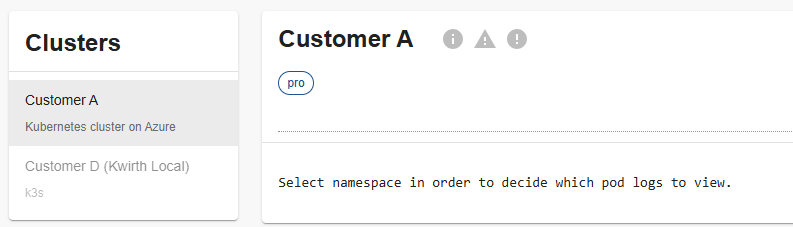
If everyting is correctly configured and tagged, the user should see a list of clusters. When selecting a cluster, the user should see a list of namespaces where the entity is running.
It's very simple and straightforward, it is in fact very similar to any other forntend Backstage plugin.
-
Install corresponding Backstage backend plugin more information here.
-
Install this Backstage frontend plugin:
# From your Backstage root directory yarn --cwd packages/app add @jfvilas/plugin-kwirth-log @jfvilas/plugin-kwirth-frontend @jfvilas/plugin-kwirth-common @jfvilas/kwirth-common -
Make sure the Kwirth backend plugin is installed and configured.
-
Restart your Backstage instance.
For Kwirth plugin to be usable on the frontend, you must tailor your Entity Page to include the Kwirth components.
Firstly, import the plugin module.
// In packages/app/src/components/catalog/EntityPage.tsx
import { EntityKwirthLogContent } from '@jfvilas/plugin-kwirth-log';
import { isKwirthAvailable } from '@jfvilas/plugin-kwirth-common';
Then, add a tab to your EntityPage (the 'if' is optional, you can keep the 'KwirthLog' tab always visible if you prefer to do it that way).
// Note: Add to any other Pages as well (e.g. defaultEntityPage or webSiteEntityPage, for example)
const serviceEntityPage = (
  <EntityLayout>
    {/* other tabs... */}
    <EntityLayout.Route if={isKwirthAvailable} path="/kwirthlog" title="KwirthLog">
      <EntityKwirthLogContent enableRestart={false} />
    </EntityLayout.Route>
  </EntityLayout>
)
You can setup some default viewing options on the EntityKwirthLogContent component, so, when the entity loads the default options will be set. These options are:
fromStartshowNamesshowTimestampfollowLogwrapLines
For example, you could setup your default log stream like this (The meaning of these properties are explained at the end of this document):
  ...
  <EntityLayout.Route if={isKwirthAvailable} path="/kwirthlog" title="KwirthLog">
    <EntityKwirthLogContent enableRestart={false} fromStrat={true} showTimestamp={true} wrapLines={true} />
  </EntityLayout.Route>
  ...
You can also set some behaviour options for the plugin:
hideVersion(optionalboolean) if set totrue, version information updates will not be shown.excludeContainers(optionalstring[]), an array of container names that will be excluded from visualization. For example, if you have pods that include sidecars, you can exclude sidecard log messages using this property. What follows is an example on how to use these properties:
  ...
  <EntityLayout.Route if={isKwirthAvailable} path="/kwirthlog" title="KwirthLog">
    <EntityKwirthLogContent hideVersion excludeContainers={['istio-proxy', 'nginx']} />
  </EntityLayout.Route>
...Use one of these two startegies:
-
Strategy 1: one-to-one. Add
backstage.io/kubernetes-idannotation to yourcatalog-info.yamlfor the entities deployed to Kubernetes you want to work with on Backstage. This is the same annotation that the Kubernetes core plugin uses, so, maybe you already have added it to your components. Exmaple:metadata: annotations: backstage.io/kubernetes-id: entity001
-
Strategy 2: use selectors. Add
backstage.io/kubernetes-label-selectorannotation to yourcatalog-info.yamlfor the entities you want to work with. This is the same annotation that the Kubernetes core plugin uses, so, maybe you already have added it to your components. The label selector value follows Kubernetes label selector semantics. Example:metadata: annotations: backstage.io/kubernetes-id: 'app=core,artifact=backend'
- Add proper labels to your Kubernetes objects so Backstage can link forward and backward the Backstage entities with the Kubernetes objects. To do this, you need to add
labelsto your Kubernetes YAML objects (please, don't get confused: annotations in Backstage YAML, labels in Kubernetes YAML).
-
VERY IMPORTANT NOTE: If you opted for using label selectors you have nothing new to add to your pods.
-
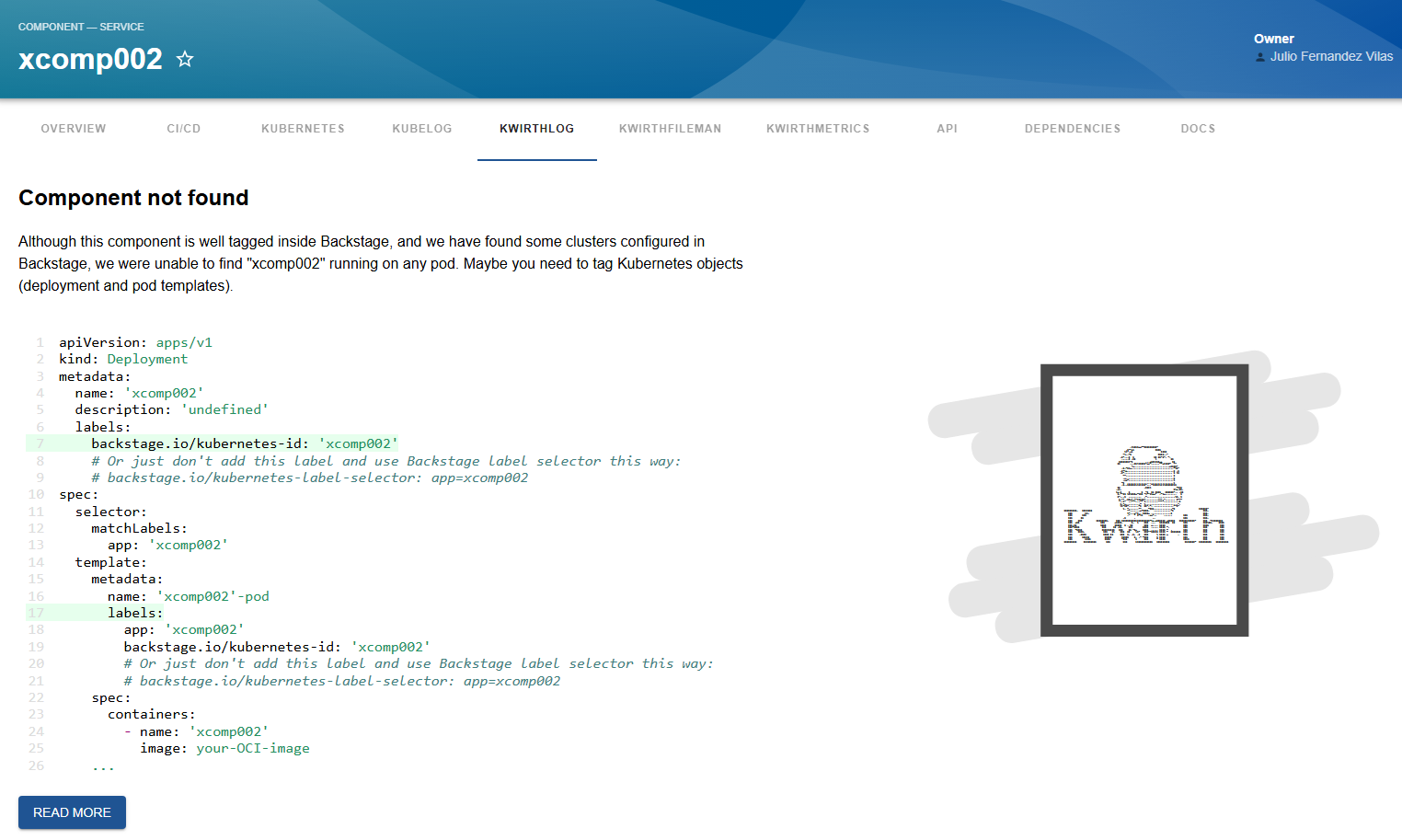
If you use labels (no label selectors), please note that the kubernetes-id label is on the deployment and on the spec pod template also. This is an example of a typical Kubernetes deployment with the required label:
apiVersion: apps/v1
kind: Deployment
metadata:
  name: ijkl
  labels:
    backstage.io/kubernetes-id: ijkl
spec:
  selector:
    matchLabels:
      app: ijkl
  template:
    metadata:
      name: 'ijkl-pod'
      labels:
        app: ijkl
        backstage.io/kubernetes-id: ijkl
    spec:
      containers:
        - name: ijkl
          image: your-OCI-image
    ...
If you followed all these steps and our work is well done (not sure on this), you would see a 'KwirthLog' tab in your Entity Page, like this one:
When you access the tab, if you have not yet tagged your entities you would see a message like this one explaning how to do that:
But, if the component is found on some of the clusters configured in Backstage, your screen will look like following one, showing some cluster that can be selected and some others that can't.
Once you tagged your entities and your Kubernetes objects correctly, you should see something similar to this:
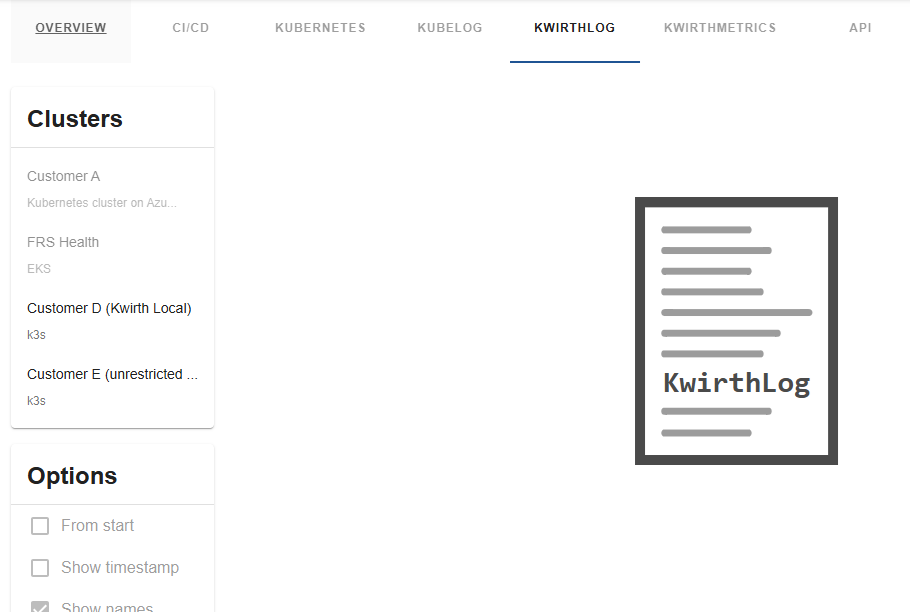
KwirthLog is ready to show logs!!
Just select the cluster on the cluster card and eventually set the options you want for the log streaming. On the card on right, you will see all the Kubernetes namespaces available and a stream control (download, play, pause and stop). Select a namespace, and two selectros for 'pod' and 'conatiner' will become available just under the namespace chips.
Select the pod/pods and container/containers you want to stream log, click PLAY button and the party starts!!
Now you will see your log refreshing in real-time. If you selected more than one namespace/pod/contianer, the log stream will contain all the source log lines streamed following time line.
When the log stream starts you will see a filter text field you can use for filtering messages. The use is as follows:
- If you type something, the messages (or the pod names or the container names) are expected to match that text.
- If you select
Aa, the text match will be performed taking casing into account. - If you select
.*then the text entered will be treated as a regular expression. - You can select casing and regex if you want regexes to match taking casing into account.
Feel free to open issues and ask for more features.
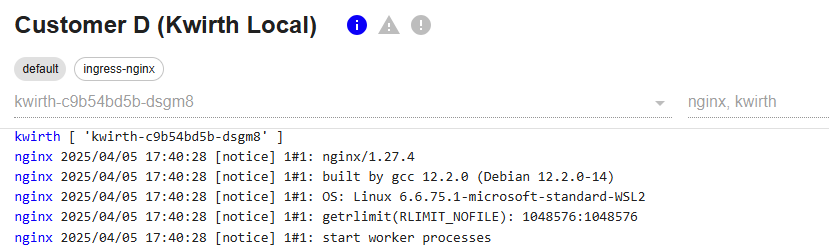
When the log stream starts, and all along the life of the stream (until it gets stopped or the window is closed), you will receive status information regarding the kubernetes objects you are watching. This status information is shown on the top of the card (just at the immediate right of the cluster name) including 3 kinds of information:
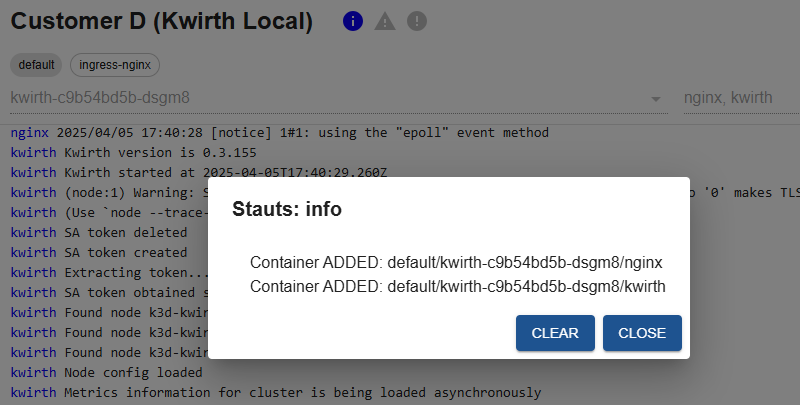
- Info. Informaiton regarding pod management at Kubernetes cluster level (new pod, pod ended or pod modified).
- Warning. Warnings related to the log stream.
- Error. If there is an error in the stream, like invalid key use, or erroneous pod tagging, erros will be shown here.
The icons will light up in its corresponding color when a new message arrives.
This is how it feels:
If you click on one of the status icons when theyr are enableds (coloured), you will see the detail of the status.
The log streaming system implemented in KwirthLog has some configuration options whose meaning is explained below.
If checked, the log streams will be retieved since pod start time. Please be careful with this option, it may impact your browser performance.
Decide whether to show timestamps next to messages or not. Usually your application logs messages with timestamp, but it this doesn't occur you can add message time (as provided by Kubernetes) to your messages.
Show pod names and container names next to messages. You may need to use this option if you are showing messages from different sources.
If you activate this option, the log stream wil move to the end wehn a new messages arrives (it's like a tail -f).
Normally, KwirthLog will add hotizontal and vertical scrollers as needed in order to preserve original log lines, but you can activate this option to wrap lines and not to show horizontal scroller.