A web based human resource tool, that helps keep track of employees whilst providing vital information needed for daily operation.
Admin View:

Non-Admin View:

Demo: https://www.hrtracker.x10.mx/
[Logins] - [HR-Manager]: [email protected] || [Employee]: [email protected]
Password: 12345
In light of the pandemic that has brought most of the world to a grinding halt, organizations and businesses have to switch to a work-from-home model, but this in itself has brought along with it a problem, not every organization has a functioning human resource tracker, thereby causing a lapse in information on who is in and has what duty, with them having to call/email most of the time to verify thereby losing valuable time.
While this is by no means by itself a perfect product, the implementation of this project aims to fix the aforementioned problem, by making the information that is needed easily available and at a glance, and this would in turn reduce the time lost trying to find out who has what duty significantly.
[- Update - 25/06/2022]
- Fixed a bunch of session handling issues for production server use
- Minor Layout Adjustments
[TODO]
- Compile a proper changelog - done
- Make Project setup dynamic with little to no code manipulation by the user
- Touch some grass 😅
Unfortunately it is not truly mobile friendly, while it does try this project was never intended for mobile resolutions from its inception and while I would really like to make it so, that is not a main focus at this point in time, but once the project gets to a stage where all the intended changes and fixes are applied I will make sure to so (please bear with me).
Yes, it is fully mobile-friendly, and I am still looking into possible changes to improve UX on mobile.
[- Update - 21/05/2023]
- The project is now fully mobile-friendly.
[- Update - 27/06/2022]
- Edit and Add Employee Pages are mobile friendly (fully responsive), but these pages are only accessible to the HR Manager (😮💨), with the exception of the header which is global.
- Looking into a feasible arrangement to make the index page tables and pop-up element fully responsive.
That depends on your intended use case, but this project despite being a pet project is mostly intended for businesses that don't require all the fancy functions present in premium HR software like logged hours, pay calculation, work history etc. Just think of this project as a basic whiteboard that employees can easily refer to when they need to find basic information such as who's working, where and who has specific roles.
Unfortunately, there is no plan in the works to add said features.
I am glad you asked that, while this project does do everything I wanted it to do when I initially started it, it is however in a very crude state so going forward I plan to rewrite the codebase and optimize (tie up loose ends 😄) the project as a whole with the main intent to make it as dynamic as possible to make it easily deployable should you want to use it regardless of your business focus as long as your use case fits what the project is intended for.
By all means please do, but bear in mind the current license attached to the project, I don't care if you decide not to pay your respects (shout me out please), just remember open-source is life.
The project was set up and hosted using WampServer v.3.2.3.3 on Windows alternatively the project can be run with any other web development solution stack on any platform.
WampServer can be downloaded from here: https://www.wampserver.com/en/
After downloading wamp (please choose a version according to your specific system architecture i.e.: 32bit (x86) or 64bit (x64)), double-click the downloaded file to start the installation process and follow the steps listed below:
- Choose the Preferred Language and press next.
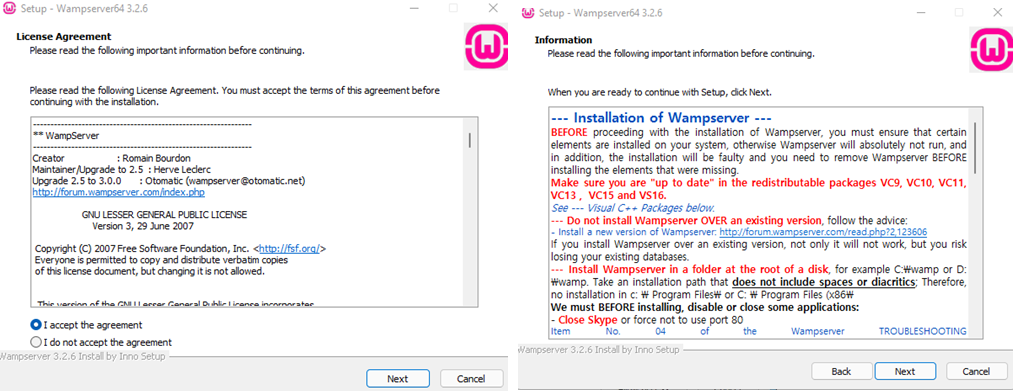
- Accept the License agreement and click next.
- On the next screen please carefully read the information and proceed as required, download and install the stated prerequisite software and restart the installation process a. If you don’t recognize any of the dependencies at first glance it is advised that you follow the instructions on this page closely so as to make sure that WAMP works as intended. b. If you have all the dependencies or have used a similar application to WAMP like XAMP without any issues, you can proceed by pressing next.
-
WAMP 32-bit required packages:
- Microsoft Visual C++ 2008 SP1 Redistributable Package (x86)
- Microsoft Visual C++ 2010 SP1 Redistributable Package (x86)
- Microsoft Visual C++ 2012 (select vcredist_x86.exe)
-
WAMP 64-bit required packages:
- Microsoft Visual C++ 2008 SP1 Redistributable Package (x64)
- Microsoft Visual C++ 2008 Redistributable Package (x64)
- Microsoft Visual C++ 2010 SP1 Redistributable Package (x64)
- Microsoft Visual C++ 2012 (select vcredist_x64.exe)
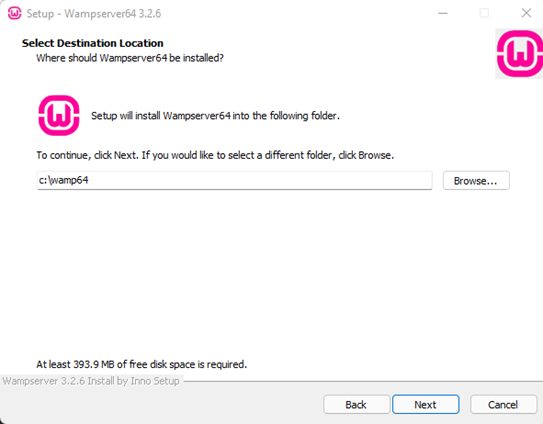
- Please choose the base of your C drive for the installation as recommended in the instruction brief.
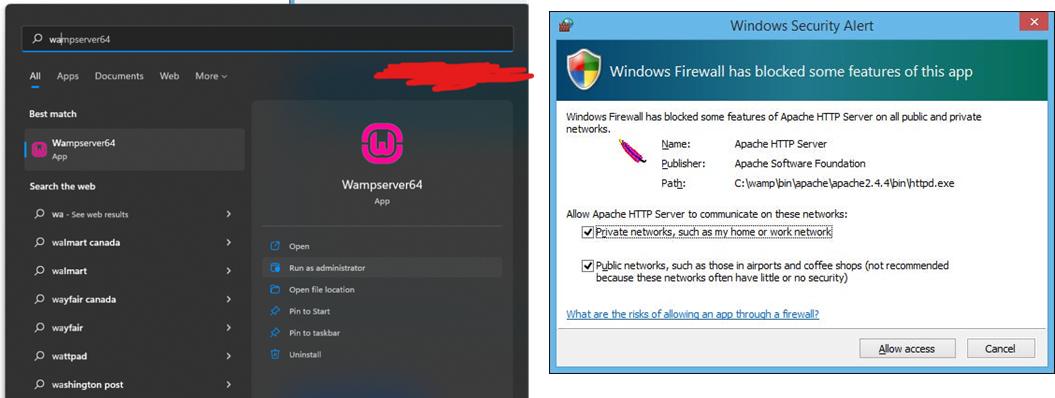
- After installation is complete, please start the application titled Wampserver as admin.
- Be sure to also add the security exception for Apache in Windows Firewall.
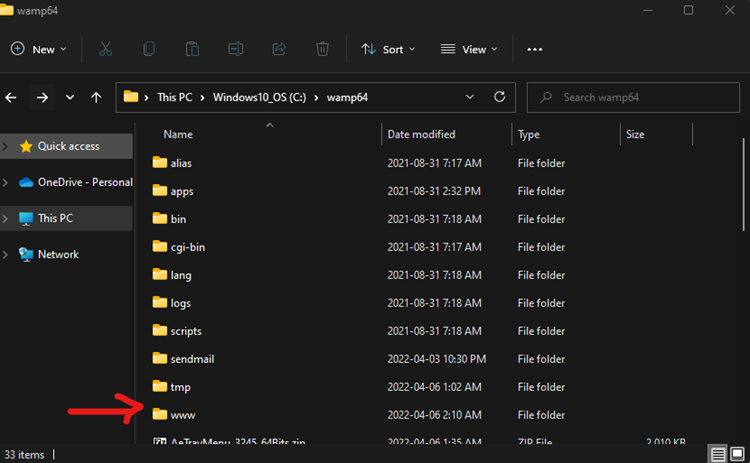
Now you can copy the project to the www directory within the WAMP installation folder:
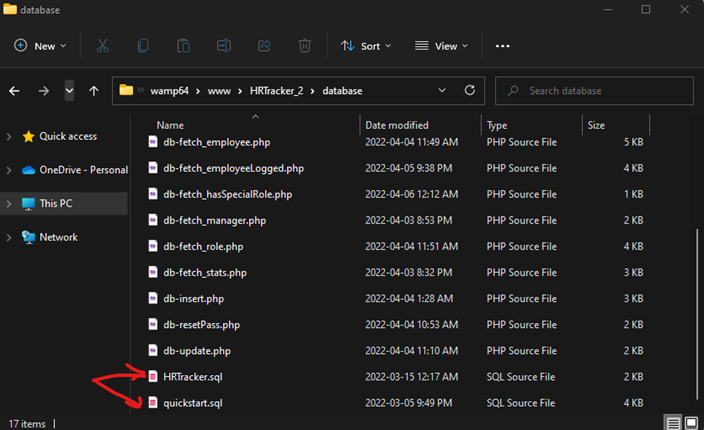
Next, you have to set up a database for use with the project, in the database folder within the project folder there exists two sql files one titled hrtracker.sql which would enable you create the db structure without any data for use with the project and the other titled quickstart.sql which would enable create the db structure and also import dummy data to enable you quickly get setup.
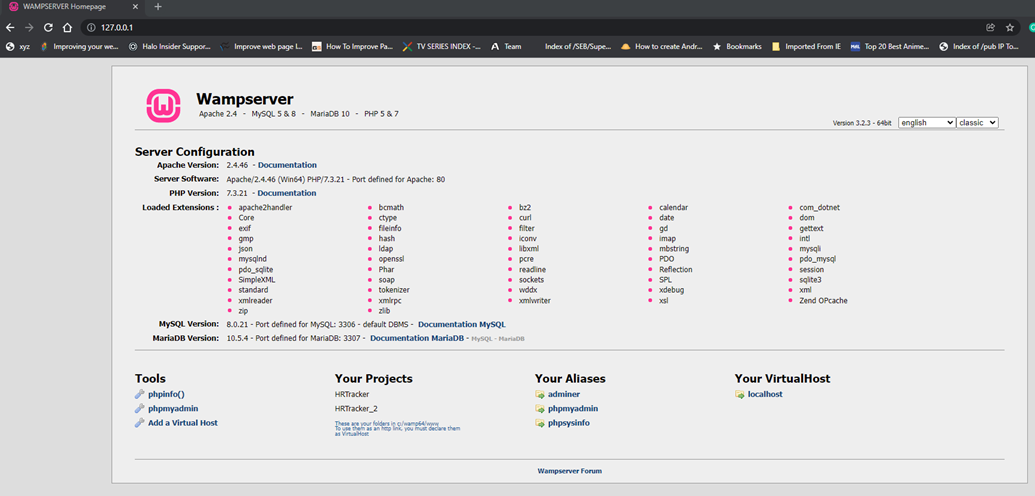
To run whichever SQL file you choose please open a browser and go to this address 127.0.0.1 which is the localhost address of your computer, if WAMP was installed properly and all the dependencies exist you should be greeted with the page below:
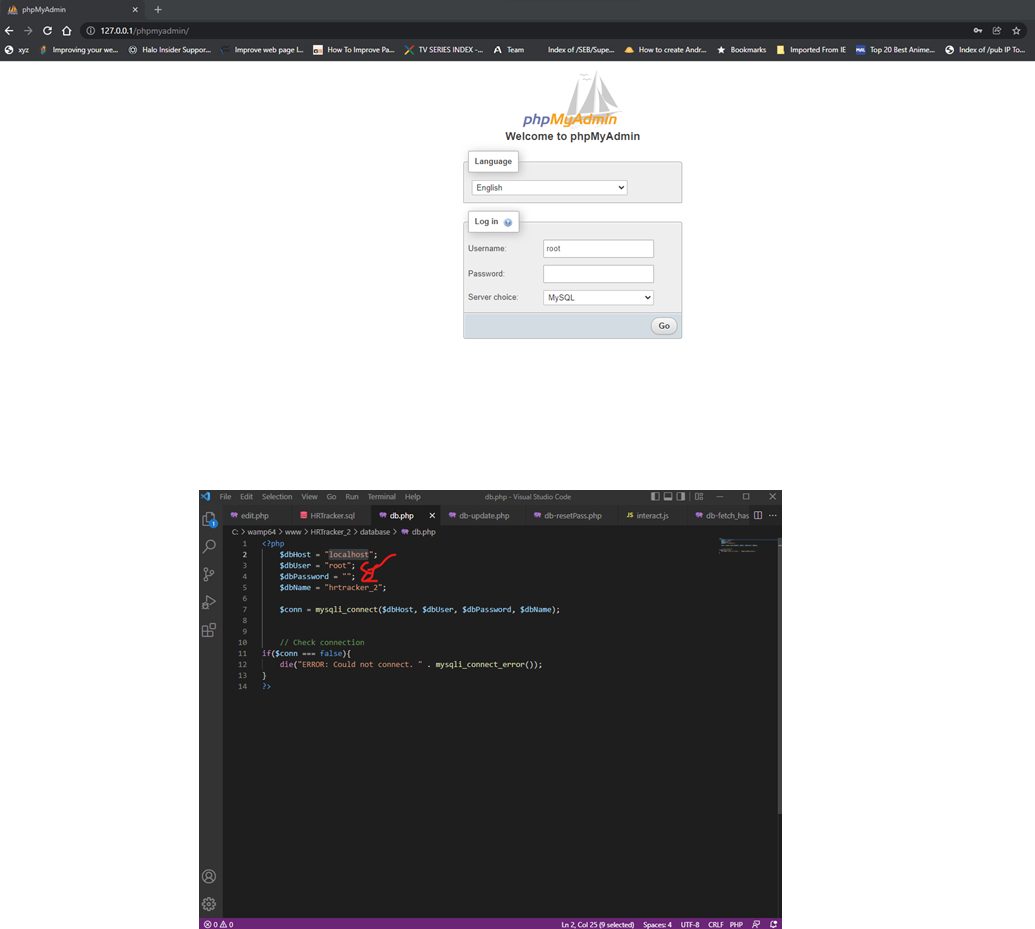
Now you can either click on the phpMyAdmin link or use http://127.0.0.1/phpmyadmin/ to access the database management tool, your default user name should be root with no password as shown below unless you have changed it previously at this point which you will need to change the details in the db.php file located in the database folder of the project (see db config)
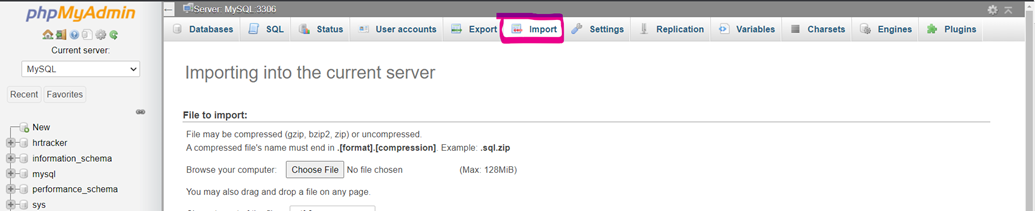
Once you are logged in please use the import option as shown in the image below to select your chosen sql file, use the default options and you should be good to go.
Now you can load the project within your browser using the link: http://127.0.0.1/HR_Tracker-main/
Regardless of which SQL file you chose, you will be greeted with a login page as shown below:
The default HR Manager login email is [email protected] and the password is: 12345 Login and have fun.

To test the email functionality for when you create a new user or generate a new password you will have to download and install the Test Mail Server Tool: https://toolheap.com/test-mail-server-tool/ This tool will help you to emulate sending emails from your localhost machine as it would of the project was being hosted. Installing to the default location using the default settings is okay See images below:
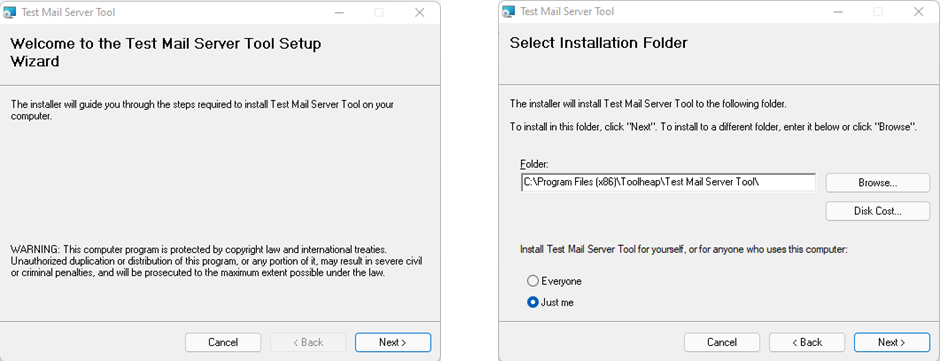
- Click next twice and let the installation complete.
- Now go to your desktop and run “Test Mail Server Tool”
- Make sure to allow the app through your firewall should the option popup similar to when we were installing WAMP
- The application should be running in your notification area, double click on it to open the window:
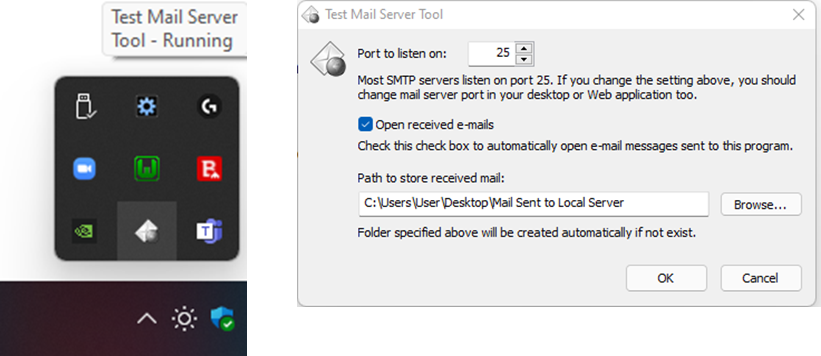
- Once you’ve confirmed that the program is running, you can change the path where the program stores the sent emails.
- Please remember to restart WAMP after the installation of the Test Mail Server Tool
- For good measure, if this is your first time using WAMP please make sure you restart your PC after installing it so that it can work properly with the Test Mail Server Tool.