こちらで公開されていたコードをベースに、日英バイリンガル表示化
また「PDF特定ページ抽出」機能を追加
Based on the following code, English labels added
"Extract selected pages" feature added as well
https://github.com/jean0enuma/pdfGUI
以下の説明文は、原文を一部改訂した上で英訳を追加
I revised a little and added English translation to the following original readme
- GUIでPDFの結合,抽出、分割ができる
Merge / extract / devide PDF with GUI - Windows,Mac向け実行ファイルを生成し、Pythonがインストールされていなくても実行できる
Generate Windows & Mac executables, which runs without Python installed
- Windows 11
- macOS 15 Sequoia
Ubuntu(だぶん) ※動作未確認 / Maybe, not tested
Ubuntu 24.04で動かそうとしたたところ、tkinter not found などのエラーが発生。
パスが通ってないなどが原因と思われるが、その辺のノウハウがなく実行できなかった。
Tried to run it on Ubuntu 24.04, but tkinter nout found error occurred.
Probably path problem, but couldn't make the way to run it.
python3で動作しています.必要なライブラリはPyPDF2だけです.
Depeinding on PyPDF2 only
pip install PyPDF2
もしくは
or
pip install -r requirements.txt
実行方法は該当ディレクトリに移動し
For starting the app, go to the directory and run
python pdf_gui.py
これでGUIが起動する.
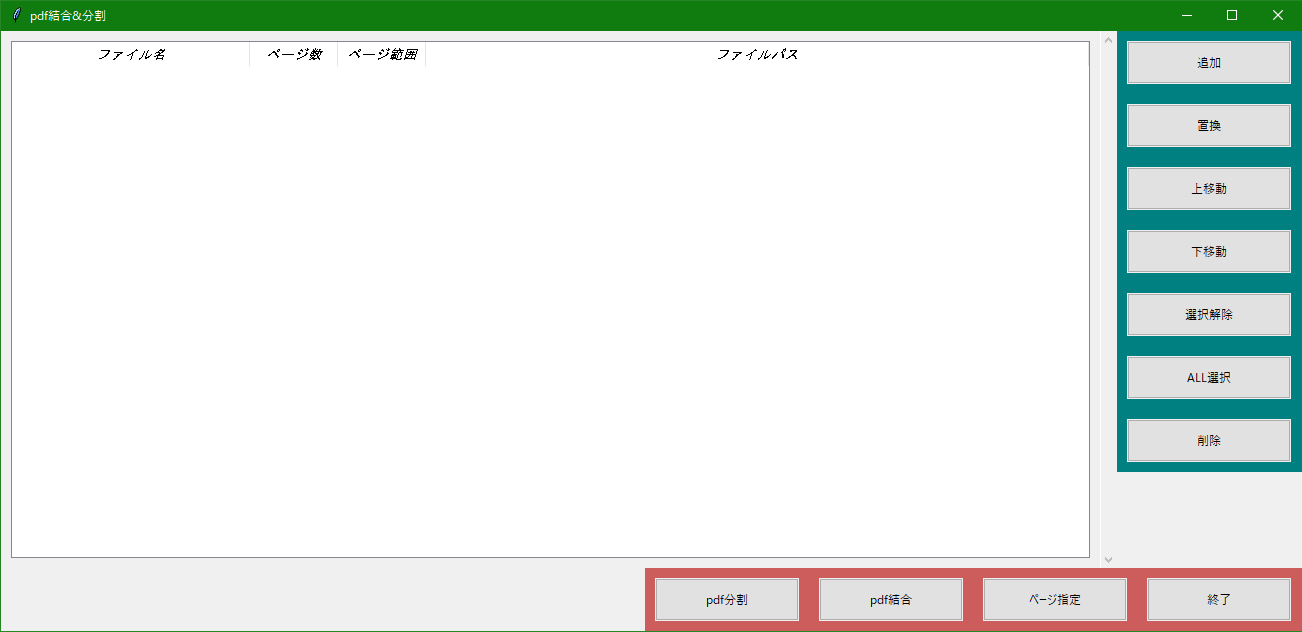 Windowsでの画面
Screenshot on Windows
Windowsでの画面
Screenshot on Windows
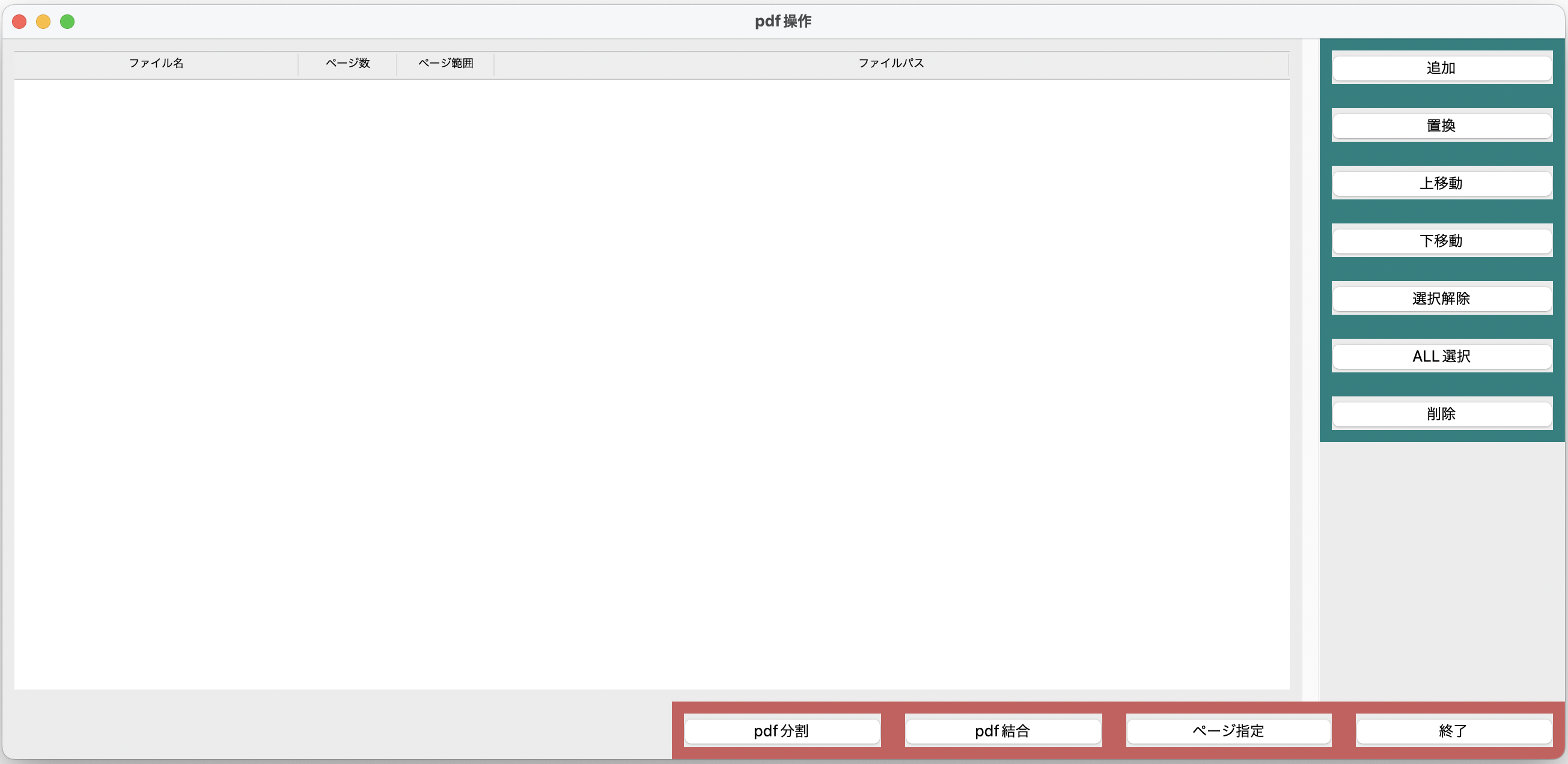 Macでの画面
また実行ファイルを生成する場合は,
To generate the executable file
python generate_exe.py
と入力するとdistというディレクトリに実行ファイルが生成される.
You'll find the executable file in dist directory
- PDFの結合 / Merge PDFs
- PDFの特定ページ抽出 / Extrace selected pages from PDFs
- PDFの分割 / Devide PDFs
どちらの機能もページ範囲の指定により,その範囲のみの結合,分割が可能.
-
右のボタンで「Add / 追加」と押しTreeviewにPDFファイルを追加
Click "Add / 追加" on the right menu to add the PDF to the Treeview -
ファイルを選択し「Merge / 結合」をクリック
Select files and click "Merge / 結合" -
好きな場所に保存
Save it to the directory of your choiceページ範囲を指定していると,範囲ページのみが結合対象となる.
If you select pages, only the selected pages are merged.
-
指定したページを抽出し、保存します
ページを指定していない場合は警告が表示されます(ファイルは保存されません)
If no page is specified, it'll show an alert message (file is not saved)
-
ページ範囲を指定していない場合
When the pages are NOT selected- ファイルを追加
Add file(s) - ファイルを選択し下のボタンのpdf分割をクリック
Select file(s) and click "Device PDF / PDF" - 好きな場所に保存
Save it to the directory of your choice
ファイルは1ページごとに分割されます.
File is devided per page. - ファイルを追加
-
ページ範囲を指定している場合
When the pages are selected- ページ範囲のボタンをクリックし最小,最大ページを設定
Click "Page range" and specify min/max pages - Treeviewに指定したページなどが表示されていることを確認した後,「Device PDF / PDF分割」をクリック
Make sure selected pages, etc. are listed on Treeview, then click "Device PDF / PDF分割" - 好きな場所に保存
Save it to the directory of your choice
ページ範囲が指定されているファイルは,範囲内と範囲外の2ファイルが分割されます.
また,Treeviewにある選択ファイルをダブルクリックすると,そのPDFファイルを開くことができます.
You'll get in/out range pages for those files with the page range selected.
You can open teh file by clicking the list in the Treeview - ページ範囲のボタンをクリックし最小,最大ページを設定
- 重いファイルを開くとTreeviewに表示されるまで時間がかかるときがある.
Opening large files may take some time to display in the Treeview. - 分割する際,ページ範囲をしていしていないとすべてのページが分割されるので,ページ数が多いとたくさんのファイルが生成されます.例えば,100ページあると100枚のpdfが作成されます.
If you don't specify a page range when splitting, all pages will be split. For example, a 100-page PDF will be split into 100 individual PDFs. - 動作としてMacとWindows10は確認しているが,Ubuntu等Linuxは動作確認をしていない.
The application has been tested on Mac and Windows 10, but not on Ubuntu or other Linux distributions. - だいぶ前にpython初心者が書いたコードなので,とっても汚い.自分でも何書いているのかわからない(笑).でもとりあえず動く.
This code was written by a Python beginner a long time ago, so it's quite messy. Even I can't really understand what I wrote (lol). But it works. - 変なテンションで書いたため, エラーメッセージが変.あまり気にしないでください.(たぶん修正します)
I wrote this with a strange tone, so the error messages might be a bit odd. Please don't mind it too much. (I'll probably fix it later.) - デザインがダサい.Tkinterなので仕方ない部分はあるのか?
The design is pretty ugly. Is this unavoidable with Tkinter? - tkinterのバージョンによってはエラーになるかも? 色の設定でエラーになりましたが修正済みです.
Depending on the Tkinter version, you might encounter errors. I had an issue with color settings, but I've fixed it.
CubePDF Pageはレイアウトなどを参考にしました.リンクを載せておきます.