I developed Thermostat Boost to allow me to temporarily set the temperature of Generic Thermostats (although it should work with any climate thermostat). When the temporary boost expires, the thermostat reverts to either the last temperature it was set to, or the current schedule (more details on Scheduler integration below) if one is defined and is turned on.
Previously, I had developed a series of automations to achieve this which involved creating numerous helpers for each instance. Adding a new thermostat took some time to do. I wanted to see if I could streamline this as well as test how well ChatGPT could code as this is well beyond my capabilities.
This integration has been designed around my own use case. I'm happy to take suggestions on board but it's unlikely I'll implement them, no matter how good they sound as I don't have the time to maintain this. I'll try to fix any major bugs or if something stops working due to a new HA release but no promises.
Caution
Because this was developed by ChatGPT Codex, I have no idea if the code is efficient or uses best practice. I've done a fair bit of testing but I may well have missed issues. I've also rearchitected the way it works a number of times and haven't had a chance to test so extensively. Use at own risk!
- 1.5.0
- Updated popups to match the new Bubble Cards structure.
- NB: Bubble Card
v3.2.0or newer is required.
- 1.4.0
- Added multi-thermostat card configuration to show/hide thermostats and enable reordering.
- Added per-card picker persistence scoping so multiple multi-thermostat cards can have independent saved picker states.
- 1.3.0
- Bundled the Lovelace card inside the integration so the dashboard card is installed automatically rather than manually. If you have installed it manually in a previous version, remove the file from your www folder and also delete it in the Manage resources section of Home Assistant.
- 1.2.0
- Combined the three separate dashboard cards into one with a selector to choose which one to display.
- 1.1.0
- Added the Track On-Device Changes toggle to handle thermostats with built-in schedules that would otherwise override a boost.
- Multi-thermostat selection is now persisted per user via backend storage.
- Various bugfixes
- 1.0.0
- Initial release.
- Fast temporary heat boost (or reduction) without touching your normal schedule setup (if you have one).
- Can boost one or multiple thermostats either using an absolute temperature or an offset (the included multiple thermostats card only uses an offset but absolute can still be done with the service).
- Automatic return to scheduled control or previous target temperature when boost ends.
- Functionality to set certain thermostats to Call for Heat. An aggregate binary sensor can be used in automations to fire the boiler if your setup allows this. I'm not actually using this but I have tested that the feature works as intended.
- Resilience during Home Assistant restarts or short outages.
- Script and automation friendly services (
start_boost,finish_boost). - New in 1.1.0 - the integration can recognise if the thermostat's built-in schedule has kicked in during a boost and revert back to the boost temperature. See the Track On-Device Changes just below for more detail.
- Easy to set up. Add the integration to HACS and then set up a new integration per thermostat. Finally add the associated card(s) to your dashboard (or just use the Services). Everything else should be taken care of. It should be quick and easy!
- Scalable. Works with multiple thermostats.
- Resilient. Persists across Home Assistant restarts and works even if the boost expires when the server is offline. This needs further testing as it was difficult to get working properly!
- Thought through! I've tried to take into account all the different scenarios where things can go wrong and ensure the integration doesn't fall over. I've also designed the UI to make sense (to me at least).
- Services/Actions available. If you don't want to use the supplied dashboard card, you can still be able to boost thermostats with the provided Services.
Some thermostats (e.g. Nest) have their own internal schedules that can override a boost. The Track On-Device Changes toggle is intended for these cases. When enabled for a thermostat:
- If the thermostat changes its target temperature during a boost (whether from its built-in schedule or a manual change on the device or vendor app), the boost temperature is re-applied so the boost remains in control.
- I'd have preferred to only track those changes made automatically by schedules and ignore manual changes via the device or vendor app but this wasn't possible.
- The most recent on-device change detected during the boost is remembered.
- When the boost ends, Thermostat Boost restores that remembered on-device target temperature instead of the original pre-boost temperature to ensure the schedule is stuck to.
- Changes to the thermostat via the Home Assistant UI are not tracked in this manner.
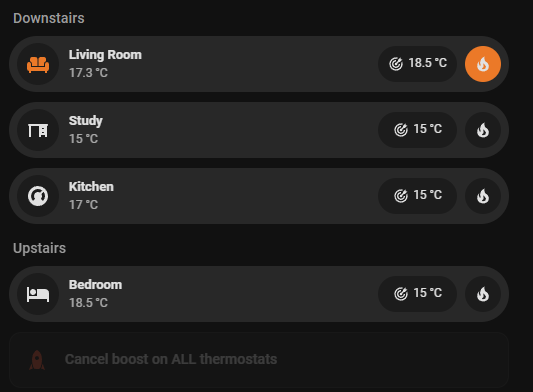
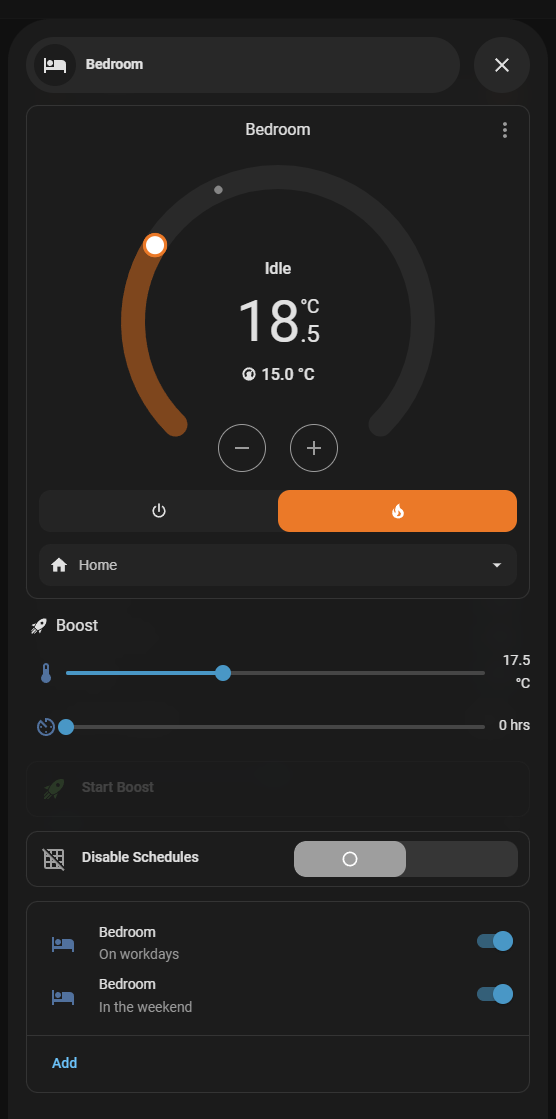
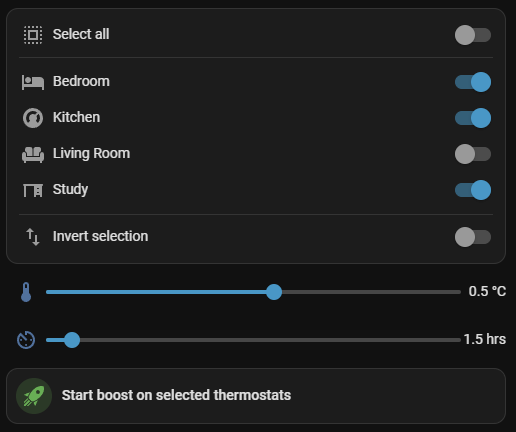
- The included dashboard card uses Bubble Card, Scheduler Card (and its associated Scheduler Component), and Slider Entity Row. I have made the Scheduler card optional but you must have Bubble Card and Slider Entity Row installed to use the custom cards.
- I haven't tested it but this should work for both Celsius and Fahrenheit.
- Certain logic e.g. not being able to change schedules during boosts is enforced using the included card to avoid confusion. I don't know how well the boost will handle it if changes are made outside of the card but I expect it will work.
- The included services should be hardened sufficiently so that even without using the included custom card and its logic from the above bullet, things should still work.
Note
Starting from 2026.3, integration icons are now bundled with the integration. Home Assistant is no longer accepting icons the old way so if you're running an older build, this integration won't show a custom icon.
- Add this repository to HACS using the following button
- Install Thermostat Boost.
- Restart Home Assistant.
Note
The bundled Lovelace card is registered automatically after Home Assistant restarts, so no separate card resource step is needed.
- Copy the thermostat_boost directory to /config/custom_components
- Restart Home Assistant
Click the following button:
Or:
- Go to Settings -> Devices & Services -> Add Integration.
- Select Thermostat Boost.
- Choose the target thermostat from the dropdown.
Repeat for each thermostat you want to control.
Note
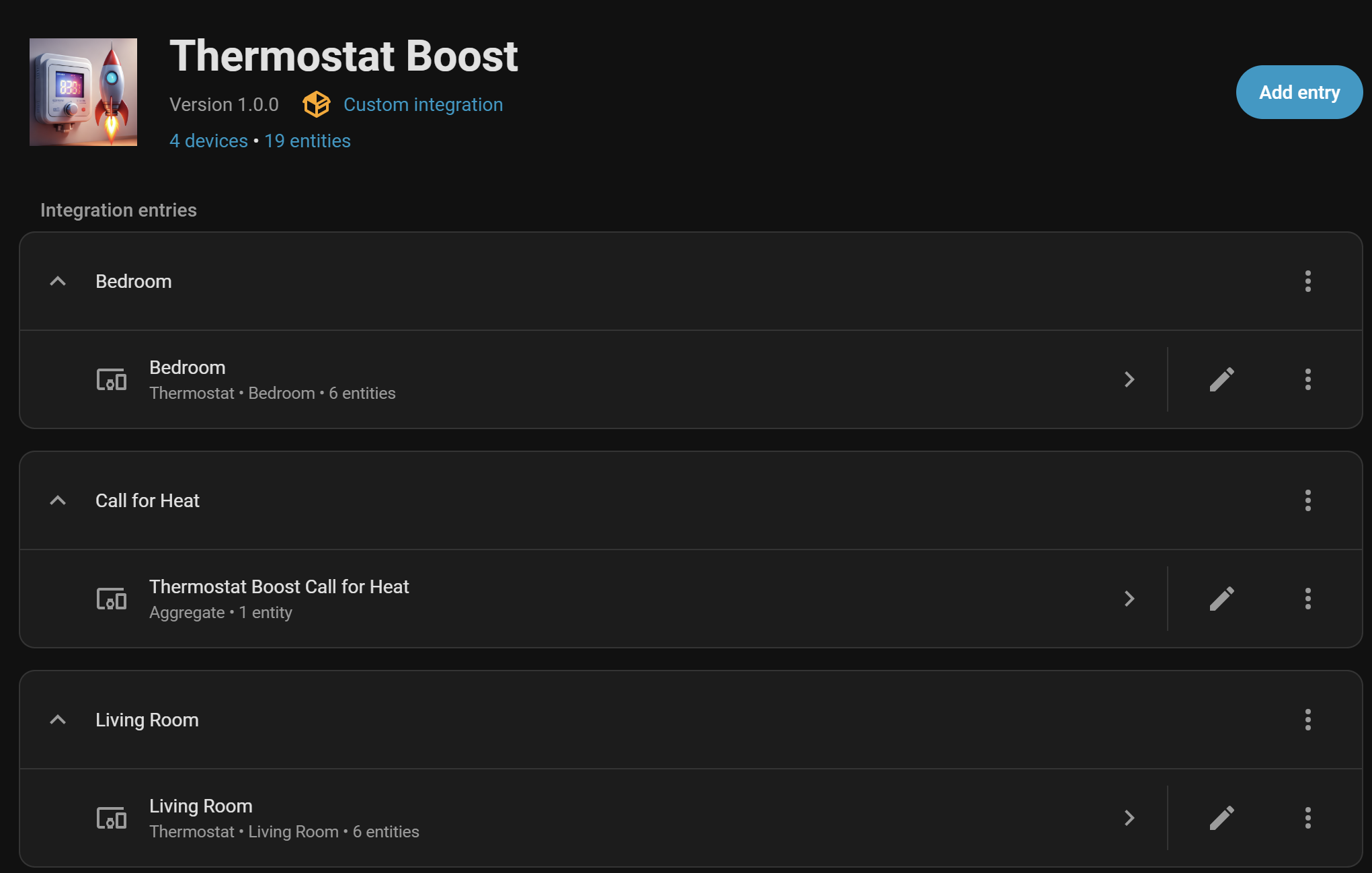
When the first thermostat entry is created, Thermostat Boost also auto-creates a separate device (Thermostat Boost Call for Heat) that provides binary_sensor.thermostat_boost_call_for_heat_active.
This Call for Heat device cannot be deleted manually while thermostats are still configured in Thermostat Boost. It is removed automatically when all Thermostat Boost thermostats are removed.
This repository includes custom_components/thermostat_boost/frontend/thermostat-boost-card.js, a bundled custom Lovelace card for:
- Thermostat summary
- Boost time/temperature controls
- Start/cancel actions
- Countdown display
- Display/edit/disable schedules (this can be turned off if you don't use schedules)
- Enforces some logic by disabling elements when they shouldn't be changed e.g. during a boost
When you add the card to a dashboard, the editor first asks which card mode you want:
Overview cardMultiple thermostats cardCancel all button
The remaining options then change based on that choice.
Note
- The Call for Heat toggle is not included on the dashboard card to save space, as it is expected to be changed infrequently. I also want to avoid accidental toggling.
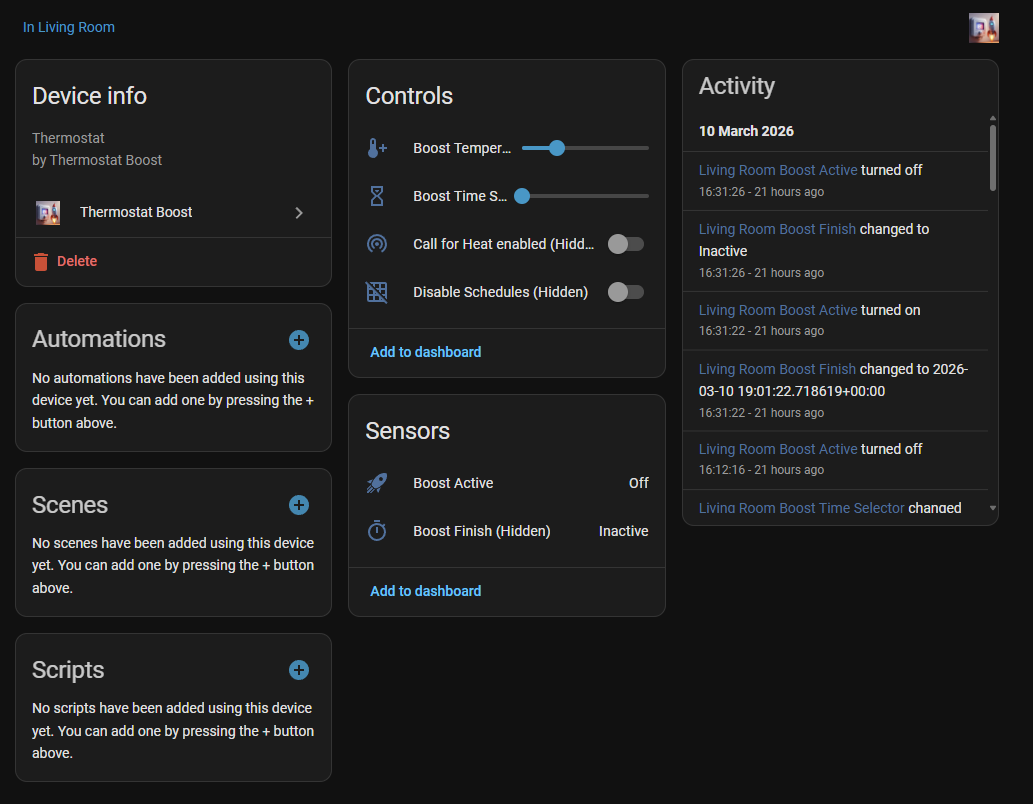
- You can change this setting from the thermostat Device Info page in Settings -> Devices & Services.
- The "Track On-Device Changes" switch is also available there. When enabled, on-device setpoint changes during a boost are captured and restored when the boost ends.
- Edit dashboard and click add card.
- Search for the Thermostat Boost card (card picker name: "Thermostat Boost").
- Choose the card mode first, then fill in the options that appear. If the card does not appear immediately after install, refresh the page once Home Assistant has restarted.
- Click save.
Include Scheduler card(default: enabled):- When enabled, the card shows the embedded Scheduler card and the
Disable Schedulesswitch. - When disabled, both the embedded Scheduler card and
Disable Schedulesswitch are hidden. - If the selected thermostat already has schedules assigned and this option is disabled, the editor shows a warning recommending that Scheduler card is included to avoid confusion.
- When enabled, the card shows the embedded Scheduler card and the
The Thermostat Boost card supports three modes:
Overview card- the normal single-thermostat card with popup, boost controls, and schedule options.Multiple thermostats card- the multi-device boost card that applies an offset to the selected Thermostat Boost devices.Cancel all button- the standalone cancel-all control for active boosts.
- Add the
Thermostat Boostcard and setCard typetoMultiple thermostats card. - In the editor list, use the toggle beside each thermostat to show/hide it on that card.
- Drag thermostats using the handle to set the order shown on that card.
- Save the card.
Card ID behaviour:
Card IDcontrols saved picker states for the card.- If another card already uses the same
Card ID, shared saved states may cause unexpected behaviour. - If this is a duplicated card (and not the original), give it a different
Card IDunless you intentionally want shared saved states. - Intentionally shared saved states can be useful if you want the same card in two different places on your dashboard.
- The editor only surfaces
Card IDguidance when a duplicate savedCard IDis detected.
The full feature set depends on these Home Assistant add-ons/custom cards:
| Dependency | Required for | Why it is needed | GitHub |
|---|---|---|---|
| Bubble Card | Required if using the bundled Lovelace card | The custom card renders with custom:bubble-card (header + pop-up views) |
https://github.com/Clooos/Bubble-Card |
| Scheduler Component | Optional | Provides scheduler functionality to the thermostat. | https://github.com/nielsfaber/scheduler-component |
| Scheduler Card | Optional | Used to show/edit thermostat schedules created by the Scheduler Component | https://github.com/nielsfaber/scheduler-card |
| Slider Entity Row | Required if using the bundled Lovelace card | Boost time/temperature controls use custom:slider-entity-row. I did try using the built-in tile card to do this but I didn't like the way the grabber disappeared when set to minimum - this felt confusing. |
https://github.com/thomasloven/lovelace-slider-entity-row |
Note
- If you do not use the bundled Lovelace card, Bubble Card / Scheduler Card / Slider Entity Row are not required for backend services to run.
- Click on the thermostat summary card
- Set the boost temperature and duration
- Click the
Start Boostbutton (this will only be shown when duration is set to a value above 0).
What happens in the background:
- The current target temperature of the thermostat is snapshotted.
- The thermostat's schedules (if there are any) are snapshotted and turned off. Matching is based on scheduler switches whose
entitiesinclude the boosted thermostat entity ID. Turning them off is done so they don't override the boost. - Thermostat target temperature is changed to match selected boost temperature.
- Timer is started.
- Boost runs until timer expires (or until boost is cancelled manually).
- On finish, the temperature snapshot is restored followed by scheduler snapshot (and those that are switched on will also be passed to the
scheduler.run_actionservice to ensure they're enabled correctly). The latter will override the temperature snapshot if a schedule is active at that point.
Note
Starting a boost while one is already active replaces the current boost (new temperature + timer from now). Boosts do not stack. On finish, Thermostat Boost restores the original pre-boost snapshot (temperature/schedules), not the temporary state from the already-running boost. The custom card prevents replacing one boost with another but it can be done from a service call.
Note
If a single scheduler switch controls multiple thermostats, boosting one thermostat will still toggle that shared scheduler switch and can therefore affect the other thermostats on that schedule.
- Select one or more thermostats using the picker at the top of the card.
- Set the boost temperature offset and duration.
- Click
Start boost on selected thermostats.
Notes:
- The card applies the same offset and duration to all selected thermostats.
- Thermostats hidden in the card configuration are not shown in the picker and are not included in a multi-boost.
- This card is for starting boosts only. Use the cancel-all mode to end active boosts.
This is the standalone cancel button mode of the Thermostat Boost card.
- Click
Cancel boost on ALL thermostatsto end any active boosts.
Boosts can be set for a maximum of 24 hours set by the UI. If you require an override of the schedule for longer (e.g in the summer or when you're on holiday), use the Disable Schedules toggle. This will switch schedules off for that thermostat. You can then set the thermostat to a fixed temperature and use boosts where necessary. When the boost expires, the thermostat will revert back to the fixed temperature.
You can probably set for longer than 24 hours using the Service but I haven't tried it.
The integration includes several safeguards:
-
Persistent timer state:
- Timer end times are saved to storage and reloaded after restart. A timer entity cannot be added to an integration which would have handled this "for free" so the functionality was developed.
- Expired-during-offline boosts are finished immediately when HA comes back. This is something that couldn't be done with a Timer helper.
-
Persistent scheduler snapshot:
- Turning schedules back on should always immediately set the thermostat to the prevailing schedule if there is one (and this is what I found in my old automation method). However I found this wasn't always reliable so when the schedules are turned back on,
scheduler.run_actionis also executed to force the schedule. This appears to work well but needs further testing.
- Turning schedules back on should always immediately set the thermostat to the prevailing schedule if there is one (and this is what I found in my old automation method). However I found this wasn't always reliable so when the schedules are turned back on,
-
Retry when entities are unavailable:
- If scheduler entities are
unknown/unavailableduring restore, restore is deferred and retried. - If a restore service call fails, restore is retried.
- If scheduler entities are
-
Dynamic boost temperature slider bounds:
- Reads thermostat
min_tempandmax_tempattributes - If either value is unavailable/invalid, it is normalised to
0 - Default fallback range - metric (
C):5-25, US customary (F):40-80 - If both normalised values are
0, the fallback range is used - If
max_tempis0andmin_tempis >0,max_tempis set to the fallback max - If bounds are inverted (
min_temp > max_temp), both are reset to the fallback range - Updates dynamically when thermostat min/max attributes change (no integration reload required)
- Reads thermostat
-
Finish callback fallback:
- A direct callback path exists in addition to the event listener, reducing risk of missed finish handling.
To see detailed integration logs (including scheduler snapshot/restore/retry decisions), enable debug logging for the integration namespace.
Persistent (configuration.yaml):
logger:
  logs:
    custom_components.thermostat_boost: debug
Temporary (Developer Tools -> Actions -> logger.set_level):
custom_components.thermostat_boost: debugFor each thermostat entry:
sensor.<thermostat>_boost_finish. Date/time the boost will end.switch.<thermostat>_boost_active. A flag to show when a boost is active.number.<thermostat>_boost_temperature. Boost temperature set in dashboard.number.<thermostat>_boost_time_selector. Boost duration set in dashboard.switch.<thermostat>_disable_schedules. A toggle to show the thermostat's schedules have been disabled.switch.<thermostat>_call_for_heat_enabled. Includes this thermostat in the aggregate call-for-heat signal.
All of the above are hidden by default so they are not shown on automatically generated dashboards. That's the theory anyway.
Additional aggregate device and entity:
- Device:
Thermostat Boost Call for Heat. A separate device that is created automatically for the integration. binary_sensor.thermostat_boost_call_for_heat_active. Turns on when at least one call-for-heat-enabled thermostat is actively heating. Use this to trigger your boiler to come on.
(Exact entity IDs depend on your naming/entity registry.)
Starts a boost session.
Inputs:
device_id(required). One device ID or a list of device IDs.time(optional - see example below for format. If not specified, Boost Duration slider is used.)temperature(optional. If not specified, Boost Temperature slider is used.)
Example:
service: thermostat_boost.start_boost
data:
  device_id: 1234567890abcdef1234567890abcdef
  time:
    hours: 1
    minutes: 30
temperature: 21.0Ends boost and restores scheduler state.
Example:
service: thermostat_boost.finish_boost
data:
  device_id: 1234567890abcdef1234567890abcdef