


A highly customizable virtual remote for your lovelace dashboard. It works with the Sofabaton X1, X1S, and X2 remotes.
This card does not work standalone, it is a frontend component only. It is dependent on an integration that communicates with the hub, via Home Assistant's backend.
You will need to have that integration installed and working, before you can use this card.
- If you have an X1 or X1S remote, install and configure the Sofabaton X1S integration via
HACSorGithub. This integration is also compatible with the X2 remote. - If you have an X2 remote, install and configure the Official Sofabaton Hub integration via
HACSorGithub.
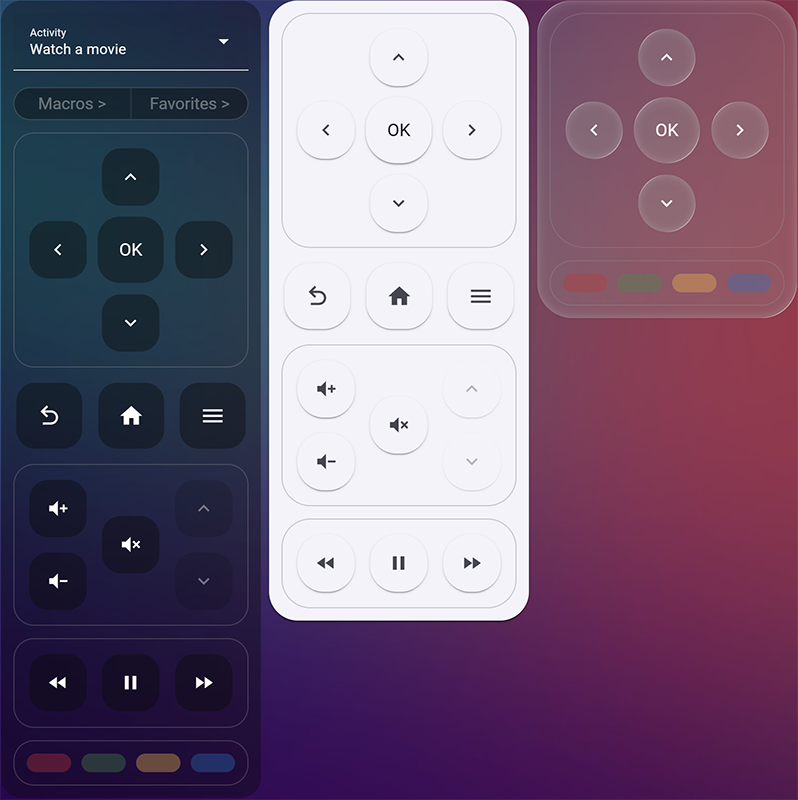
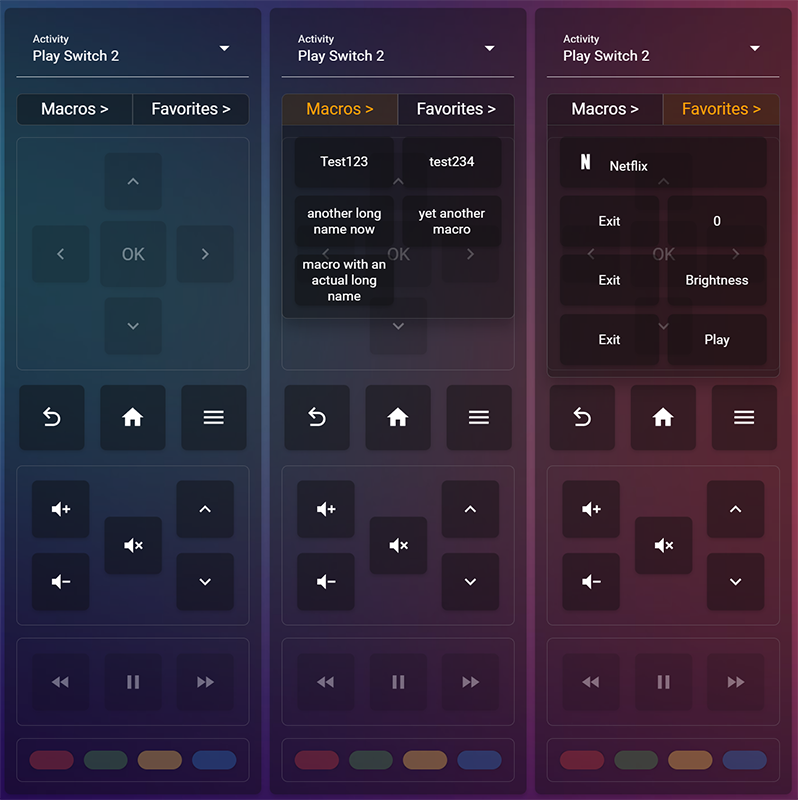
- It's your remote, in Home Assistant: Mirrors how you've set up your physical remote, including macros and favorites.
- Works with all Sofabaton hubs: Compatible with the Sofabaton X1, X1S, and X2 hubs.
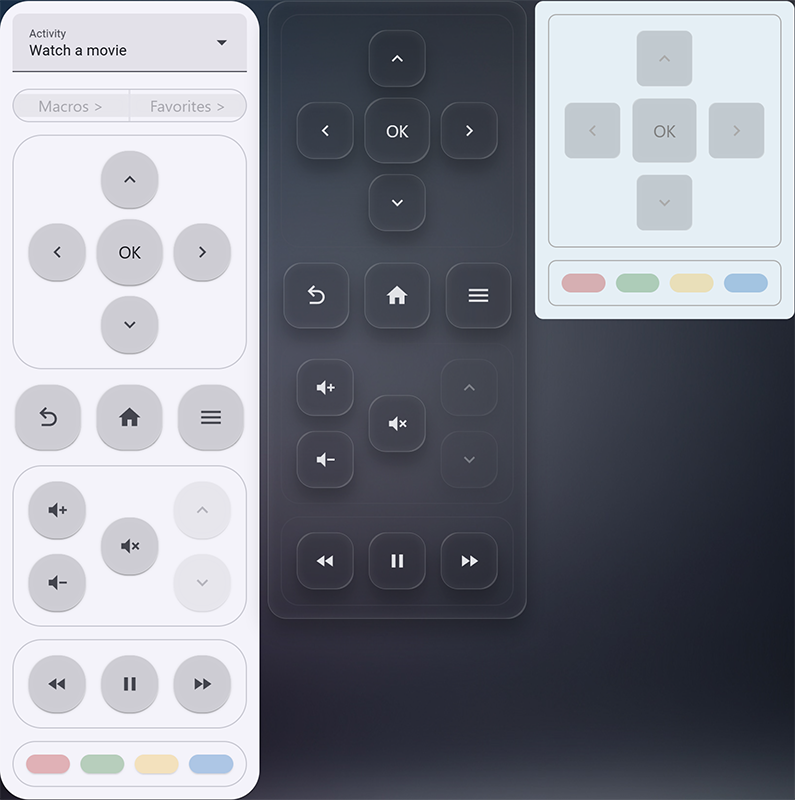
- Theming friendly: The virtual remote plays nice with your dashboard's theme, or override it for a different one.
- Custom Layouts: Show only the button groups you need (D-pad, Volume, etc.), make layouts per Activity.
- Automation Assist: Designed to simplify the creation of your own UIs and automations. Learn how to send any command to the hub.
- Key capture: Record keypresses in the virtual remote and receive them as YAML, to replay them in your own UI or automation.
- Responsive Design: The card scales to however much space it has. Tweak its behavior by setting a maximum width.
- Configure via the UI: No need for YAML.
- Open HACS in Home Assistant.
- Search for "Sofabaton Virtual Remote" and click Download.
- Download the
sofabaton-virtual-remote.jsfrom the latest release. - Upload it to your
<config>/www/directory. - Add the resource to your Dashboard configuration:
- URL:
/local/sofabaton-virtual-remote.js - Type:
JavaScript Module
- URL:
The card is best configured using the Visual Editor. Just add a new card to your dashboard and search for Sofabaton Virtual Remote.
Once in the card configuration panel, select your remote/hub from the dropdown. The dropdown will only contain remote entities that are compatible with the card, so you can't go wrong here. After that, just play around with the settings.
If you prefer YAML, this is the minimal implementation:
type: custom:sofabaton-virtual-remote
entity: remote.x2_hub    # the remote entity added by the Sofabaton integration.
Here is the full list of options:
| Key | Type | Description | Default |
|---|---|---|---|
entity |
string | The remote. entity of your Sofabaton device. |
Required |
max_width |
number | Limits how wide the remote grows. | 360 |
show_automation_assist |
boolean | Show/hide the Automation Assist panel. | false |
show_activity |
boolean | Show/hide the activity selector. | true |
show_dpad |
boolean | Show/hide the directional pad. | true |
show_volume |
boolean | Show/hide Volume controls. | true |
show_channel |
boolean | Show/hide Channel controls. | true |
show_mid |
boolean | Show/hide Home, Menu, and Back buttons. | true |
show_media |
boolean | Show/hide Play/Pause, Rew, Fwd buttons. | true |
show_dvr |
boolean | Show/hide the X2 DVR, Pause, Exit buttons. | true |
show_colors |
boolean | Show/hide Red, Green, Yellow, Blue buttons. | true |
show_abc |
boolean | Show/hide the X2 A/B/C buttons. | true |
show_macros_button |
boolean | Toggle the Macros drawer button. | true |
show_favorites_button |
boolean | Toggle the Favorites drawer button. | true |
mf_as_rows |
boolean | When true, Macros and Favorites render as their own scrollable rows in the card instead of drawer buttons. Each becomes an independently-orderable row (macros_row / favorites_row) and the combined macro_favorites row is hidden. |
false |
mf_row_visible_rows |
number | Number of button rows visible in each inline Macros / Favorites row before the row becomes scrollable. Shared by both rows. Range 1–6. Only effective when mf_as_rows: true. |
2 |
custom_favorites |
list | List of custom buttons for the drawer. | [] |
theme |
string | Set a specific theme for this card. | "" |
background_override |
list/object | Override the card background (e.g., [33, 33, 33]). | null |
group_order |
list | Change the order of the button groups. Valid entries: activity, macro_favorites, macros_row, favorites_row, dpad, nav, mid, media, colors, abc. macros_row / favorites_row are only rendered when mf_as_rows: true; macro_favorites is only rendered when mf_as_rows: false. |
activity, macro_favorites, macros_row, favorites_row, dpad, nav, mid, media, colors, abc |
layouts |
map / object | Set Layout Options per Activity ID. All keys above (including mf_as_rows, mf_row_visible_rows, show_macros_button, show_favorites_button, group_order, etc.) can be overridden per-activity. |
{} |
Per-activity layout example: keep the default everywhere, but in Activity 101 hide the activity selector and reorder the groups:
type: custom:sofabaton-virtual-remote
entity: remote.x2_hub
show_colors: false           # color buttons hidden in every Activity
layouts:
  "101":
    show_activity: false     # Activity select hidden in Activity 101
    group_order:             # Custom group order for Activity 101
      - activity
      - dpad
      - nav
      - mid
      - media
      - colors
      - abc
      - macro_favorites
Macros/Favorites as inline scrollable rows: both sections become their own rows positioned where you want them. Each row shows 3 button rows at a time before scrolling:
type: custom:sofabaton-virtual-remote
entity: remote.x2_hub
mf_as_rows: true
mf_row_visible_rows: 3
group_order:
  - activity
  - dpad
  - nav
  - mid
  - macros_row        # inline scrollable macros row
  - favorites_row     # inline scrollable favorites row
  - media
  - colors
  - abc
layouts:
  "101":
    mf_as_rows: false # Activity 101 falls back to drawer buttons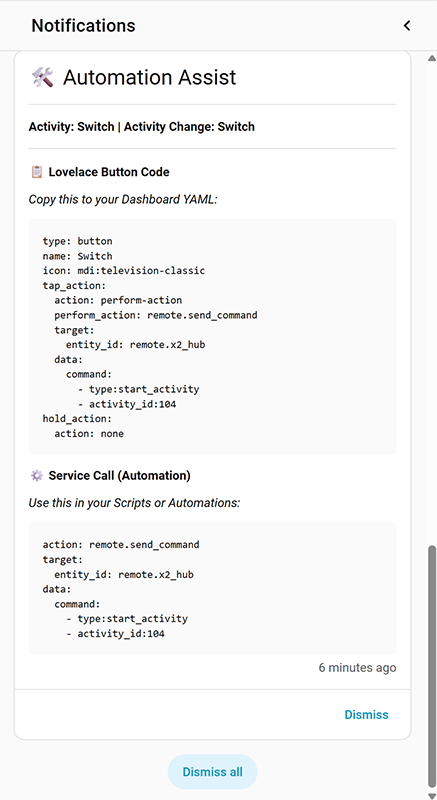
It has 2 features to help make your own UIs and Automations:
-
Key capture → copy/paste code (X1 / X1S / X2)
When enabled, the card captures button presses and Activity changes on your virtual remote and sends a Notification, available in your Home Assistant sidebar, containing YAML to reproduce that button press in:
- your dashboard (a Lovelace button that triggers the same command)
- a script / automation action (a ready-to-use service call)
For more details, see here
docs/keycapture.md. -
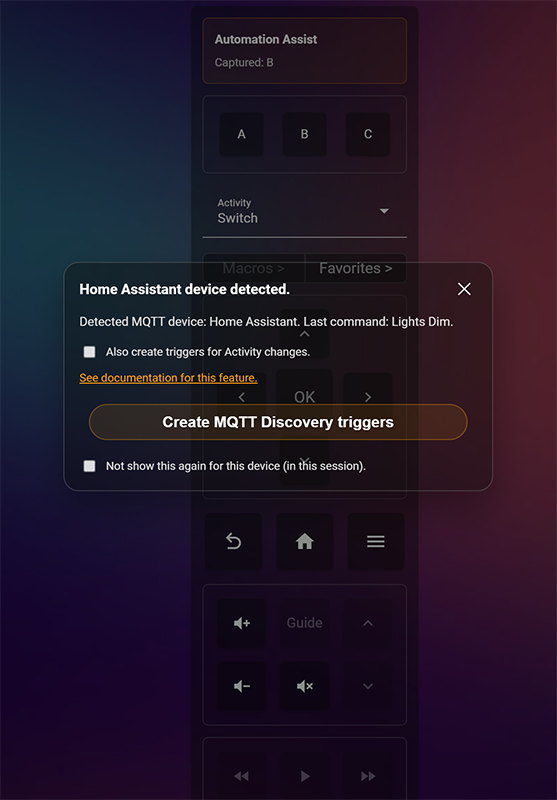
MQTT device triggers (X2 only)
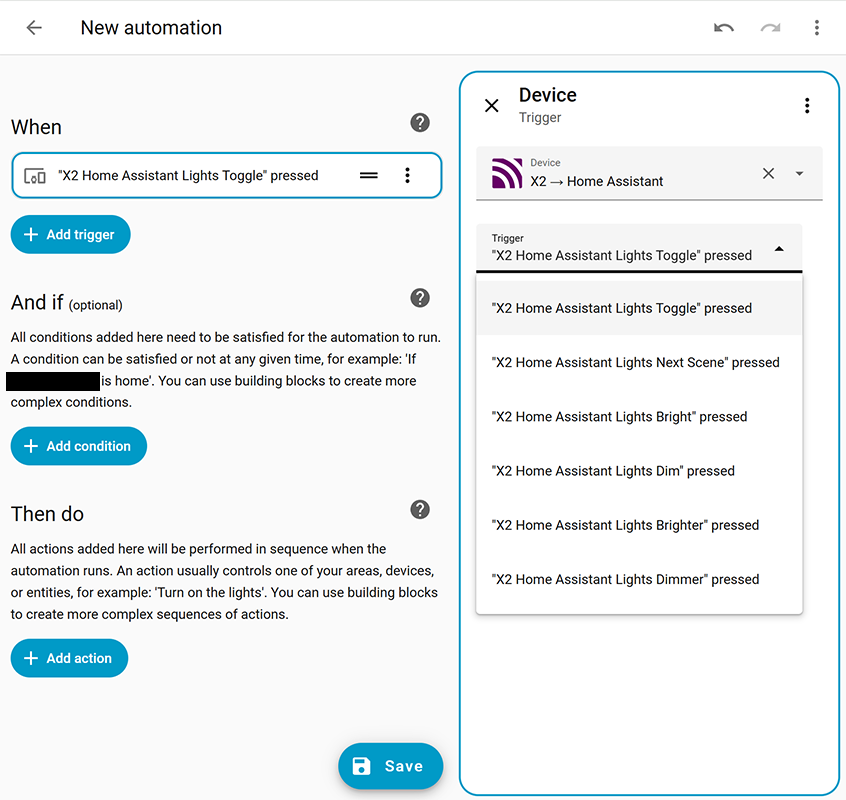
This feature creates descriptive Home Assistant triggers for MQTT commands and Activity changes — without having to copy/paste MQTT topics and JSON payloads by hand.
Instead of:
- Topic:
F19879827938423/up - Payload:
{"device_id":1,"key_id":1}
You get:
- Device:
X2 → [YOUR DEVICE NAME] - Trigger:
Dim the lights
For more details, see here
docs/automation_triggers.md. - Topic:
MIT © 2026 m3tac0de.