Your PC's vitals on a Badgeware badge. A compact, wireless and extensible hardware monitor for Windows, macOS and Linux.
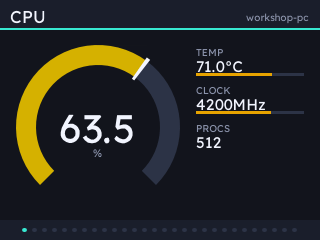
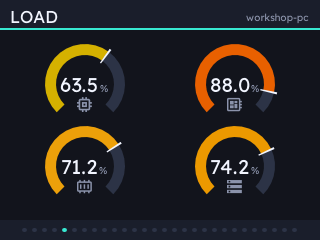
Runs on Badgeware's Tufty, firmware v3.0.0 and above, with a 2.8" 320x240 colour IPS display.
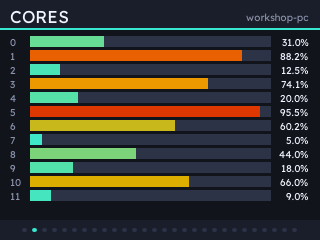
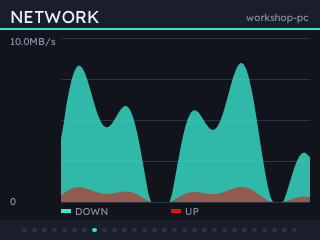
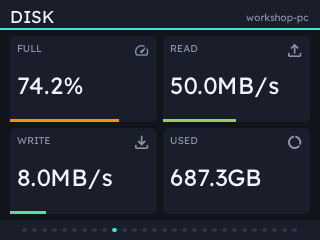
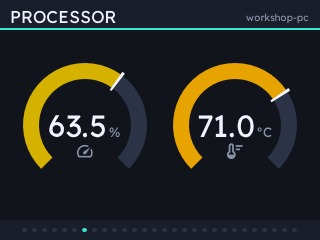
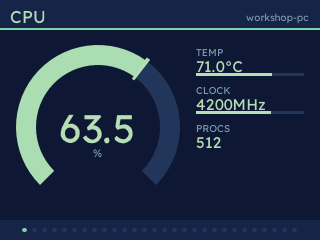
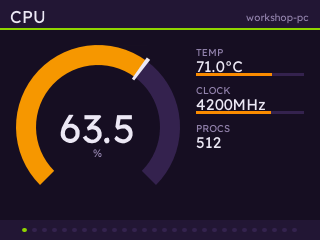
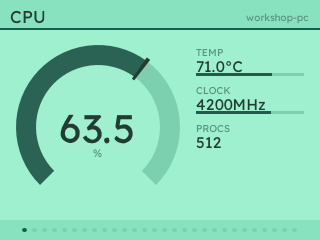
Build your stats overview from a selection of pages - bar graphs and waterfalls to big, bold gauges - configured in a web UI on your computer and pushed to your badge at the press of a button. A server on the host measures things and serves them; the badge fetches and draws them, so rearranging the display needs no reinstall.
Uses uv. As a tool, so it lands on your PATH and keeps a separate environment:
uv tool install statsbadge
statsbadge serve
Working on a checkout instead:
uv sync
uv pip install --no-deps ./extensions/statsbadge-clock   # optional
uv run statsbadge serve
Into whatever environment you already have, with pip or uv:
uv pip install statsbadge      # or from a checkout: uv pip install .
pip install statsbadge         # plain pip works too
One extra, if you want it: statsbadge[nvidia] for NVIDIA cards via NVML. Pushing the app to a badge over USB needs nothing added.
With the badge on USB, in another terminal:
statsbadge install                       # copies the app, extensions and pairs it
statsbadge install --ssid "My Network"   # and sets up WiFi, from a brand new badge
That writes the pairing secret over the serial REPL and, if the app needs copying, offers to reset the badge into USB mass storage mode to do it. Answer no and you get credentials only.
Run it again whenever you have upgraded the package or installed an extension. It compares what is on the badge with what it would put there, copying only what differs and dropping what does not belong. When the badge already matches, it is left alone: about a second, no reset. statsbadge update is the same command under the name you probably reached for. Credentials already written are left as they are, so a repeat run is purely a code update.
--ssid sets the WiFi details in the badge's secrets.py while that volume is mounted, so a new badge goes from unboxed to showing stats in one command. It prompts for the password, so the password stays out of your shell history; --pass takes it directly and an empty string means an open network. --region and --timezone set those too. Details the badge already has are left alone unless you pass --force-secrets.
No cable? Run statsbadge pair, or open the config UI and press Pair a badge. Launch Stats on the badge and press B to set up; it finds the host by itself and shows a six-character code. Check that code matches the one the host shows, and approve it there. Nothing is typed on the badge.
A server is not in pairing mode until you put it there, and the window closes after five minutes or when you press Stop pairing. Requests are rate limited and capped. One only pairs a badge once you approve it.
Then open http://127.0.0.1:8420/ to pick screens, themes and button bindings. A button can run a host command, or do something on the badge itself: page back and forth, or cycle the brightness. The badge can also set that brightness from its light sensor to suit a dim room, and page through the screens on a timer once nobody has touched it for a while.
statsbadge serve                       # the usual thing
statsbadge status                      # what is on the badge, what this host knows
statsbadge ext                         # installed extensions, and whether they loaded
statsbadge ext add clock               # install one and remember it
statsbadge probe                       # what this host can measure at all
statsbadge badges                      # which badges are paired here
statsbadge badges --forget <badge-id>

statsbadge install --force-app         # copy the app whether or not it changed
statsbadge install --no-extensions     # leave extension modules off the badge
statsbadge install --without clock     # everything except that one extension
statsbadge install --new-secret        # re-key this badge
statsbadge install --ssid "Other" --force-secrets    # change the WiFi it uses

statsbadge --config-dir ./cfg serve    # global options come before the subcommand
Each badge is configured separately. The picker in the header of the config UI names the badge a page belongs to, and pages, theme, buttons and the rest belong to that badge. A badge that has just been paired draws the default until it is saved for the first time, the entry "Default, for any other badge" in the picker. Saving for one badge leaves the others where they are - a badge only refetches when its layout's revision moves. Forgetting a badge takes its layout with it. What an extension is told - a place, an API key - stays one answer per host, since that is what it is.
Configuration lives in ~/.config/statsbadge on Linux, ~/Library/Application Support/statsbadge on macOS and %LOCALAPPDATA%\statsbadge on Windows, or $XDG_CONFIG_HOME/statsbadge wherever that is set. statsbadge status prints the path it is using. Three files: layout.json, server.json and badges.json, the last holding pairing secrets and kept at mode 600.
Credentials are keyed on a server id the host mints once, not on its address. So:
- The host's IP changes. The badge notices the polls failing, hears the host's beacon, recognises the id it is already paired with and follows it to the new address. Nothing to re-pair.
- Two computers. Pair with both -
statsbadge installandstatsbadge pairadd hosts; neither replaces the one already there. Each gets its own secret and counter. The badge uses whichever it can reach, and switches by itself when the current one goes quiet. - Same computer, fresh install.
installreuses the existing secret unless you pass--new-secret, and folds an older single-host config in, leaving nothing orphaned.
statsbadge badges lists what a host has paired; --forget drops one.
| Button | What it does |
|---|---|
| UP/DOWN | previous/next page |
| A B C | whatever the host has bound them to, if anything |
| HOME | open the hosts menu |
| HOME, held | leave the app |
The hosts menu is how you switch between machines - laptop, desktop, that Linux box - and how you add another one. It rescans every time it opens, so a server you start after the app is already running turns up without a restart.
| Group | Fields |
|---|---|
cpu |
load, per-core, temperature, clock, load average, processes |
mem |
used, total, percentage, swap |
gpu |
load, temperature, VRAM, power, clock, fan |
net |
up/down rate and totals, interface |
disk |
used, total, read/write rate |
power |
battery, charging, package watts |
fans |
RPM |
sys |
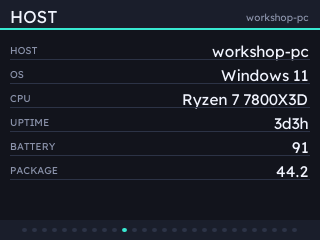
host, OS, CPU name, uptime |
A field the host cannot measure is null, and pages that need it are dropped, not shown empty. On macOS that means temperatures, fan speed and package power. Those need root, so they are opt-in with --powermetrics, which allows exactly one command:
sudo visudo -f /etc/sudoers.d/statsbadge
# then, with your own username:
you ALL=(root) NOPASSWD: /usr/bin/powermetrics --samplers cpu_power,gpu_power,thermal -i 1000 -f plist
Run with --powermetrics and no rule in place and it prints that line with your username already in it, then carries on without those fields. Windows needs LibreHardwareMonitor running with its web server on for temperatures and fans. NVIDIA GPUs need pip install statsbadge[nvidia].
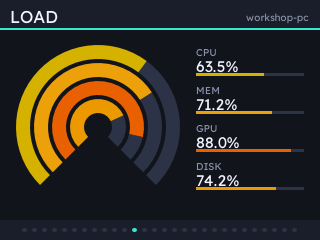
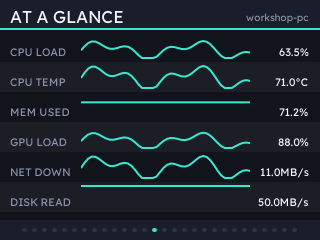
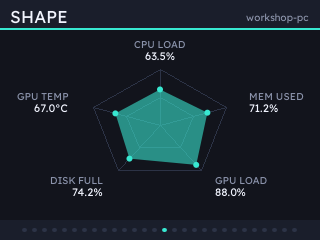
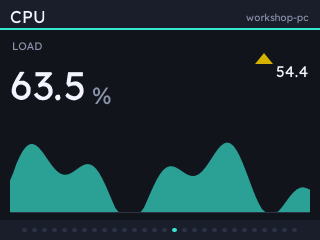
Twelve kinds, and any field can go in any of them. Six show readings as they are. Those are dial, dials, bars, graph, grid and text. The other five go further than a single number:
| Kind | What it is for |
|---|---|
rings |
up to four readings as concentric gauges, each coloured by its value |
spark |
six readings at once, name, current value and recent history a row each |
radar |
three to six readings as a polygon: the shape of the load rather than its size |
trend |
one big reading, which way it is going, and where it has been |
waterfall |
a list field as lanes over time, interpolated between polls |
badge |
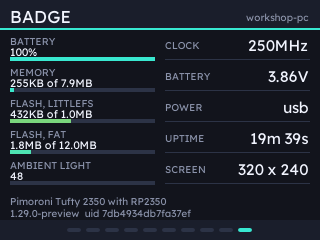
the badge's own vitals, which need no field and no host |
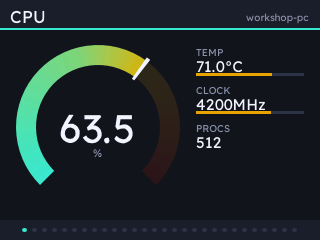
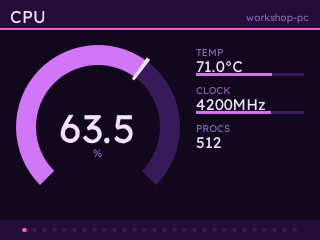
dial has a page to itself, so it is the one gauge big enough to read a ramp off. Set Dial gauge to The Whole Ramp and it fills with a conical gradient carrying the theme's ramp end to end. Past the reading the same stops are drawn at alpha 32, so the scale still shows behind it. Costs 0.6ms a frame.
badge is the odd one out. Battery, memory, both filesystems and the ambient light show as levels. The clock, voltage, power source, uptime and screen show as figures. The board, firmware and uid are underneath. Nothing on it comes from the host, so it is the page to turn to when you are wondering whether the badge or the network is the problem.
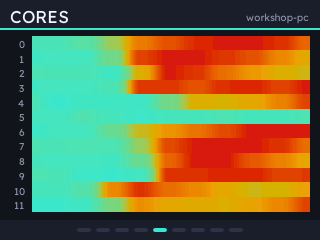
waterfall is the one that moves. Point it at cpu.cores and every core gets a lane, coloured by the theme's ramp and scrolling right to left at about 28fps. It interpolates between the once-a-second polls instead of stepping, so it reads as motion and not as data arriving. Precision is what that trades away; the numbers are on the other pages.
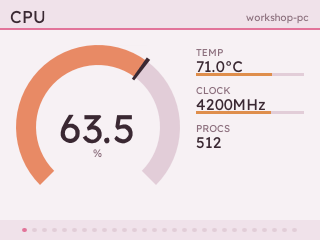
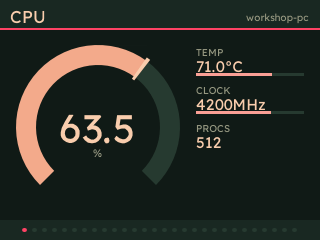
Sixteen themes, and forty-eight accents. The written-down ones are grouped light and dark in the picker: Default Dark and Default Light, frost, vapor, sakura and the three Eva units. Four more come as a pair for a lit room and a dark one: Mono, Watermelon, Shell and Luminescence.
Everything is drawn as vector shapes taking their colours from one table, so a theme is a palette and not a set of images. The palette travels to the badge with the layout, which makes it config: themes.toml is the only place one is written down, and adding one needs no install.
Then four you can tune yourself, derived rather than written. Pick one of forty-eight accents: twelve hues in four families, Pastel, Normal, Saturated and Dark. Tinted Dark and Tinted Light hold every hue at one chroma and send the ramp to red unless the accent is already there. Tinted Bold Dark and Tinted Bold Light take each hue as far as sRGB allows and keep the ramp in it, sweeping lightness. The single-hue names red, green, cyan, amber and blueprint are that second pair with an accent, so they still resolve to what they always looked like.
A palette can also carry a second accent, used sparingly. A graph's second series takes it, and that is the one place the badge otherwise has to hunt through the ramp for a colour that will show. A derived theme picks it by rule: Same, Complementary, Triadic or Contrasting, the last being whichever offered hue lands furthest away once lightness and chroma are counted. Watermelon Light names its own, that page having nowhere else to put its green. The config page previews whichever theme is selected, derived or not.
An extension is a pip install away. It adds data to the frame, and optionally badge-side code for a page the built-in kinds cannot draw:
statsbadge ext add clock
statsbadge install
Badge-side modules go on by default, so adding an extension and then running install is all of it. --no-extensions leaves them off, and --without NAME drops one from both the frame and the badge.
uv tool install is declarative: every run replaces the last, so naming one extension would drop the others. ext add keeps the list in extensions.txt beside your config and rebuilds from all of it. It starts from whatever the tool was already installed with, extras like statsbadge[nvidia] included, read from uv's record of the install.
statsbadge ext                     # what is installed, and what the list asks for
statsbadge ext add iss quakes      # add, then rebuild
statsbadge ext remove clock        # take one out, and out of the environment
statsbadge ext sync                # make the environment match the list
Installed some other way - a venv, pipx, a checkout - and ext add prints the uv pip install line to run instead. The list is still the record either way.
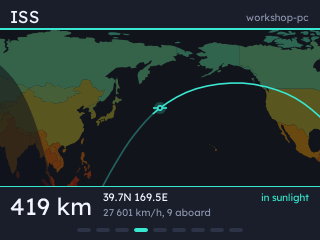
Three extensions are vendored here: statsbadge-clock for a clock and the weather, statsbadge-iss for the space station, and statsbadge-quakes for recent earthquakes. The last two draw on the badge firmware's world map, so running both costs one copy of the coastlines and no geometry crosses the network.
An extension can declare settings that belong to one page and not to the extension, so two pages of the same kind can show different things. The clock uses it for a place and a face. Point one page at Tokyo, another at home, and each shows that city's weather and local time. Open-Meteo returns a location's UTC offset with its forecast, so a place settles the time too and there is no timezone to set. latitude and longitude are there per page as well, for a spot no name lands on. Settings that describe how the extension works, like units or an API key, stay under Extensions where there is one answer per machine, and the place set there is the default for any page that names none.
Settings are what an extension is told. What it works out goes in self.store, a small dict the host keeps between runs: store.get(key) and store.set(key, value). It is namespaced by the extension's entry point name and written under the config directory, so an extension never picks a filename or manages a directory. It is in place by the time start runs.
The clock keeps the coordinates a place name resolved to, since a town does not move. The geocoder is asked once per name ever, not once per launch, so a badge coming up while the geocoder is rate limiting still draws the right place.
An extension can ship more than code. badge_assets lists further files to push, and the clock uses it for an icon font: its icons.txt names the Material Symbols to pack, and tools/make_icon_font.py packs them into an .af the badge loads with font.load().
uv sync --group fonts
python3 tools/make_icon_font.py extensions/statsbadge-clock
That fetches Material Symbols, fits each glyph to the text font's metrics so icons sit on the same baseline as the words beside them, and writes src/statsbadge_clock/badge/icons.af. Any vendored extension with an icons.txt builds the same way.
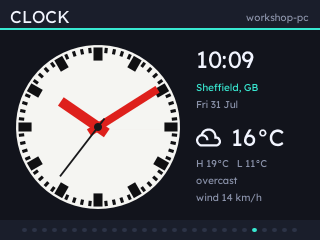
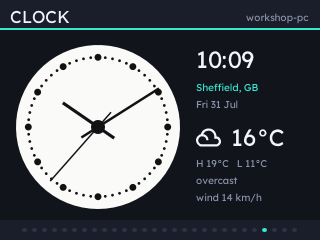
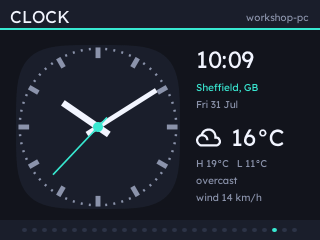
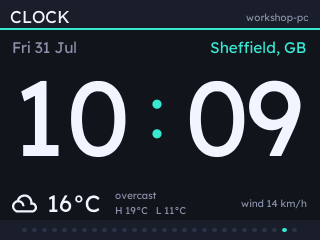
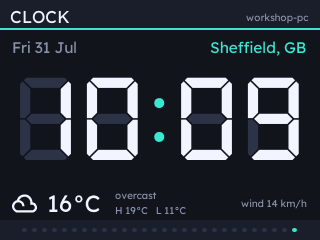
statsbadge-clock is a clock and the weather: five faces, including a Swiss railway station clock whose second hand sweeps at the badge's frame rate. Weather from Open-Meteo, no key needed.
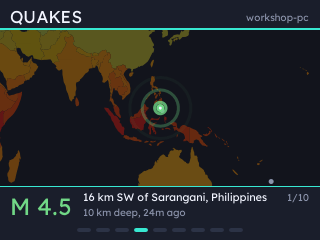
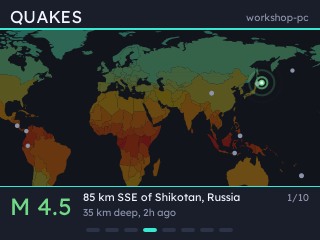
statsbadge-quakes puts recent earthquakes on a world map, cycling through them unprompted: the camera closes in on each, then pulls back out to cross an ocean, and the rings leaving an epicentre are coloured by magnitude. From USGS, no key needed.
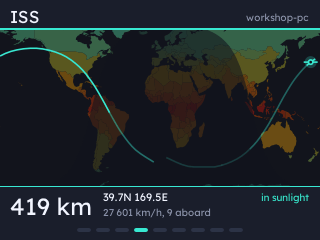
statsbadge-iss tracks the space station across the same map, with an orbit of ground track either side of it and the day and night terminator washed over the half the sun is not on. The sub-solar point arrives with the position, so the terminator costs two numbers and no almanac. Both feeds are open, so there is no key and no account to set up.
See DEVELOPMENT.md for how to write one.
Plain HTTP on the LAN, with every request signed HMAC-SHA256 against a shared secret from pairing, and a counter the host rejects on a repeat. So a command cannot be forged or replayed, and an unpaired device on the network learns nothing. TLS is affordable on this hardware but buys little without certificate validation - DEVELOPMENT.md has the measurements. The config API is bound to loopback because it can mint secrets. Host commands only run if you have bound them to a button.
The badge draws with two typefaces, both under the SIL Open Font License, packed into .af by tools/make_text_font.py:
- Lexend for everything, and again as thirteen digits packed wide for the clock face that draws numbers the height of the band. Licence.
- DSEG by keshikan, DSEG7 Classic Bold, for the LCD clock face's seven segments. Licence.
The repository, the package, the module and the command are all statsbadge. Keeping them identical is deliberate: name the distribution and the module differently and uv_build needs its module-name setting, which older uv treats as a fatal parse error rather than a warning. Extensions follow it - statsbadge-clock on PyPI, statsbadge_clock to import, clock to statsbadge ext add.
src/statsbadge/            the host server, a normal Python package
src/statsbadge/badge_app/  the badge app - MicroPython, runs only on the badge
src/statsbadge/web/        the config UI
extensions/                one package per extension
tools/                     host and on-badge development tools
tests/                     server, auth and framing tests
Releases are cut by tagging: vX.Y.Z for statsbadge itself, clock-vX.Y.Z and the like for
a vendored extension. The tag is the version, so a release cannot disagree with what it
publishes.
DEVELOPMENT.md is the onboarding document: the wire contract, the constraints the badge imposes, how to write an extension, and the commands for working on any of it.