4. Simplifying Payments
This document continues from 3. Choosing Tables tutorial. Please complete it before starting this tutorial.
On previous tutorial we implemented table selection function for Ticket Cards. On this tutorial we'll implement a payment dialog to simplify adding payments to Ticket Cards.
First we'll add a Payment Button for Ticket Cards. To do that open Main Menu and click Card Types menu item.
Select Tickets to edit Ticket Card Type.

We'll add Payment button next to Table button. To do that insert a new line under Table Button definition and type Payment=Add Payment. This means we'll have a button labelled as Payment and it will execute Add Payment command when clicked.
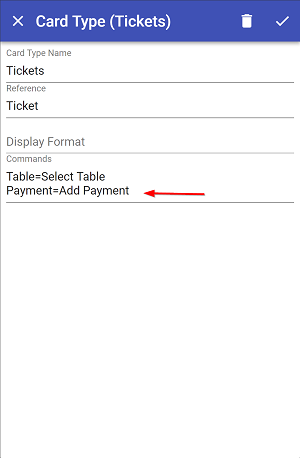
Click on Check Mark button to save the Card Type and edit a Ticket to test if button appears correctly.
You should be able see Payment button next to Table button.

We'll need two rule functions. One of them will display the dialog when button is clicked and the other one will add payment card when payment dialog is closed.
From Main Menu Click on Rules and edit Default Rules we added on the previous tutorial.

Paste AskPayment and SetPayment functions under Table Selection Functions.
rule AskPayment {
    when {
        r: Result;
        s: State;
        a: Action a.type == 'EXECUTE_COMMAND' from s.action;
        a: Action a.data.name == 'Add Payment' from s.action;
    }
    then {
        r.add('ASK_QUESTION',{
          question:'Enter Payment',
          tag:'MyPayment',
          parameters: {
            'type': [
                'Cash',
                'Credit Card',
                'Voucher'
              ],
            'amount': Number(s.card.balance)
          }
        });
    }
}

rule SetPayment {
    when {
        r: Result;
        s: State;
        a: Action a.type == 'ASK_QUESTION' from s.action;
        a: Action a.data.tag == 'MyPayment' from s.action;
        s: State s.state.get('amount') > 0;
    }
    then {
        r.add('CREATE_CARD',{type:'Payment'});
        r.add('SET_CARD_TAG',{
          'value': s.state.get('type'),
          'amount': s.state.get('amount'),
          'target': 'Wallet.' + s.state.get('type')
        });
    }
}
Click on Check Mark button to save the rule.
Now edit ticket and click on Payment button to test if it functions properly.

Select a Payment Type click Submit button to close the dialog. You can change the payment amount if you want.
PM-POS automatically adds the payment card.

You'll notice we changed Account Naming for payments. Cash payments will go to Wallet.Cash account instead of Wallet account. However 5 Cash payment we created on previous tutorial still appears have Wallet. To change it you can click on Edit Cash command from the Card Menu and change Wallet to Wallet.Cash.

This is how we edit existing tags.
Click Check Mark button to submit your Ticket Card.