Use Apps Script to fill and send a RabbitSign document whenever a Google Form is submitted.
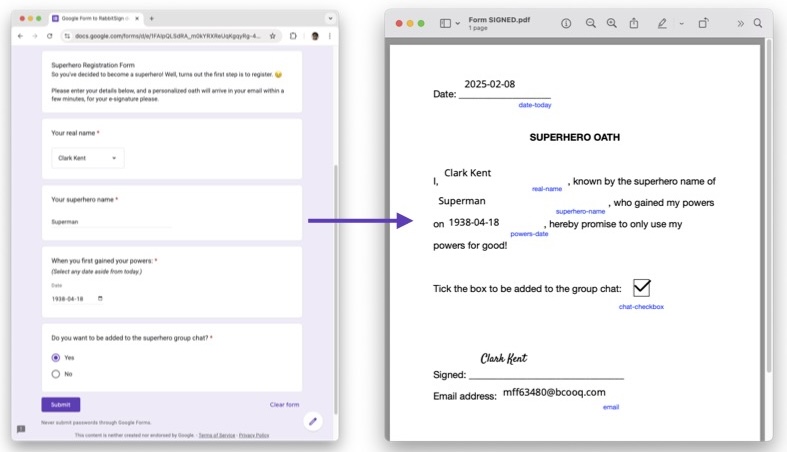
You can examine the Apps Script code that powers this demo here.
- A completed RabbitSign document template. Note down the sender field names, recipient's role name, and the template ID.
- A Google Form that collects the information to be injected into the RabbitSign document (at minimum, the recipient's name and email address).
- RabbitSign API credentials stored in Google Cloud Secret Manager in the format:
{"id":"<APIKEYID>","secret":"<APIKEYSECRET>"}
replacing <APIKEYID> and <APIKEYSECRET> with your actual credentials.
For a complete walkthrough, read this blog post.
For the basic steps, click here.
- From your Google Form, click the 3-dots icon in the upper right and select Apps Script.
- This creates a new Apps Script project linked to the Google Form. Give the project a meaningful title, as this will show up as a "Third-party app" in your Google account.
- In the Apps Script project, go to Project Settings (the gear icon in the left-hand side menu) and tick "Show
appsscript.jsonmanifest file in editor". - Open
appsscript.jsonand add a new entry:
"oauthScopes": [
      "https://www.googleapis.com/auth/script.external_request",
      "https://www.googleapis.com/auth/cloud-platform",
      "https://www.googleapis.com/auth/forms"
    ]
remembering to add a comma after the previous argument.
-
Copy in
main.gs,utils.gsfrom this repo. -
Go to Triggers (the alarm clock in the left-hand side menu) and Add Trigger.
Change "Select event type" to
On form submit, and "Failure notification settings" toImmediately. Leave the rest at their default values and hit Save.This should initiate an authentication flow to grant the project the necessary permissions.
- Update lines 2-4 with details of the Secret you stored in Google Cloud Secret Manager.
- Update lines 5-8 with details of your RabbitSign document.
- On line 29, specify which Google Form question contains the respondent's name.
- If you collected the respondent's email using Google Forms' "Collect email addresses" feature, uncomment line 33.
- If you collected the respondent's email manually (by creating a question), uncomment line 35 and modify it as required.
- Below line 39, map Google Form questions to RabbitSign fields.
- Submit some test responses to the Google Form and use Apps Script's Execution log to debug.
- All done!
- Google Forms & Apps Script: free.
- RabbitSign: Up to 10 free documents created via API, and 0.10 USD per document thereafter. Refer to the Developer Page.
- Secret Manager: Up to 6 active secrets and 10k access operations free per month under the Google Cloud Free Tier.
- The
onSubmitfunction is adapted from Eyal Gershon's code in Sending a Webhook for each Google Forms Submission. - The
toHexUpperfunction is due to Bergi's mind-boggling code snippet on this StackOverflow thread. - Thanks to Amit Agarwal for teaching me How to Access Secrets from Google Secret Manager using Apps Script.
For bug reports or features, please open an issue before making a pull request.