Kasual Desktop is an interactive, graphical "launcher/desktop" interface, designed to be operated using a controller (gamepad). The project combines application management, system overlays, and advanced input handling to create a cohesive "console-like" environment.
It runs on two platforms from a single shared core:
- Linux / Wayland (KDE Plasma 6, Sway, Hyprland, GNOME) — renders its UI as overlays above applications (including fullscreen games). KDE is the original target; Sway and Hyprland are driven through their native IPC; GNOME is served by a bundled Shell extension. See Supported compositors.
- Windows 10/11 — a newer port that runs the same UI as a desktop surface, currently a development build run from source.
The cross-platform domain logic and Qt UI are shared; only genuinely OS-specific pieces (window management, app launching, gamepad, audio, notifications, the in-game HUD, …) live behind platform adapters. See Architecture.
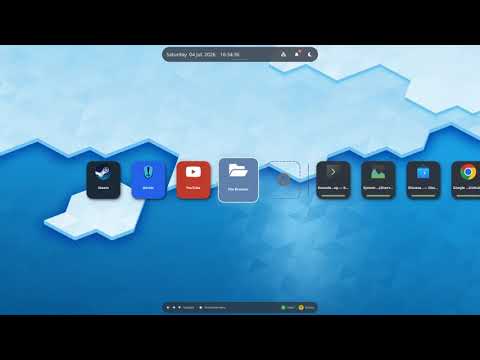
Click the thumbnail above to watch the video on YouTube.
- Gamepad-First Interface: Full controller navigation (Linux via
evdev, Windows viapygame/XInput). - Dynamic Launcher: Manage applications with simple
.desktopfiles in your per-user config directory. - Overlay System: Advanced support for system overlays (e.g., notifications, menus) that run on top of application windows.
- System Integration: Window management (KWin / Sway / Hyprland / GNOME on Linux, Win32 on Windows), system notifications, network, audio and brightness controls.
- First-Run Onboarding: A provisioning picker seeds your catalog from installed apps (curated starter set on Linux; Start-Menu scan on Windows).
- In-Game HUD Toggle: Show or hide the performance overlay for games straight from the controller menu — MangoHud on Linux, RivaTuner Statistics Server (MSI Afterburner) on Windows. See In-Game HUD.
- Advanced Audio System: System sounds and audio feedback.
- Screensaver Aware (Linux): a gamepad is invisible to the compositor's idle timers, so Kasual Desktop holds a screensaver inhibition while its UI is on screen and pokes user activity on pad input — the screen no longer blanks mid-session.
Kasual Desktop separates a platform-agnostic core from thin platform adapters:
src/domain/— pure problem-domain logic (no Qt, no I/O, no OS specifics).src/infrastructure/common/— the shared Qt UI (Desktop, overlays, tray) and cross-platform config, reused on both platforms via aDesktopSurfaceseam.src/infrastructure/linux/— DE-independent Linux adapters (audio, network, brightness, freedesktop notifications, the genericwayland/layer-shell surface,/proc, and compositor detection).src/infrastructure/kde/— KDE Plasma adapters (KWin window management, Plasma wallpaper).src/infrastructure/wlroots/— Sway and Hyprland adapters (window management and wallpaper via each compositor's native IPC).src/infrastructure/gnome/— GNOME adapters (window management and overlay stacking over D-Bus to the Kasual Helper Shell extension, gsettings wallpaper).packaging/gnome-extension/— the Kasual Helper GNOME Shell extension itself.src/infrastructure/windows/— Windows adapters (Win32 WM, Core Audio, WinRT notifications, RTSS HUD, …).src/main.py— Linux entry point;src/windows_main.py— Windows entry point.
The Windows adapters and the Linux adapters (linux/, kde/, wlroots/,
gnome/) never import from each other; the core never imports any of them.
Within Linux, the compositor-specific packages build on the DE-independent
linux/ package, and the backend is chosen at runtime from the session.
- Python 3.11+ (uses
enum.StrEnum) - PyQt6 + qtawesome, PyQt6-WebEngine (bundled YouTube app)
- Linux:
wlr-layer-shell(LayerShellQt) on KWin / Sway / Hyprland, a GJS Shell extension on GNOME,evdev,python-xlib - Windows:
pywin32(Win32 API),comtypes(Core Audio),psutil, Microsoftwinrt-*(Action Center notifications),pygame(gamepad)
Kasual Desktop needs a Wayland compositor that can stack its UI above fullscreen
applications — either through wlr-layer-shell, or through the bundled GNOME
Shell extension. The backend is picked automatically from the session. Window
management, overlay stacking and wallpaper are the only DE-specific pieces —
everything else (audio, network, brightness, notifications, gamepad, HUD) is
DE-independent.
| Compositor | Status | Window management | Wallpaper | Notes |
|---|---|---|---|---|
| KDE Plasma 6 (KWin) | Full | KWin D-Bus scripts | Plasma config, else Plasma's default wallpaper package | The original target. |
| Sway | Full | swaymsg (i3-IPC) |
output … bg from the Sway config |
Minimize is emulated by moving windows to the scratchpad. |
| Hyprland | Full | hyprctl |
swww, hyprpaper, or HyDE's current-wallpaper file — whichever answers first | Minimize is emulated via a dedicated special workspace. |
| GNOME 45+ (Mutter) | Full | Kasual Helper extension (D-Bus) | gsettings background (dark variant and slideshow XML understood) |
Requires the Kasual Helper extension; Mutter has no wlr-layer-shell. |
| Other wlroots (e.g. labwc) | Partial | none (no-op) | <config>/wallpaper static file |
Starts and renders, but window switching is unavailable. |
The four full backends are exercised end-to-end on live sessions by the behavioral suite — including launching real games and reaching a launcher that maps behind Steam's Big Picture. See Tests.
Whenever a compositor's own wallpaper source comes up empty, Kasual Desktop falls
back to a static image at <config>/wallpaper (a file or a symlink into your own
collection), and finally to the Desktop's built-in background. The wallpaper is
resolved on every launch, so a restart picks up a change.
Mutter implements neither wlr-layer-shell nor any window-list protocol for
clients, so on GNOME both jobs are done by a small Shell extension that Kasual
Desktop talks to over D-Bus (org.consoledesktop.GnomeHelper). It reports the
windows with their PIDs, activates/minimizes/closes them, and keeps Kasual
Desktop's frameless surfaces stacked above a fullscreen game — including
suppressing Mutter's direct scanout, which would otherwise hide any overlay drawn
over the game.
./install.sh installs and enables it for the current user; the packages ship it
system-wide, where each user enables it once:
gnome-extensions enable kasual-helper@consoledesktop.orgGNOME Shell cannot be reloaded on Wayland, so log out and back in afterwards.
Because window management depends on it, Kasual Desktop checks the extension on GNOME before starting anything else. If it is installed but disabled, a dialog offers to enable it right there; if it is missing, the dialog shows the command above and waits for a Retry. Both are gamepad-operable, so nothing on GNOME requires reaching for a keyboard.
-
A supported Wayland compositor: KDE Plasma 6 / KWin, Sway or Hyprland (via
wlr-layer-shell), or GNOME 45+ (via the bundled Kasual Helper Shell extension). Kasual Desktop draws its UI as overlays that sit above applications, including fullscreen games. See Supported compositors. -
Python 3.11+ (the codebase uses
enum.StrEnum). -
System Qt + PyQt6 (not pip's bundled PyQt6). The layer-shell integration plugin is version-locked to the system Qt build, so Kasual Desktop must run against the distribution's PyQt6 — pip's self-contained Qt cannot load it.
On Debian/Ubuntu:
sudo apt install python3-pyqt6 python3-pyqt6.sip python3-pyqt6.qtmultimedia \
    python3-pyqt6.qtwebengine python3-qtawesome python3-evdev python3-xlib \
    layer-shell-qt qt6-wayland brightnessctl
On Arch Linux:
sudo pacman -S python python-pyqt6 python-pyqt6-webengine python-qtawesome \
    python-evdev python-xlib layer-shell-qt qt6-wayland brightnessctl
On Fedora the qtawesome package is spelled
python3-QtAwesome(and Qt's Wayland platform pluginqt6-qtwayland).Other distros: install the equivalent of
python3-pyqt6(incl. itsQtMultimediaandQtWebEnginemodules),python3-qtawesome,python3-evdev,python3-xlib,layer-shell-qt(LayerShellQt) andqt6-wayland.QtWebEngineis required by the bundled YouTube app. -
(Optional)
brightnessctl— brightness control. Kasual Desktop tries the backends in order and keeps the first one that actually drives a screen:brightnessctl(a kernel backlight, under any DE), then Plasma's power-management D-Bus service (which also reaches external monitors over DDC). A desktop with neither — no backlight, no Plasma — simply has no brightness slider in the Home Overlay. Installing from a package pullsbrightnessctlin.
Kasual Desktop reads gamepad input directly via evdev, which requires access to /dev/input/* devices. Without this, the application will not detect any controller.
Add your user to the input group:
sudo usermod -aG input $USERThen log out and log back in (or reboot) for the change to take effect. You can verify it worked with:
groups | grep inputInstalling from a package? The
.deb/.rpm/.pkg.tar.zstpackages already ship a udev rule (/usr/lib/udev/rules.d/99-kasual-desktop.rules) that grants the active user gamepad access viauaccess, and reload udev on install — so nothing of the above is needed when you install from a package. The steps below are only for running from source.
Alternatively, you can create a udev rule for a more targeted approach (this is essentially what the package installs, restricted to joystick/gamepad devices):
sudo tee /etc/udev/rules.d/99-kasual-desktop.rules <<'EOF'
SUBSYSTEM=="input", KERNEL=="event*", ENV{ID_INPUT_JOYSTICK}=="1", GROUP="input", MODE="0660", TAG+="uaccess"
SUBSYSTEM=="input", KERNEL=="event*", ENV{ID_INPUT_GAMEPAD}=="1", GROUP="input", MODE="0660", TAG+="uaccess"
EOF
sudo udevadm control --reload-rules && sudo udevadm trigger --subsystem-match=inputFrom a package (recommended). Grab the .deb or .rpm from the
GitHub Releases page and
install it — the dependencies above are pulled in automatically:
sudo apt install ./kasual-desktop_*_all.deb          # Debian/Ubuntu
sudo dnf install ./kasual-desktop-*.noarch.rpm        # Fedora/openSUSE
sudo pacman -U ./kasual-desktop-*-any.pkg.tar.zst     # Arch Linux
This installs the launcher as kasual-desktop (also in the application menu);
the bundled File Browser and YouTube apps ship inside the same package.
From source (development).
-
Clone the repository:
git clone https://github.com/thanek/kasual-desktop.git cd kasual-desktop -
Install the system dependencies (and the dev/test stack):
./install.sh # apt/dnf/pacman, auto-detected -
Run the application:
./kasual.sh
kasual.shselects the Wayland platform (QT_QPA_PLATFORM=wayland) and forces the system PyQt6 viaPYTHONNOUSERSITE=1— a pip-installed PyQt6 in~/.localships a newer Qt without the layer-shell plugin, which otherwise fails with "No shell integration named layer-shell found". The shell integration (QT_WAYLAND_SHELL_INTEGRATION=layer-shell) is requested bysrc/main.pyonly on compositors that have it — never on GNOME.
Two suites, deliberately separate:
-
Unit suite —
./test.sh(Linux) /.\test.ps1(Windows). Exercises the shared core and adapters — parsing, filtering, command building, factory wiring, port conformance — with the OS mocked. Fast, offline, CI-friendly; the bulk of the coverage. -
Behavioral suite —
tests/behavioral/. End-to-end runs of the real choreography (KD launches Steam, Steam launches the game, the Home Menu comes back over it), driven through a virtual gamepad and asserted by reading window and shell state back — without looking at pixels. Deliberately not namedtest_*.py, so pytest never collects it: it is run by hand against a live session before a release, and needs a Wayland compositor, a GPU and real games. It runs on every supported compositor — KDE, GNOME, Hyprland and Sway. See tests/behavioral/README.md.KD_TEST_API=1 ./kasual.sh # one terminal: KD with the test API on python3 tests/behavioral/run.py --list # another: the scenarios and what they need python3 tests/behavioral/run.py kcd # run one, or omit the name for all
All three formats are produced from a single descriptor (nfpm.yaml) by
nfpm. The package version comes from the git
tag (e.g. v0.2.0 → 0.2.0), falling back to pyproject.toml when there is no
tag; the same value is baked into the app so it reports its own version at
runtime. The only build-time tools needed are make, rsync and nfpm (PyQt6
etc. are runtime deps, not required to build).
-
Install
nfpm. On Debian/Ubuntu use the goreleaser apt repo:echo 'deb [trusted=yes] https://repo.goreleaser.com/apt/ /' \ | sudo tee /etc/apt/sources.list.d/goreleaser.list sudo apt update && sudo apt install nfpm
On Arch:
nfpmis in the AUR (yay -S nfpm-bin). Any platform with Go:go install github.com/goreleaser/nfpm/v2/cmd/nfpm@latest. See the nfpm install docs for other options. -
Build:
make deb      # -> dist/kasual-desktop_<version>_all.deb
make rpm      # -> dist/kasual-desktop-<version>.noarch.rpm
make arch     # -> dist/kasual-desktop-<version>-1-any.pkg.tar.zst
make all      # all three
make clean    # remove build/ and dist/
makefirst stages the runnable tree underbuild/stage/(what actually gets packaged — seemake stage), then runsnfpmfor each format. Output lands indist/.
Publishing a GitHub Release triggers .github/workflows/release.yml, which runs
make all on a clean runner and attaches the resulting packages to the release.
The Windows port runs the same shared UI as a desktop surface (no layer-shell — that is Linux-only). It is currently a development build run from source; there is no Windows installer yet.
- Windows 10 or 11.
- Python 3.11+ (3.12 recommended). Unlike Linux, Windows uses pip's PyQt6 (there is no layer-shell version lock), installed into a virtual environment.
- A controller recognised by Windows (Xbox, PlayStation, 8BitDo, …). Input is
read cooperatively via
pygame/XInput — no exclusive grab. - (Optional, for the HUD) RivaTuner Statistics Server, typically installed with MSI Afterburner. See In-Game HUD.
-
Clone the repository and create a virtual environment:
git clone https://github.com/thanek/kasual-desktop.git
cd kasual-desktop
python -m venv venv
-
Install the cross-platform and Windows-only dependencies into that venv:
.\venv\Scripts\pip install -r requirements.txt -r requirements-windows.txt
requirements-windows.txtadds the Windows adapters' deps:pywin32(Win32 window/app/brightness),comtypes(Core Audio volume),psutil(network / process discovery) and Microsoft'swinrt-*projection (Action Center notifications). -
Run the application:
.\kasual.ps1
kasual.ps1clears the Python bytecode cache (handy during development) and launchessrc\windows_main.pywith the venv's interpreter. Pass--provisioningto re-trigger first-run onboarding (see below).
.\test.ps1 # runs the pytest suite with the venv interpreterThe configuration model is shared across platforms; only the base directory differs:
| Linux | Windows | |
|---|---|---|
| Config root | ~/.config/kasual-desktop (or $XDG_CONFIG_HOME) |
%APPDATA%\kasual-desktop |
| App tiles | …/apps/*.desktop |
…\apps\*.desktop |
| Provisioning marker | …/.provisioned |
…\.provisioned |
On its first launch, Kasual Desktop shows a provisioning dialog that seeds your app catalog:
- Linux — a curated starter set (File Browser and YouTube, plus Steam and Heroic when installed).
- Windows — a screen-friendly list discovered by scanning the Start Menu for
.lnkshortcuts (uninstallers, help/website links and duplicates filtered out).
Completing it writes a .provisioned marker in the config root, so the dialog
does not reappear (even if you pick nothing, or later remove every tile). To run
provisioning again:
./kasual.sh --provisioning # Linux.\kasual.ps1 --provisioning # WindowsEither removes the marker and relaunches; you can also delete the marker file manually and start normally.
Launcher tiles are defined by freedesktop .desktop files placed in the
apps/ directory under your config root (see the table above) — the same
format on both platforms. One file per app, using the standard
[Desktop Entry] section plus a few X-Kasual-* extensions:
[Desktop Entry]
Type=Application
Name=Steam
Exec=steam steam://open/bigpicture
X-Kasual-Icon=fa5b.steam            # qtawesome glyph (preferred)
X-Kasual-Color=#1b2838              # tile colour
X-Kasual-RecallMenuTrigger=BTN_MODE_HOLD_1S   # or BTN_MODE_CLICK (default)
X-Kasual-HideGraceMs=500            # delay before hiding KD after launch (ms)
X-Kasual-Order=10                   # tile order (ascending; ties → filename)
X-Kasual-Env=MANGOHUD=1;FOO=bar # extra environment variables (optional)| Key | Meaning |
|---|---|
Name |
Tile label (required) |
Exec |
Command + arguments (required; %-field codes are stripped). On Windows this is typically the path to a .lnk or executable. |
Icon |
Themed icon name, used when X-Kasual-Icon is absent |
Categories |
freedesktop categories; include Game to mark the tile as a game (enables the in-game HUD toggle) |
X-Kasual-Icon |
qtawesome glyph name (takes precedence over Icon) |
X-Kasual-Color |
Tile background colour (default #2e3440) |
X-Kasual-RecallMenuTrigger |
BTN_MODE_CLICK (default) or BTN_MODE_HOLD_1S |
X-Kasual-HideGraceMs |
Grace period before hiding the Desktop after launch (default 0) |
X-Kasual-Env |
KEY=val;KEY2=val2 — merged into the launched process environment |
X-Kasual-Order |
Integer sort key (default last; ties broken by filename) |
NoDisplay=true, Hidden=true and non-Application entries are ignored.
Bundled apps (
yt,file_browser, Linux): their launcher scripts live in the cloned repo, soExecmust be an absolute path (e.g.Exec=/home/you/kasual-desktop/apps/yt/yt.sh) — relative paths do not resolve from~/.config.
Over a running game, the Home Overlay (opened with BTN_MODE) offers an
Enable HUD / Disable HUD entry that shows or hides the performance overlay.
The label always reflects the current state, so you know whether a press will
turn it on or off. The backend differs per platform:
| Linux | Windows | |
|---|---|---|
| Overlay | MangoHud | RivaTuner Statistics Server (MSI Afterburner) |
| Mechanism | edits no_display in MangoHud.conf |
flips RTSS's runtime OSD-visible flag |
| Gated on | the config file existing | RTSS running |
Only over a game — never on the bare desktop or over ordinary apps. How a foreground is recognised as a game differs per platform:
-
Linux — three signals, any one of which is sufficient:
- Tile category — the tile declares
Categories=Gamein its.desktopfile. This is the reliable one, and the only one for a native game started straight from its own tile. - Launcher ancestry — the process descends from a known launcher/runtime (Steam, Heroic, Lutris, Gamescope, Wine/Proton, Bottles). Covers games started from a launcher tile, which run in their own window under it.
- Translation layer — the process has mapped DXVK, VKD3D-Proton or Wine Vulkan, i.e. it is a Windows title running under Wine/Proton.
The plain 3D loaders (
libvulkan,libGL) are deliberately not a signal: Qt, Chromium and Mesa map them in ordinary apps — a video player or a web view would otherwise be taken for a game. - Tile category — the tile declares
-
Windows — RTSS itself is the authority: the toggle appears when RTSS is actively rendering its OSD into the foreground process (i.e. a hooked 3D app). No launcher list or
Categories=Gameis needed — if RTSS is drawing on the game, Kasual Desktop offers the toggle.
Requirements
-
MangoHud installed — the Vulkan/OpenGL overlay (v0.8.x recommended). The apt package is often too old; building from source may be necessary.
-
A MangoHud config file at
~/.config/MangoHud/MangoHud.conf. Its presence gates the whole feature — with no file, the toggle never appears (an empty file is enough). This is the file Kasual Desktop edits to show/hide the HUD. -
MangoHud actually injected into your games, via any of:
- a global
MANGOHUD=1in your environment (covers Vulkan games), mangohud %command%in a game's Steam launch options,- the Heroic/Lutris "MangoHud" wrapper toggle,
- or per-tile
X-Kasual-Env=MANGOHUD=1in the app's.desktop.
Note:
MANGOHUD=1alone only injects into Vulkan apps; OpenGL games need themangohudwrapper (LD_PRELOAD). - a global
How toggling works — the toggle comments/uncomments the no_display line in
~/.config/MangoHud/MangoHud.conf. MangoHud watches this file (via inotify)
and reloads it on every change, so the HUD appears or disappears immediately
— on already-running games as well as newly-launched ones.
Caveat: a per-game FPS limit set in Steam injects
MANGOHUD_CONFIG=...,no_display=1. MangoHud re-appliesMANGOHUD_CONFIGon each reload (it takes precedence over the file), so that override re-wins and can keep the HUD hidden regardless of this toggle.
Requirements
- RTSS running. It ships with (and is usually launched by) MSI Afterburner, which drives the OSD through RTSS. RTSS not running → the toggle never appears.
- The OSD configured to show in your games as you normally would in Afterburner/RTSS (monitoring graphs in the On-Screen Display).
- No administrator rights required.
How toggling works — Kasual Desktop calls the SetFlags export of RTSS's
RTSSHooks64.dll to read and flip the runtime OSD-visible flag — the exact
mechanism RTSS's own "Show On-Screen Display On/Off" hotkeys use. The change is
applied live to running games, needs no elevation, and writes no files. It
toggles the runtime visibility (like pressing the OSD hotkey) rather than any
persistent profile setting, which is exactly what an in-game toggle wants.
Kasual Desktop is free software licensed under the GNU General Public License v3.0 or later. See LICENSE for details.
This project uses the Classic UI SFX pack by Chhoff, which can be found here.
This project was developed with the assistance of AI.