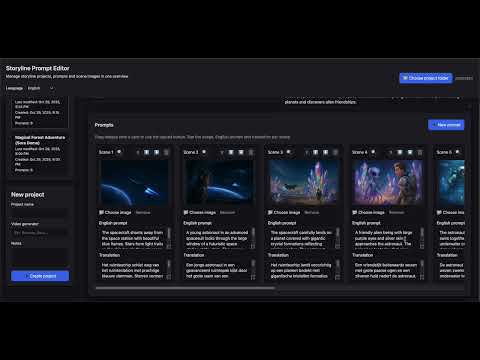
This project is a browser-based workspace for crafting video LLM prompts while steadily tracking the entire storyline of your production. It was built to make it easy to manage prompts, starter/ending images, translations, and project notes in one place and to carry that context across machines.

Scene Status Tracking & Improved Export Filters
When working on larger productions with dozens of scenes, it became hard to keep track of which scenes were finished and which still needed attention. This update introduces a practical status system that lets you see the state of each scene at a glance.
Scene Status System:
- Status toggle per scene: next to the attachments button (📎) there is now a status indicator you can toggle with one click between "in progress" and "completed"
- Visual feedback: in-progress scenes show a ⏱️ icon with an orange accent; completed scenes get a green ✓ checkmark
- Persistently saved: the status is stored per scene in your project.json so you always know where you left off
Smart Export Filters:
- Focus on active scenes: when exporting prompts you can now choose "Export prompts (in progress only)" — ideal for sending only the scenes that still need generation
- Media export filter: there is also an option to export images only from in-progress scenes
- More efficient workflow: completed scenes are automatically filtered out so your video generator receives only new or modified content
Attachments Expansion:
- More room: the attachment limit has been increased from 8 to 20 files per scene — perfect for reference material, storyboards, and inspiration images
- Wider file types: in addition to existing formats, more audio and document types have been added for greater flexibility
These updates are especially useful when working in iterations: create a rough version of all scenes first, refine specific parts next, and finally export only the updated prompts to your video generator without manually checking which scenes still need work.
Wan2GP plugin improvements:
After extensive testing of the Wan2GP plugin workflow, we implemented a number of important optimizations:
Workflow optimizations:
- Direct to queue: Scenes can now be sent directly to the queue using an existing Wan2GP preset. If you tested and approved a preset in Wan2GP, use those settings in the Storyline Editor to process scenes with the same configuration. You can also mix presets and video LLMs, so one scene may be processed via WAN 2.2 and another via OVI or Hunyuan Video 1.5, etc.
- GPU configuration: Fixed settings were added in
wgp_wrapper.pyfor the memory_profile and maximum VRAM so the plugin better matches your hardware.
Tested & production-ready (beta):
- Four different preset configurations tested with both start-only images and start-and-end image combinations.
- Bug fixes for reliable queue synchronization between the editor and the bridge service.
These improvements make the integration between the Storyline Editor and Wan2GP smoother and production-ready for daily use.
I noticed that when an image-to-image prompt ran perfectly I wanted to save those exact settings for future use, and be able to queue them for processing directly from the Storyline Editor. This led to a new feature: presets that can be stored and submitted to a background processing queue.
The goal was a system that processes everything in the background. Even if I close the editor and reopen it later, I want to see the exact status of my generations. This significantly speeds up my Video 4.0 workflow: I can edit scenes across different projects, manage them, and re-run them through the LLM video generator without losing track.
wan2gp_bridge.py) running in the background. The bridge connects the browser to the AI server.
- Local only: The editor and bridge run entirely on your machine; no external hosting is required.
- Chrome only: Due to the File System Access API used, this setup works only in Google Chrome, Chromium (or Edge).
- Wan2GP service: The Wan2GP AI service must be installed and running, since the bridge communicates with it to generate videos.
Everything is controlled from the Storyline Prompt Editor:
Plugin activation per project:

Add directly to the queue:

Wan2GP Control Center (background monitoring):

Technically, I opted for a plugin architecture. This keeps the editor core clean while making it easy to add new plugins in the future (for example for ComfyUI, other LLMs, or new integrations). Version 4.0 is a major step forward but is still under active development; the coming week will be used to squash final bugs.
- Add notes to scenes with the status "open" or "processed".
- AI optimizations, including WAN 2.2 image‑to‑image, OVI and camera movement (WAN 2.2); Lightning profile and faster quick‑selects.
- Various under‑the‑hood optimizations.
Note: we also tested the LLM prompt writer with gpt-oss-20b and saw fairly good results. It is still experimental but is becoming a useful addition to the workflow for quickly building longer scenes. This is often done by generating multiple short AI renders (e.g., 20 videos of 10 seconds) that, combined, appear to function as one seamless video.
Tip: to improve faces when the rest of the video looks fine but faces are blurry or unnatural (because the AI had too few pixels to reconstruct the face well), try the FaceFusion tool: https://github.com/facefusion/facefusion. It can help restore faces to a more natural, sharp appearance.
The 3.0 release is a breath of fresh air for the audio timeline editor: markers respond more immediately, scrubbing remains stable, and the fullscreen editor looks calmer now that redundant buttons have been removed. This makes it easier to link scenes to your audio in a single flow and gives you a clearer sense of where you are in the soundtrack.
Under the hood we’ve further cleaned up the workflow. Layout and workflow toggles now live in their own controller, the Ollama integration validates URLs more robustly so prompt generation no longer trips over duplicate slashes, and the README structure has been updated so new team members can find their way faster. This release lays the foundation for the next round of features without affecting the stability of existing projects.
Audio Timeline Workflow Improvements
After extensive testing of the audio timeline functionality in our daily Video 4.0 production, we implemented several important improvements:
Persistence & Reliability:
- Audio marker associations are now correctly preserved when saving and reloading projects
- Scene and marker synchronization now works in real time — changes are immediately visible without reloading
- Presentation mode now reliably plays back with the correct audio markers
Workflow Optimizations:
- In audio projects, you can now change scene order only via the audio timeline (move buttons are hidden)
- Scene cards now show a 🎵 music note with the marker time instead of "Scene X"
- New "Delete Audio" feature with a professional confirmation dialog — removes audio and resets the project to normal mode
- Removing a marker immediately unlinks the scene (it becomes inactive)
- Deleting a scene automatically removes its linked marker
Technical:
- Complete code cleanup — all debug logging removed for production
- Improved event-driven architecture for better synchronization between UI components
- Backwards compatible — existing projects continue to work
These updates make the audio timeline workflow production-ready for daily use in video 4.0 projects.
You can now generate a video prompt even faster directly from the editor: we integrated Ollama so you can enter a short instruction, the editor analyzes the scene image, and automatically generates a WAN 2.2‑compatible video prompt (including image→image).
This lets you quickly set up a storyline with multiple prompts and images. You can then export all generated prompts and their associated images and place them directly in your video server’s queue for execution.
Important:
-
You can choose which Ollama model to use via the settings; the editor tests the connection and shows available models.
-
For our tests and as the default configuration we use llava:7b for image analysis and mistral:7b-instruct-v0.3 for prompt generation — the workflow is specifically tuned for WAN 2.2 output formats.
-
Recommended alternatives (tested): vision: llava:13b, bakllava, moondream; text: qwen2.5:7b, qwen2.5:14b, llama3.2, llama3.1:8b. For production we recommend ollama pull mistral:7b-instruct due to better format accuracy.
-
LLM requires local Ollama installation:
Ollama must run on the same machine as the editor (http://localhost:11434).
For remote use (e.g.myeditor.nl), you need Ollama on the server or a CORS-bypass extension for development/testing (not recommended for production). -
If running online, start Chrome without CORS checks:
open -na "Google Chrome" --args --disable-web-security --user-data-dir="/tmp/chrome-no-cors"
In short: quick input → analyze the image → generate a WAN 2.2‑formatted prompt → export it or add it to the server queue. Choose the model that fits your workflow; the editor saves which models were used per project.


Given our workflows at playanote.nl, where videos are often built from an audio file, we've added a dedicated editor to quickly set up a storyline. You can load an audio file and link scenes to it, allowing you to easily create storyboards for both greenscreen shoots and prompts for an AI video server. This significantly speeds up production and is useful for teams and creators using an audio-based 4.0 video workflow.
Want to try the tool immediately without installation? Email us via one of our platforms and we'll send you a URL (and login) so you can get started right away.
Privacy and security: the editor runs entirely locally using the File System Access API (in Chrome) — no project files are uploaded to or stored on our servers. All data remains in the folder on your computer.
Code Refactoring & Optimization:
- Modular architecture: app.js split into 25 ES6 modules for improved maintainability and clarity
- UI minimization: toggle buttons to minimize the header, sidebar, and project header for maximum workspace

- Audio timeline improvements: scenes without media can now be linked to audio markers; orphaned markers are automatically cleaned up
- Bug fixes: rating synchronization between card and dialog; scene-marker consistency on deletion; duplicate marker warnings removed
Professional Audio/Video Timeline Editor:
- Fullscreen editor: new Final Cut Pro–like interface with a large waveform, preview canvas, and timeline scrubbing for professional audio/video editing.
- GPU-accelerated playhead: smooth audio scrubbing with instant visual feedback. Music pauses during scrubbing and resumes at the new position on release.
- Per-scene media type: choose between image (🖼️) or video (🎬) for each scene with a real-time preview canvas. Videos play automatically synchronized with the audio.
- Draggable markers: drag markers on the waveform to new positions—scenes are automatically re-sorted by timestamp.
- Link inactive scenes: scenes without a marker are shown as "Inactive scenes" with a 🔗 button. Click, place a marker on the waveform, and the scene becomes active and linked.
- Confirmation dialog: when placing a new marker, a popup asks whether you want to automatically create a new scene.
Scene Transition Editor:
- Transition descriptions: ➕ buttons between scenes open a dialog to describe transition effects (cross-fade, cut, pan, zoom, etc.).
- Save per project: transition data is stored in the project JSON and exported with prompts.
- Visual indicators: transition buttons show a green indicator (●) when a description is set.
Bilingual interface: all new features fully translated (Dutch/English) using data-i18n attributes.
Attachments: You can now add up to 8 attachments per scene, including images, videos, audio files, and text files.
Note: Many thanks to Jan Brosens for the valuable feedback during development and testing of the storyline editor.


This release adds audio timeline functionality and a context-sensitive help system:
Audio Timeline for time-based production:
- Audio Timeline mode: upload an audio file (MP3/WAV) and place markers on the waveform to automatically link scenes to specific timestamps. Ideal for music videos, voice-overs, and sound effects.
- Automatic scene synchronization: markers determine the order and timing of scenes. Drag a marker to adjust a scene’s timing—scenes are automatically reordered based on their position in the audio.
- Audio presentation mode: preview your project with synchronized audio playback. Scenes switch automatically at the correct moments while the audio plays.
- Visual marker editing: edit marker times with a styled dialog (MM:SS.ms format), attach existing scenes to markers via a "➕" button, and see immediately which scenes are already linked.
Contextual help system:
- "?" Help icons: click the question-mark icons next to input fields and buttons for immediate explanations of functionality.
- Info badge: a red "!" badge on the Audio Timeline button explains how markers determine scene order—click it for more information.
- 💡 Help mode toggle: switch between compact and expanded views with inline explanations for all features.
This update makes time-based video workflows straightforward and helps users quickly find their way—from music videos to documentaries with voice-over.


This release enhances the scene editing workflow with quick navigation:
- Scene dialog navigation: when editing a scene in the popup dialog, you can now navigate directly to the previous or next scene using arrow buttons (⬅️ ➡️) in the dialog header. No need to close and reopen—just click through your scenes.
- Keyboard shortcuts: use the left and right arrow keys (← →) to quickly jump between scenes while editing. Works seamlessly unless you're typing in a text field.
- Auto-save on navigation: changes to prompts and translations are automatically saved when you navigate to another scene, ensuring no work is lost.
- Smart button states: navigation buttons are automatically disabled at the first and last scene, providing clear visual feedback about your position in the storyline.
This update makes it effortless to review and edit your entire storyline in one continuous flow, perfect for fine-tuning prompts and checking consistency across scenes.
- Add video

- Presentation mode preview + video:


This release adds comprehensive video workflow support based on real-world user feedback:
- Video upload per scene: in addition to images, you can now upload the final rendered video (MP4/WebM) for each scene. This lets you keep prompts, reference images, and final results together in one place.
- Toggle between image and video: each scene card has a toggle to switch between viewing the reference image or the rendered video, keeping your workspace clean and focused.
- Combined video presentation mode: presentation mode now includes a "🎬 Video (auto-play)" option that plays all scene videos back-to-back as one continuous film. This gives you an instant preview of your entire production and helps identify what needs improvement.
- Video timeline with scrubbing: the presentation footer shows a timeline slider with markers for each video segment. Click or drag to jump to any point in your "film", with automatic prompt text sync.
- Full video workflow: videos are stored in a separate
videos/folder per project, copied when duplicating projects or scenes, and support drag & drop upload just like images. - Popup dialog improvements: when opening a scene, both the reference image and rendered video are displayed vertically for easy comparison.
Previous update: 4 November 2025


How to use video features:
- Upload video: click the "🎬 Video" toggle on a scene card, then drag a video file or click to upload. Supported formats: MP4, WebM.
- View in presentation: click "Presentation" in the project header, then select "🎬 Video (auto-play)" from the mode dropdown. All videos play automatically with synced prompt text.
- Navigate timeline: use the slider in the footer to scrub through all videos, or use Previous/Next in image mode. Markers show where each video segment begins.
- Compare results: open any scene to see both the reference image (top) and rendered video (bottom) side by side.
These updates reflect ongoing development based on feedback from video AI creators who need to track both inputs (prompts/images) and outputs (rendered videos) in a single workspace.
This release improves export workflows and dialog feedback:
- Export notes/translations: in addition to exporting prompts, you can now choose to export only notes or translations. The export dialog offers a menu to select what to export. Presentation mode also supports viewing prompts, notes, or both side by side.
- Improved dialogs & feedback: export status messages, image export confirmations, and project duplication now use professional modal dialogs instead of browser alerts. Copy-to-clipboard feedback shows confirmation.
- Bug fixes & robustness: fixed export handling for missing images, improved file permission handling, and ensured operations complete gracefully even when source files are temporarily unavailable. Exporting images multiple times now works reliably without re-clearing the output folder.
Previous published version: 3 November 2025
- Copy scenes dialog:

- Presentation mode preview:


How to use the new features (short):
- Copy a scene: open the scene menu (clipboard icon) and choose "Copy scene". Select target project (or choose the same project) and click "Duplicate in this project" or "Copy to project".
- Duplicate/delete project: in the project header use the "Duplicate project" or "Delete project" buttons. Deleting asks for confirmation.
- Presentation mode: click the "Presentation" button in the project header to enter fullscreen review mode. Use keyboard arrows to move between scenes.
These notes are also reflected in the Dutch README (README.nl.md).
I first created this editor as a handy companion while producing video prompts for generative models. I wanted a smooth way to:
- Keep start and end reference images together with the text prompts.
- See the entire storyline from scene to scene without losing the big picture.
- Store English prompts alongside Dutch translations for quick hand-off or localisation.
- Export image sequences and prompt scripts per project so nothing gets lost.
- Project explorer – create, open, and sort storyline projects with automatic last-modified tracking.
- Scene board – drag scenes horizontally, reorder via drag handles, edit prompts in-place, or open a fullscreen dialog for focused editing.
- Image workflow – drop or upload images per scene, export all images as numbered files, and preview large versions instantly.
- Prompt exports – review prompts in a dialog, copy them to the clipboard, and save a text file in the project folder in one step.
- Browser storage – remembers your chosen project directory between sessions (using the browser’s File System Access API).
- Bilingual UI – switch between Dutch and English labels from the header.
- Portable by design – everything lives inside a single
storylineprompteditorfolder that you can copy to another machine.
# Explanation


storylineprompteditor/
├─ assets/
│  ├─ css/
│  │  ├─ style.css                    # Main stylesheet
│  │  ├─ variables.css                # CSS variables (colors, spacing)
│  │  ├─ base.css                     # Reset & base styles
│  │  ├─ layout.css                   # Grid & flex layouts
│  │  ├─ buttons.css                  # Button styles
│  │  ├─ forms.css                    # Form elements
│  │  ├─ dialogs.css                  # Modal dialogs
│  │  ├─ panels.css                   # Side panels
│  │  ├─ projects.css                 # Project list & cards
│  │  ├─ prompt-cards.css             # Scene card styles
│  │  ├─ media-upload.css             # Upload & preview components
│  │  ├─ presentation.css             # Presentation mode
│  │  ├─ audio-timeline.css           # Audio timeline editor
│  │  ├─ transitions.css              # Scene transition editor
│  │  ├─ attachments.css              # Attachments interface
│  │  ├─ fullscreen-editor.css        # Fullscreen audio/video editor
│  │  ├─ help-system.css              # Help tooltips & badges
│  │  ├─ settings.css                 # Settings panel & toggles
│  │  └─ responsive.css               # Mobile responsiveness
│  └─ js/
│     ├─ app.js                       # Main application logic & event wiring
│     ├─ translations.js              # Language definitions (NL/EN)
│     └─ modules/
│        ├─ state.js                  # Central state management
│        ├─ i18n.js                   # Internationalization & translation
│        ├─ constants.js              # Application constants
│        ├─ file-system.js            # File System Access API wrappers
│        ├─ utils.js                  # UUID, slugify, date, JSON I/O
│        ├─ dialogs.js                # showError, showSuccess
│        ├─ dom-helpers.js            # DOM utilities & applyTranslations
│        ├─ ui-rendering.js           # UI component rendering
│        ├─ auto-save.js              # Auto-save schema & toggle button
│        ├─ layout-workflow.js        # Header/sidebar toggles + workflow/help modes
│        ├─ root-manager.js           # Root folder selection & recovery
│        ├─ project-manager.js        # Project sync & structure
│        ├─ project-list-controller.js # Project list actions & dialogs
│        ├─ project-operations.js     # Project CRUD operations
│        ├─ project-actions.js        # Project actions (deprecated)
│        ├─ prompt-dialog.js          # Scene dialog controls
│        ├─ presentation-controller.js # Presentation mode controller
│        ├─ presentation.js           # Fullscreen presentation renderer
│        ├─ scenes.js                 # Scene/prompt base logic
│        ├─ scene-actions.js          # Scene CRUD wrappers
│        ├─ scene-copy.js             # Copy scene between projects
│        ├─ media-handlers.js         # Image/video upload & preview
│        ├─ upload-handlers.js        # Media upload wrappers
│        ├─ attachments.js            # File attachments per scene
│        ├─ audio-video-editor.js     # Audio/video timeline editor
│        ├─ drag-drop.js              # Drag & drop card reordering
│        ├─ export-handlers.js        # Export prompts, images, notes
│        ├─ export-dialogs.js         # Export selection dialogs & previews
│        ├─ help.js                   # Contextual help + workflow tips
│        ├─ ai-prompt.js              # AI prompt generator controller
│        ├─ llm-settings.js           # Ollama/LLM settings UI
│        ├─ llm-service.js            # API calls to LLM backend
│        └─ logger.js                 # Debug logging (opt-in)
├─ docs/
│  └─ images/                         # Screenshots for README
├─ server.sh                          # Start/stop script for local server
├─ index.html                         # Application entry point
├─ README.md                          # English explanation
└─ README.nl.md                       # This Dutch explanation
-
Install requirements
You only need Python 3 (or any static file server). Nothing else is required. -
Launch the local server
./server.sh start
- Default address:
http://localhost:8123/opdracht/storylineprompteditor/ ./server.sh statusshows the running PID../server.sh stopterminates the server.
- Default address:
-
Open the editor
Use Chrome or Edge. Click “📁 Choose project folder” and select a writable directory. The tool will create:projecten/containing JSON data + images per projectindex.jsonwith the global project list
-
Create or open projects
Once a root folder is selected, you can add projects, manage scenes, upload images, and export prompts.
- Requires a secure context (
http://localhost) and the File System Access API. - Chrome ≥ 86 and Edge (Chromium) are supported. Safari/Firefox currently lack the APIs needed for full functionality.
- No build step is required; everything is native HTML/CSS/JS.
- If you copy this folder to another machine, just run
./server.sh startand continue working. - Feel free to extend
assets/js/translations.jswith additional languages or tweak styles inassets/css/style.css.
First version 1.0
Built to keep video prompt workflows focused, organised, and portable—enjoy crafting your next storyline!