
Documentation | API Reference | Help Center | Installation | Local development | Usage | Errors | Changelog
Simple react demo store for showcasing Voucherify abilities.
- Store is connected directly to your Voucherify account
- Setup script sets up dummy products, validation rules, vouchers, and campaigns
- Each new visit creates six customers based on preset
- You can track your orders directly in the Voucherify dashboard
- Create coupons and campaigns in the dashboard and use them in the demo store
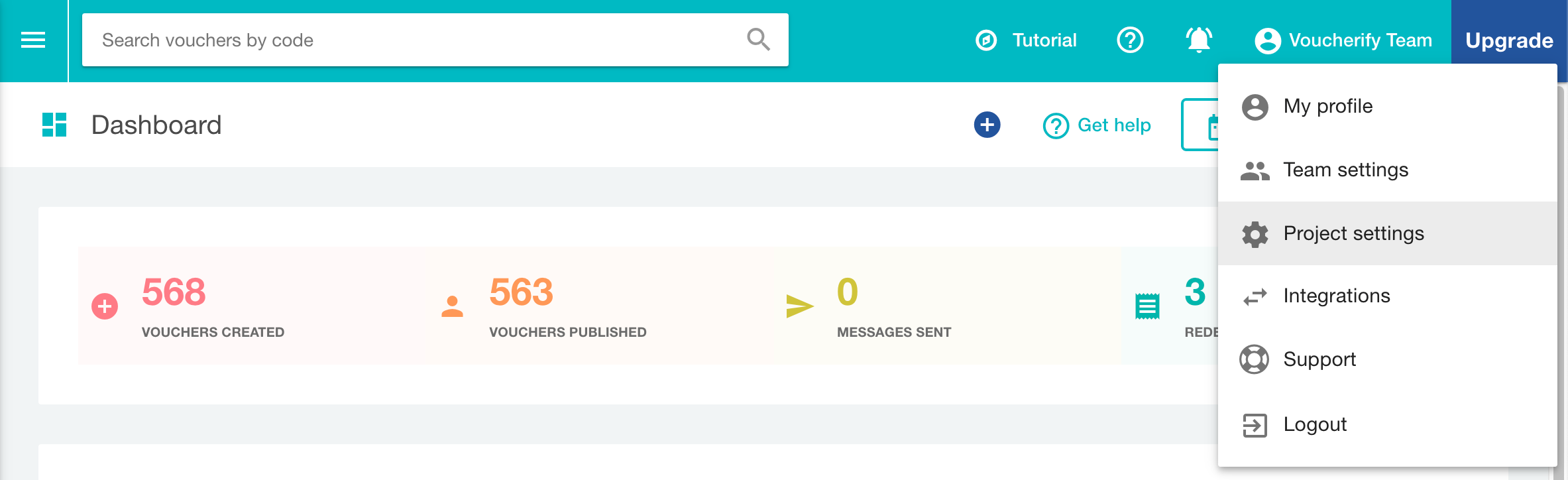
In your Project Dashboard, navigate to your Project Settings.
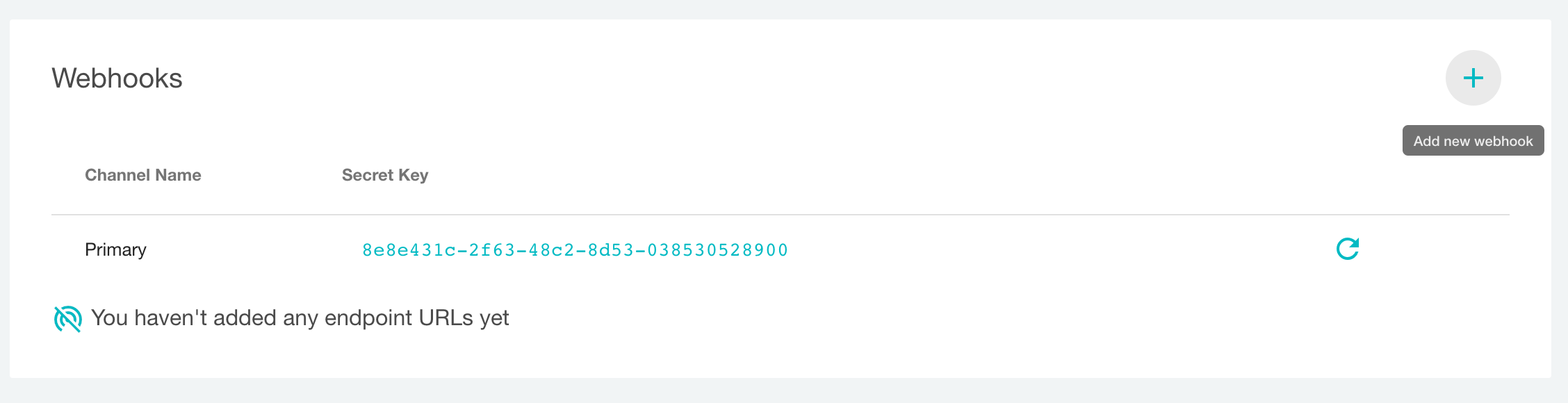
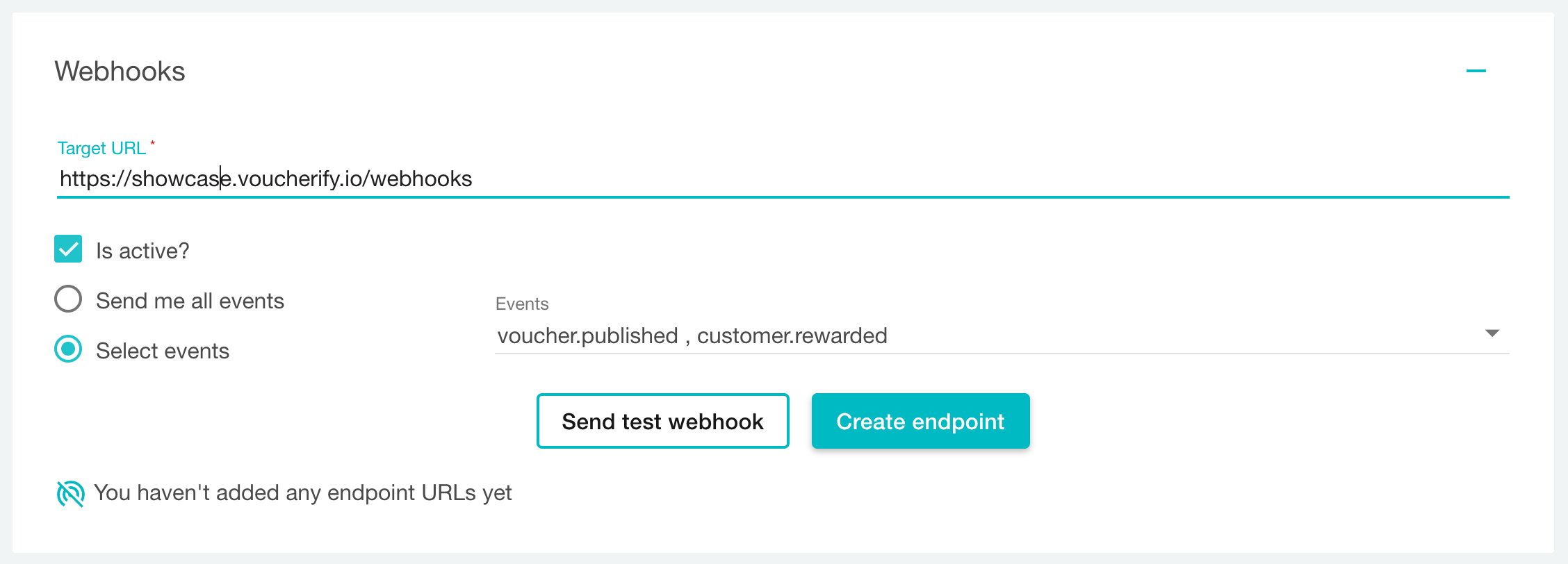
Create new Webhook endpoint with target URL: https://YOUR_APP_URL/webhooks.
If you are using a local development server, set up tunneling of your app with Ngrok - use ./ngrok http localhost:3000 and then paste forwarded https address as YOUR_APP_URL.

Select webhook events: voucher.published and customer.rewarded and click Create endpoint.
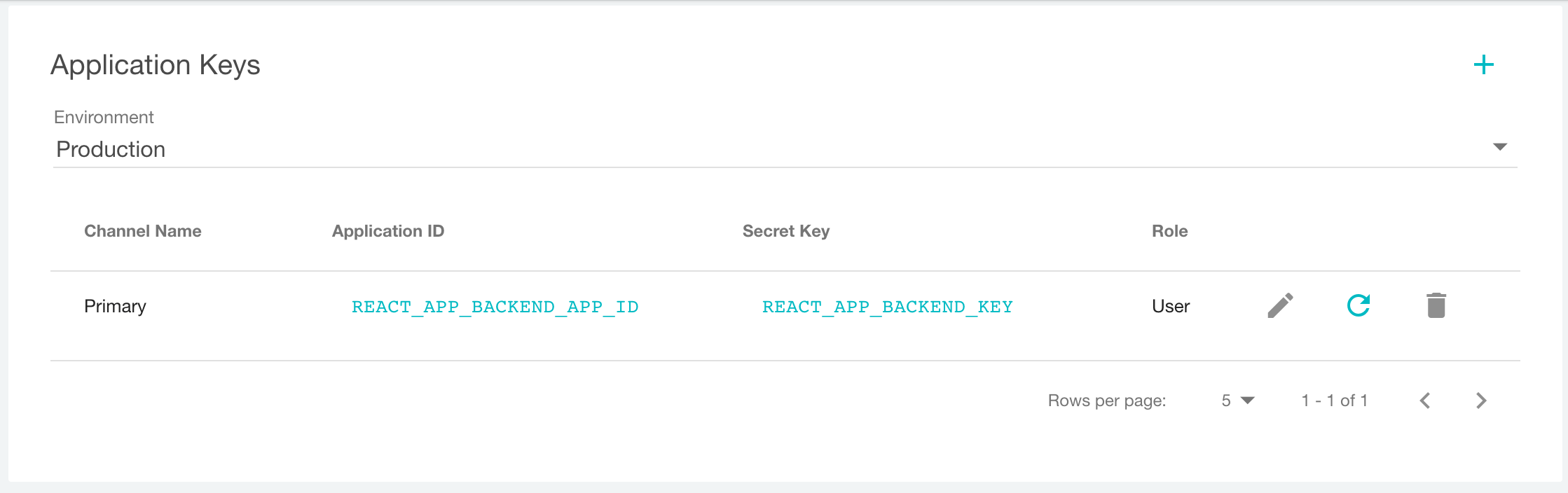
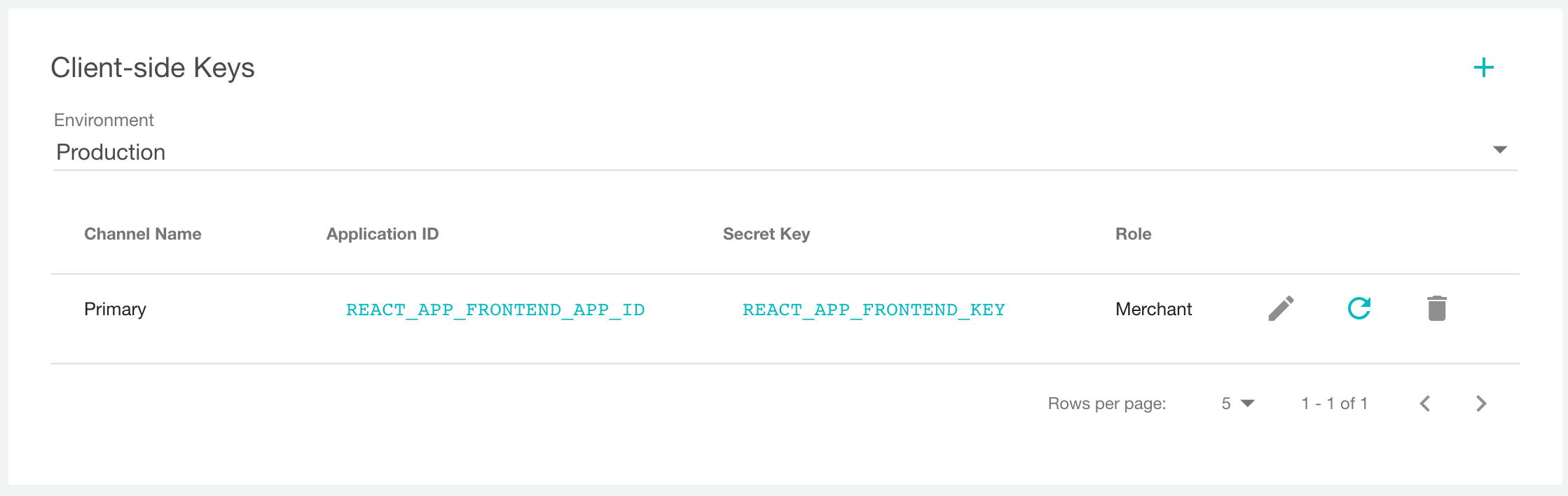
Next, copy your Voucherify Application ID and Application Secret Key for both Application Keys and Client-side Keys to your environment variables:
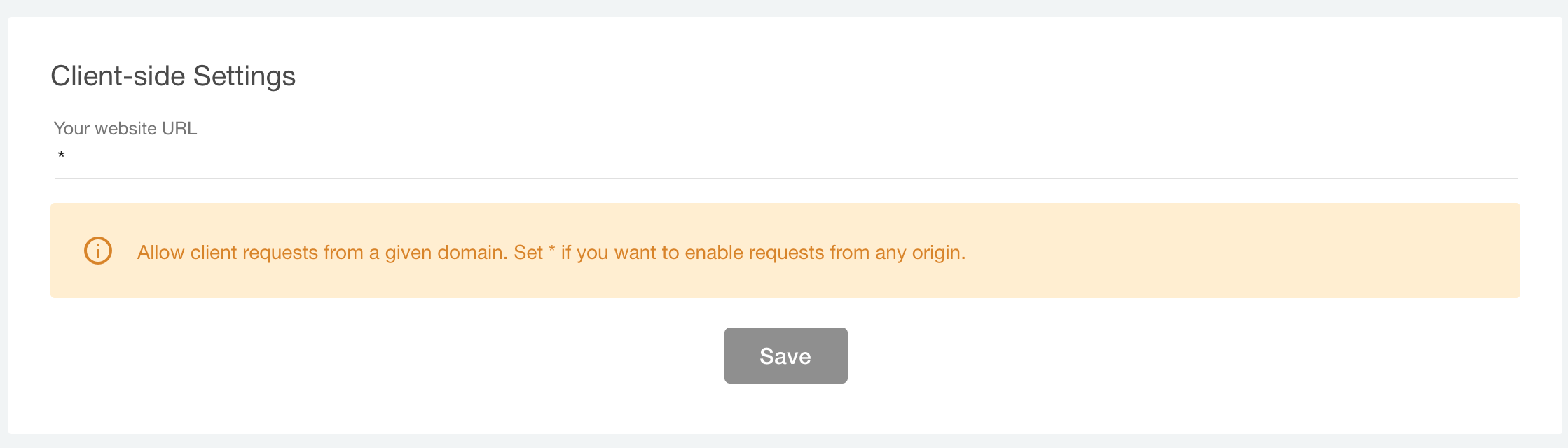
Stay on the same page and scroll down to Client-side Settings section. Set * as Your Website URL.
We're using Heroku Redis to store client sessions - provide
REDIS_URL to your environment variables or use another method to store session data.
Your environment variables should look like this:
-
REDIS_URL="Your REDIS url" -
REACT_APP_BACKEND_APP_ID="Your 'Application Keys' Application ID" -
REACT_APP_BACKEND_KEY="Your 'Application Keys' Secret Key" -
REACT_APP_FRONTEND_APP_ID="Your 'Client-side Keys' Application ID" -
REACT_APP_FRONTEND_KEY="Your 'Client-side Keys' Secret KEY" -
REACT_APP_API_ENDPOINT="Optional endpoint url if your Voucherify project is not on Europe server - read more" -
REACT_APP_VERSION= '2.6.5' -
REACT_APP_OPEN_WEATHER_API_KEY="Required if you want to use special geolocation campaign"The fastest way to install the demo store is to use the 'Deploy to Heroku' button and providing required environment variables.
After deployment, the script run npm run setup (or if you are using Heroku server - Heroku run npm setup), to populate your Voucherify account with custom products, validation rules, campaigns, and vouchers.
After setting up, run npm start to serve the entire app from port 3000.
If you want to use an integrated Referral Campaign, you need to create Reward Tiers. Learn more at Enabling Referral Campaign
If you want to list Customer Rewards & Loyalty Programs on the external Customer Cockpit remember to set up your Brand Details
You now need to run two processes (i.e., 2 terminal tabs):
npm run dev-server- this will start your server at localhost:3000 (it will restart automatically upon any changes in server.js)npm run dev- this will start the react-scripts server at localhost:3001 (which is how you open up the app in the browser)
- Select customer and try out some of the validation rules
- Check out your Voucherify dashboard to track your costumer's orders
- Check out
src/redux/actions/cartActions.jsandserver/server.jsto learn more about how we use Voucherify API to validate and redeem coupons and process payments.
To see campaigns in the demo store, you need to add required and optional campaign metadata for the shop to operate without issues.
You need to manually create and assign validation rules to your campaigns to make them work in the demo store.
Voucher settings:
Category: Hot Beans
Voucher metadata (optional):
| Key | Type | Description |
|---|---|---|
name |
string | Name of your voucher |
description |
string | Simple description of your voucher |
Campaign settings:
Campaign Type: DISCOUNT VOUCHERSProgram Size: BULK CODES
Campaign metadata (optional):
| Key | Type | Description |
|---|---|---|
description |
string | Simple description of your voucher |
carousel_banner_img_url |
string | Image displayed as background in the main carousel. |
img_url |
string | Image with description on the main carousel on the product page. |
promotion_product |
string | Exact name of the product which should have the label "Promotion" on the main page. |
Campaign settings:
Campaign Type: PROMOTION
Campaign metadata:
| Key | Type | Description |
|---|---|---|
description |
string | Simple description of your voucher |
carousel_banner_img_url |
string | Image displayed as background in the main carousel. |
img_url |
string | Image with description on the main carousel on the product page. |
promotion_product |
string | Exact name of the product which should have the label "Promotion" on the main page. |
Creating a complete Referral Campaign with tier rewards & validation rules is not yet possible through API. That's why to use our predefined Referral Campaign, we need to set this up through the dashboard.
All other necessary elements for this first Referral Campaign - Rewards, Rewards Assignments, and Validation Rules - are created during the demo store setup. We need to create two Referral Campaigns Tiers and connect each tier with available rewards.
-
Navigate to the Referral Campaign details and then select the Rewards tab. Click
Editon the Referrer reward section. -
Create New Tier
-
Set
Numbers of referees who redeemed the referral code isto 1 andTotal count of customer ordersto exactly 0. -
On the next page, select reward
Referral Reward Tier 1 - Voucher 5%and clickAdd reward. -
Then click
Done.
Repeat this process one more time - this time selecting reward Referral Reward Tier 2 - Voucher 10%. Remember to save changes to the campaign.
After that, you will be able to publish a referral campaign code to a specific customer by passing his / her source_id as an e-mail in the Landing Page form (with goal set as 'Enrol in a referral program.') or by manually publishing a referral code.
Remember, if you're using Landing Page to publish codes, go to your Project Settings and enable Client-side publication and Client-side customer creation. You also need to set your webhook endpoint if it is not selected.
Learn more how to create Referral Program
Creating a complete Loyalty Campaign with tiers & custom events as earning rules is not yet possible through API. That's why to use our predefined Loyalty Campaign, we need to set this up through the dashboard.
First, we need to add missing Earning Rule:
-
Edit your Loyalty Campaign
-
Navigate to Earning Rules section and create new rule with type
Custom event -
Name your earning rule and select event
newsletter_subscribed -
Set fixed amount of 100 points and click Done.
Then we need to create Loyalty Campaign Tiers with mapped rules & points a below:
| Tier name | Min. - Max. Points | Mapped earning rule | Mapped rewards |
|---|---|---|---|
| Newbie | 100 - 150 | None | None |
| Aspiring coffee maniac | 151 - 200 | Newsletter Signup for 100 points | 10% discount code for 50 points |
| Coffee prodigy | 201+ | None | 10% discount code for 10 points, Hot Beans Brazil for 10 points |
Learn more how to create Loyalty Program
We prepared a simple POC in which we're using the customer's current location to see if it's snowing in his place. You can try it out in our app - it's the last slide in the main slider.
If condition is true, then we're publishing for this customer a unique discount voucher.
This POC needs an optional OpenWeatherApi key to work. Full code for this POC is in GelocationPromotion.js
Feel free to contact me regarding any demo store issues - piotr.gacek[at]voucherify.io
Project changelog can be found here