Camera Mode
The following instructions are based on DEFAULT setting.
Free-Camera mode allows user to view the city freely from a first-person perspective.
- Press
`(BackQuote) to toggle Free-Camera mode on/off. - Navigate the city freely using mouse (rotate) and keys (move).
- Press
Eto toggle Auto moving, which moves the camera forward automatically. Hold downMouse Secondarybutton to pause the movement. - The setting can be changed so that the camera is prevented from getting under ground, or being forced to stick just above ground.
- Press
Escor`to exit the mode.
In Follow mode, the camera follows the view of the selected person or vehicle.
- After clicking on any citizen, tourist, or driving vehicles, click on the button with a camera icon at the bottom right of the Info panel to start. (see the yellow arrow in the image below)
- Use keyboard controls to adjust the camera position.
- Use mouse controls to look around (while cursor is hidden).
- To save the current camera setting (position offset & angle) as the default, press
Backslash(\).Each kind of vehicle or human has its own default camera setting.
- Press
Escor`to exit the mode.
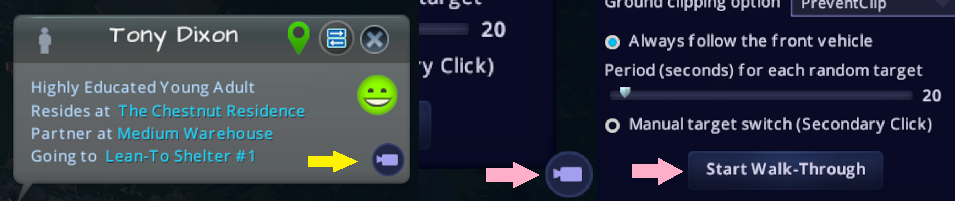
In Walk-Through mode, the camera randomly follows any peoples or vehicles in the city.
- Click on the panel button with camera icon (see the pink arrow in the image above) to bring up the Mod panel.
- Click "Start Walk-Through" to enter Walk-Through mode
- The camera would follow a random target until the set timer runs out, and it goes on with the next random target.
- If the manual target switch option is on, the target is only switched when the
Mouse Secondarybutton is clicked or the target disappears. - Press
Escor`to exit the mode.
