Feature guide: Bossbar
- About
- Configuration
- Commands
- Placeholders
- Limitations
- Compatibility with other plugins
- Additional info
- API
- Examples
This feature allows you to send modern bossbars to players, which appear on top of the screen.
Only works on Minecraft 1.9 and up.
Supporting 1.8 and lower would require an entity to be spawned (wither / dragon), which TAB no longer offers.

The feature can be configured in config.yml under bossbar section. This is how the default configuration looks:
bossbar:
  enabled: false
  toggle-command: /bossbar
  remember-toggle-choice: false
  hidden-by-default: false
  bars:
    ServerInfo:
      style: "PROGRESS" # for 1.9+: PROGRESS, NOTCHED_6, NOTCHED_10, NOTCHED_12, NOTCHED_20
      color: "%animation:barcolors%" # for 1.9+: BLUE, GREEN, PINK, PURPLE, RED, WHITE, YELLOW
      progress: "100" # in %
      text: "&fWebsite: &bwww.domain.com"
All of the options are explained in the following table.
| Option name | Default value | Description |
|---|---|---|
| enabled | false | Enables / Disables the feature |
| toggle-command | /bossbar | A command to toggle bossbar visibility for player running the command. This command requires tab.bossbar.toggle permission. Note: Commands are not supposed to be registered / unregistered dynamically at runtime. As such, you may run into small issues when changing the toggle command and reloading. After you modify the command to your liking, reconnect to properly see it in tabcomplete. If you don't use TAB on a proxy, consider restarting the server as well for the old command to actually be unregistered. |
| remember-toggle-choice | false | When enabled, disabling bossbar using toggle-command is remembered between reloads and restarts. |
| hidden-by-default | false | When enabled, bossbar will automatically be hidden until toggle command is used. |
| bars | Map | Map of defined bossbars, see below for more information. |
Bossbars can be defined in bars section. Bossbar name can be anything, but you cannot use the same name for 2 bossbars.
A bossbar consists of up to 6 properties:
| Option | Example | Description |
|---|---|---|
| style | PROGRESS | Type of bossbar division. You can choose from 5 styles: PROGRESS, NOTCHED_6, NOTCHED_10, NOTCHED_12 and NOTCHED_20. 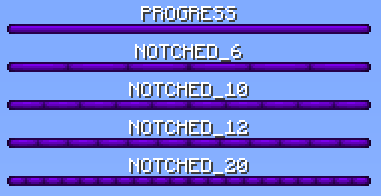 These were defined by mojang, no other options are available. Other plugins may be using different names, but it's the same result in the end. |
| color | BLUE | Color of bossbar. You can choose from 7 colors: BLUE, GREEN, PINK, PURPLE, RED, WHITE and YELLOW. 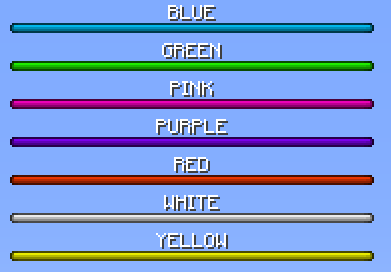 These were defined by mojang, no other options are available. |
| progress | 100 | A number between 0 and 100. Accepts decimals. 
|
| text | "Hi" | Text of the bossbar. Length is not limited, supports RGB codes on 1.16+. Does not support newlines. |
| announcement-bar | false | When set to true, the bossbar will not appear by default, only when used in announce command. |
| display-condition | "%world%=world" | Condition that must be met for player to see the bossbar. Even when using announce command on a bossbar with display condition, players must meet it to see the bossbar. When condition is not defined, bossbar has no requirement to be displayed. |
Here is an example using all 6 properties:
  bars:
    ServerInfo:
      style: "PROGRESS"
      color: "PURPLE"
      progress: "100"
      text: "Welcome to the nether!"
      announcement-bar: false
      display-condition: "%world%=world_nether"
| Command | Permission | Description |
|---|---|---|
| /tab bossbar show <name> [player] |
tab.bossbar.show (for yourself) tab.bossbar.show.other (for others) |
Shows the bossbar with the given name, either to yourself if no player was given, or to the given player. |
| /tab bossbar [on/off/toggle] [player] [options] |
tab.bossbar.toggle (for yourself) tab.bossbar.toggle.other (for others) |
Shows / hides / toggles bossbar of specified player. If no player was given, command affects the sender. You can use -s as option for silent toggling (no chat message for affected player) |
| /tab bossbar announce <name> <duration> | tab.announce.bar |
Shows the bossbar with the given name to every player on the server for the given duration, in seconds. |
Here are TAB's internal placeholders you can use when this feature is enabled:
| Placeholder | Description |
|---|---|
%bossbar_announce_time_left_<bossbar>% |
Returns remaining time of the announcement of specified bossbar (in seconds). |
%bossbar_announce_time_total_<bossbar>% |
Returns total time of the announcement of specified bossbar (in seconds) (the inputted number). |
You can further use these placeholders in progress, for example, using Math expansion from PlaceholderAPI, such as %math_{tab_placeholder_bossbar_announce_time_left_<bossbar>}/{tab_placeholder_bossbar_announce_time_total_<bossbar>}*100% (remember to replace <bossbar> with the actual name of the bossbar).
Here are TAB's PlaceholderAPI placeholders you can use when this feature is enabled:
| Placeholder | Description |
|---|---|
%tab_bossbar_visible% |
"Enabled" if visible (not toggled with a command), "Disabled" if not (toggled with a command) |
- Does not support newlines. If you want to display more lines, you'll need to create multiple bossbars.
- The bar itself cannot be removed from the server side. However, it can be removed with a resource pack.
Bossbar is a feature that can have multiple instances sent and displayed, so there is no possible conflict like in scoreboard for example. Every plugin manages its own bossbars and doesn't care about others.
One thing to mention is the order of bossbars. They are ordered by the order they were received. This means the final order depends on which plugin is faster (or slower), which is something you can't really control. As such, there is no feasible way to control the order of bossbars across different plugins. TAB's own bossbars are sent in the order they are defined in the configuration, so that won't be a problem.
If you want to hide the bossbar itself and only show text, this is possible, but not from the plugin's side.
You'll need to create a custom resource pack where the bar is invisible and force your players to get the resource pack.
Here is how to do it:
Minecraft 1.20+:
- Navigate to
assets/minecraft/textures/gui/sprites/boss_bar. You will need to create 2 files. In this example, we will useWHITEBossbar color. - Use GIMP or any other photo editing software and create a 1x1 px image, that is fully transparent.
- Name the file white_progress.png. Now copy-paste the same file and name it white_background.png.
Minecraft 1.19.4-:
- Navigate to
assets/minecraft/textures/gui/. You will need to download the defaultbars.pngfile (https://github.com/Faithful-Pack/Default-Java/blob/1.19.4/assets/minecraft/textures/gui/bars.png). - Use GIMP or any other Photo editing software and remove the White bars in the file. Save the file and move it to
assets/minecraft/textures/gui/.

Finally, set your Bossbar color in TAB Config to WHITE. Now the line will be invisible!
To get started with the API, see Developer API page.
To access this feature, you'll need to obtain BossBarManager instance. Get it using TabAPI.getInstance().getBossBarManager(). If this feature is disabled, the method will return null.
A boss bar is made up of a few things:
- A name. This is either the name given in the config, if the bar was loaded from the config, or a random UUID string when created with API.
- A title. This is the display message of the boss bar.
- The progress from 0 to 100.
- The color. This determines what color the boss bar will appear when it is shown to clients.
- The style. This determines how many segments, if any, the boss bar will be split to.
Let's start with methods in BossBarManager:
-
BossBarManager#createBossBar(String, float, BarColor, BarStyle- Creates new bossbar using direct values. -
BossBarManager#createBossBar(String, String, String, String- Creates new bossbar. Accepts all the previous parameters as strings, to allow for placeholders, though the given placeholders must match the requirements (progress will be a number, color and style matching enum names). -
BossBarManager#getBossBar(String)- Returns bossbar by name defined in config. -
BossBarManager#toggleBossBar(TabPlayer, boolean)- Toggles all bossbars for specified player. The boolean flags whether toggle message defined in messages.yml should be sent to the player or not. -
BossBarManager#hasBossBarVisible(TabPlayer)- Returnstrueif player has bossbars visible,falseif disabled using toggling. -
BossBarManager#setBossBarVisible(TabPlayer, boolean, boolean)- Sets bossbar visibility status for specified player to specified value (first boolean). Second boolean determines whether toggle message configured in messages.yml should be sent or not. -
BossBarManager#sendBossBarTemporarily(TabPlayer, String, int)- Temporarily sends bossbar to player. String defines name of the bossbar defined in config. Int defines length in milliseconds. -
BossBarManager#announceBossBar(String, int)- Sends bossbar with specified name in config to all players forintmilliseconds. -
BossBarManager#getAnnouncedBossBars()- Returns all bossbars, which are currently being announced. -
BossBarManager#getRegisteredBossBars()- Returns map of all registered bossbars using configuration or the API.
Methods in BossBar:
-
BossBar#getName()- Returns name of the bossbar defined in config, or randomly generated UUID string when generated using API. -
BossBar#setTitle(String)- Sets title. Accepts placeholders, which will be replaced and periodically updated. -
BossBar#setProgress(String)- Sets progress. Accepts placeholders, which will be replaced and periodically updated. -
BossBar#setProgress(float)- Sets progress. -
BossBar#setColor(String)- Sets color. Accepts placeholders, which will be replaced and periodically updated. -
BossBar#setColor(BarColor)- Sets color. -
BossBar#setStyle(String)- Sets style. Accepts placeholders, which will be replaced and periodically updated. -
BossBar#setStyle(BarStyle)- Sets style. -
BossBar#getTitle()- Returns raw title. -
BossBar#getProgress()- Returns raw progress as string. -
BossBar#getColor()- Returns raw color as string. -
BossBar#getStyle()- Returns raw style as string. -
BossBar#addPlayer(TabPlayer)- Sends the bossbar to specified player. -
BossBar#removePlayer(TabPlayer)- Removes the bossbar from specified player. -
BossBar#getPlayers()- Returns all players that can currently see this bossbar. -
BossBar#containsPlayer(TabPlayer)- Returnstrueif player can see this bossbar,falseif not. -
BossBar#isAnnouncementBar()- Returnstrueif this bossbar is defined as announcement bar in config,falseif visible permanently.
You can make the change text periodically using animations.
First, create an animation in animations.yml, such as
BossBarText:
  change-interval: 1000
  texts:
    - "Text1"
    - "Text2"
Then, use the animation in bossbar configuration
  bars:
    ServerInfo:
      style: "PROGRESS"
      color: "PURPLE"
      progress: "100"
      text: "%animation:BossBarText%"
This bossbar will change text every second between text1 and text2. You can make the change interval higher and add more texts to suit your needs.
Note
This works for style, color and progress as well, not just text. Just make sure the animation returns a valid value accepted by the field (listed enum constants for style and color, number between 0 and 100 for progress).
If you want the plugin to switch between bossbars based on a condition, first consider using condition for text itself
(or some other property).
If this is not an option (you want text, color, style and progress to be different, which would result in 4 conditions),
create 2 bars and give them the same condition, except, negate it.
If your original condition uses =, make second condition use !=.
For number comparisons, negate < using >= and so on.
Example:
  bars:
    full:
      style: "PROGRESS"
      color: "YELLOW"
      progress: "100"
      text: "&aYour health is full"
      display-condition: "%health%=20"
    notfull:
      style: "PROGRESS"
      color: "RED"
      progress: "0"
      text: "&cYou took damage"
      display-condition: "%health%!=20"
This can be achieved using animations and conditions. We will create an animation with 2 frames and check if it's on the first one, then display the bossbar. Otherwise, don't display it.
To get started, create an animation in animations.yml:
animations:
  bossbar-toggle:
    change-interval: 10000
    texts:
      - "ON"
      - "OFF"
Then, create a display condition that checks if the animation is on the first frame (ON):
  bars:
    ServerInfo:
      display-condition: "%animation:bossbar-toggle%=ON" # Check for the first frame of the animation
      style: "PROGRESS"
      color: "PURPLE"
      progress: "100"
      text: "&fWebsite: &bwww.domain.com"
Now, the bossbar will appear and disappear every 10 seconds.
If you want to show the progress of a placeholder's value relative to a maximum one, you can use the Math Expansion from PlaceholderAPI and use a placeholder like this one: %math_{placeholder_current_value}/{placeholder_max_value}*100% or %math_{placeholder_current_value}/<max_value>*100% if your max value is fixed.
Note
Replace the text in between the {} with the actual placeholder you want to use and <max_value> with a valid number (i.e., 20).
You cannot use the %placeholder% format inside the math placeholder.
Example for showing a player's health:
progress: "%math_{player_health}/20*100%"
or
progress: "%math_{player_health}/{player_max_health}*100%"